Update or resend a published call sheet
When to update silently, who to resend to, and how to check activity
After a call sheet is published, you can quietly refresh the published version or resend it to selected people. Start by opening the Publish & Send workspace for the published call sheet.
To change the call sheet itself, open it with Revise, make your edits, then select Re-Publish to reach these options.
Choose how to update
Two options sit at the top of the workspace:
- Update Silently refreshes the published call sheet without sending any email or text. Use it for small corrections that don't need an announcement.
- Review & Publish resends the current version to whoever is selected now. Use it when people need to know something changed.

The recipients from the earlier publish stay selected when you return. You can keep them, remove them, or pick a different subset. If someone has multiple roles, SetHero still sends to them only once per enabled method.
Update without notifying anyone
Select Update Silently, then confirm in the Update silently? message. SetHero saves the call sheet, regenerates the published document and PDF, and refreshes what the existing links show. Nothing is sent, and earlier sent, opened, and confirmation activity stays in place.
Important: A silent update changes what recipients see when they open their existing link, but it doesn't tell them anything changed. Use Review & Publish when the update needs their attention.
When it succeeds, you'll see Published call sheet updated — nobody was notified. If you see Couldn't update the sheet — please try again, confirm your edits were saved and your connection is working, then retry.
Resend to specific people
- Review the selected people in Crew, Talent, and Clients. Clear anyone who shouldn't get another message and add anyone new. Select recipients in the call sheet publisher covers all the selection tools.
- To focus on people who weren't in an earlier send, select the filter button and choose Not yet sent.
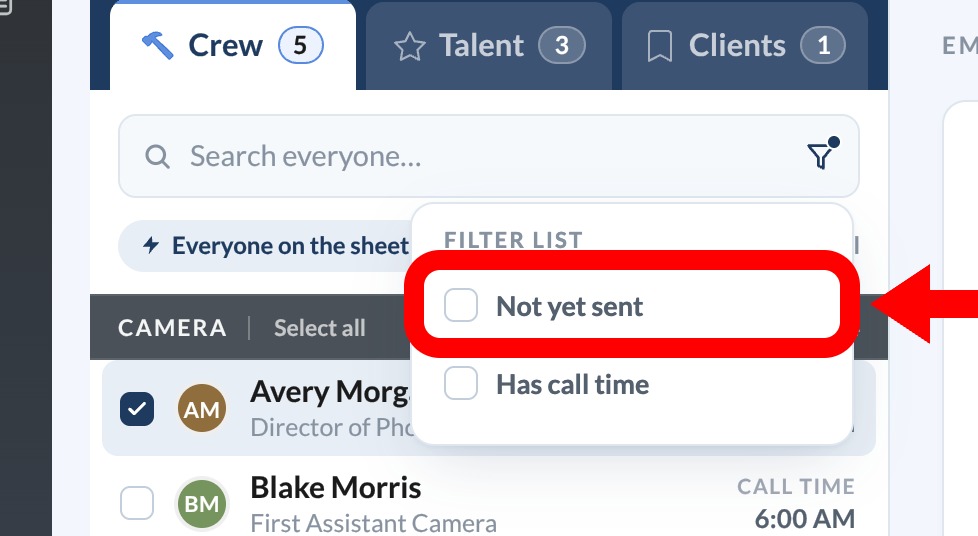
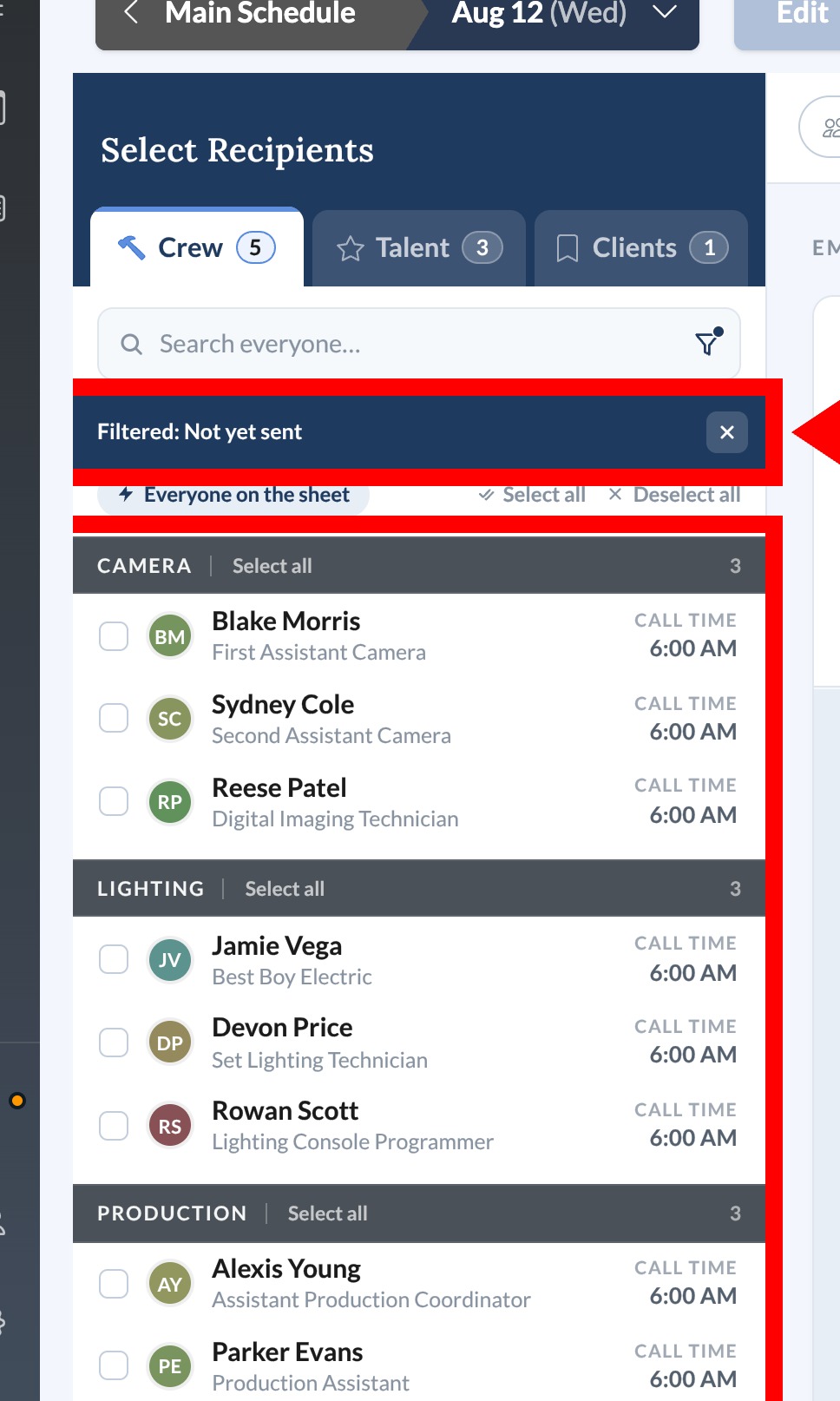
The filter is based on published-recipient history, not delivery status, so someone can be hidden even if no channel actually reached them. It also only hides rows. It doesn't change the saved selection.
-
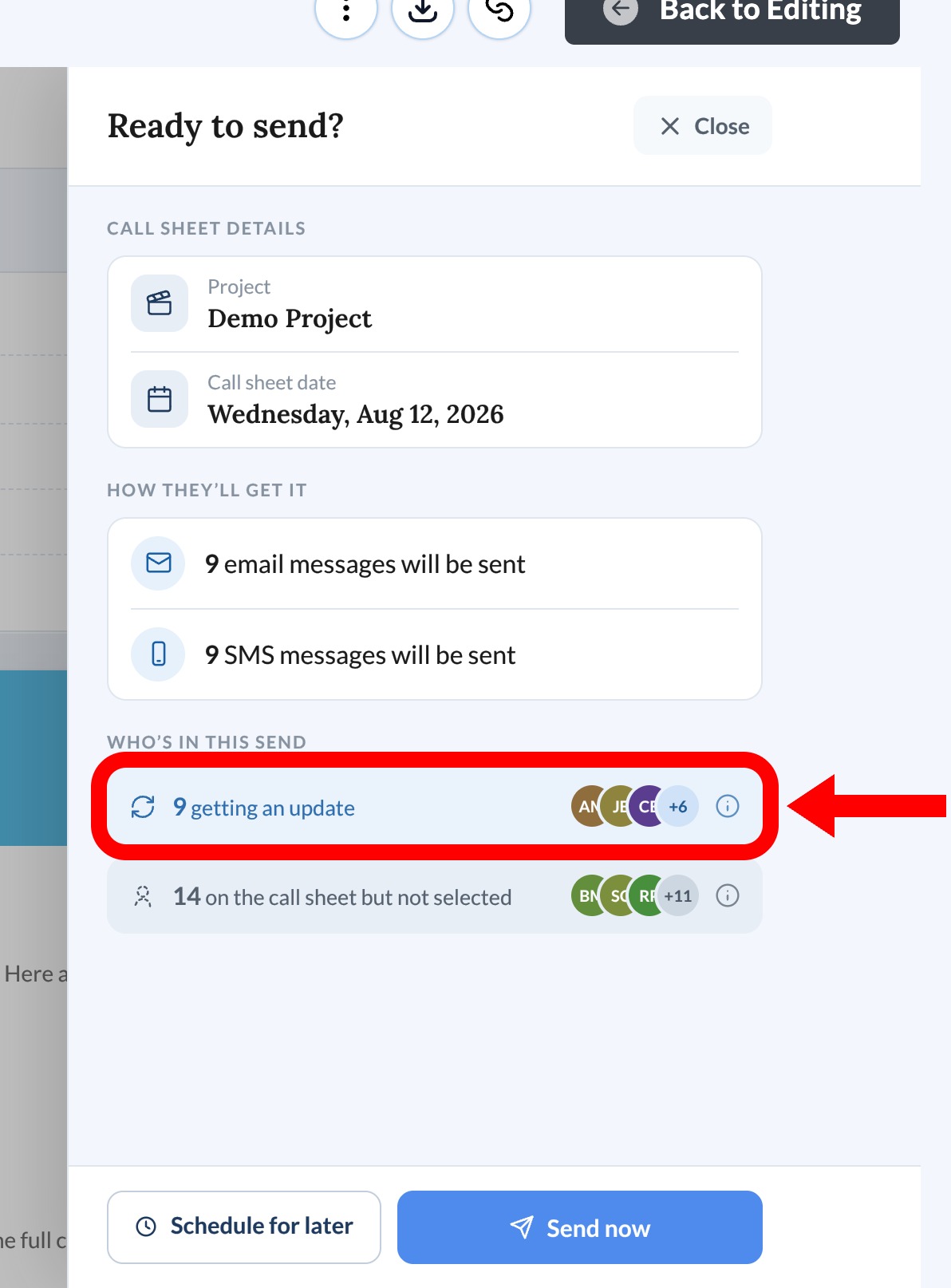
Select Review & Publish. In Ready to send?, the getting an update group lists selected people who were in an earlier send.
-
When the summary shows only the intended people and methods, select Send now.
Warning: Send now immediately notifies every selected recipient who can be reached. People from the earlier send aren't excluded automatically. Before you continue, clear anyone who shouldn't get another email or text.
Check recipient activity
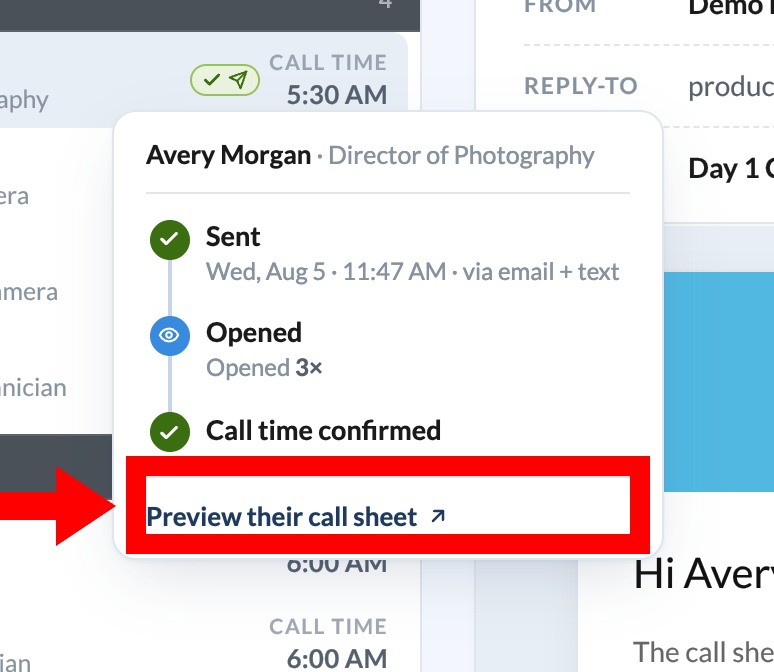
People included in an earlier send show a sent-status icon on their row. Select it to open their activity popover:
- Sent: the recorded date and time, with the channel flags for that recipient. This is activity context, not proof the provider delivered it.
- Opened with a count, or Not opened yet. The count records link opens, and repeat opens add to it.
- Call time confirmed, or Awaiting confirmation if they haven't confirmed.
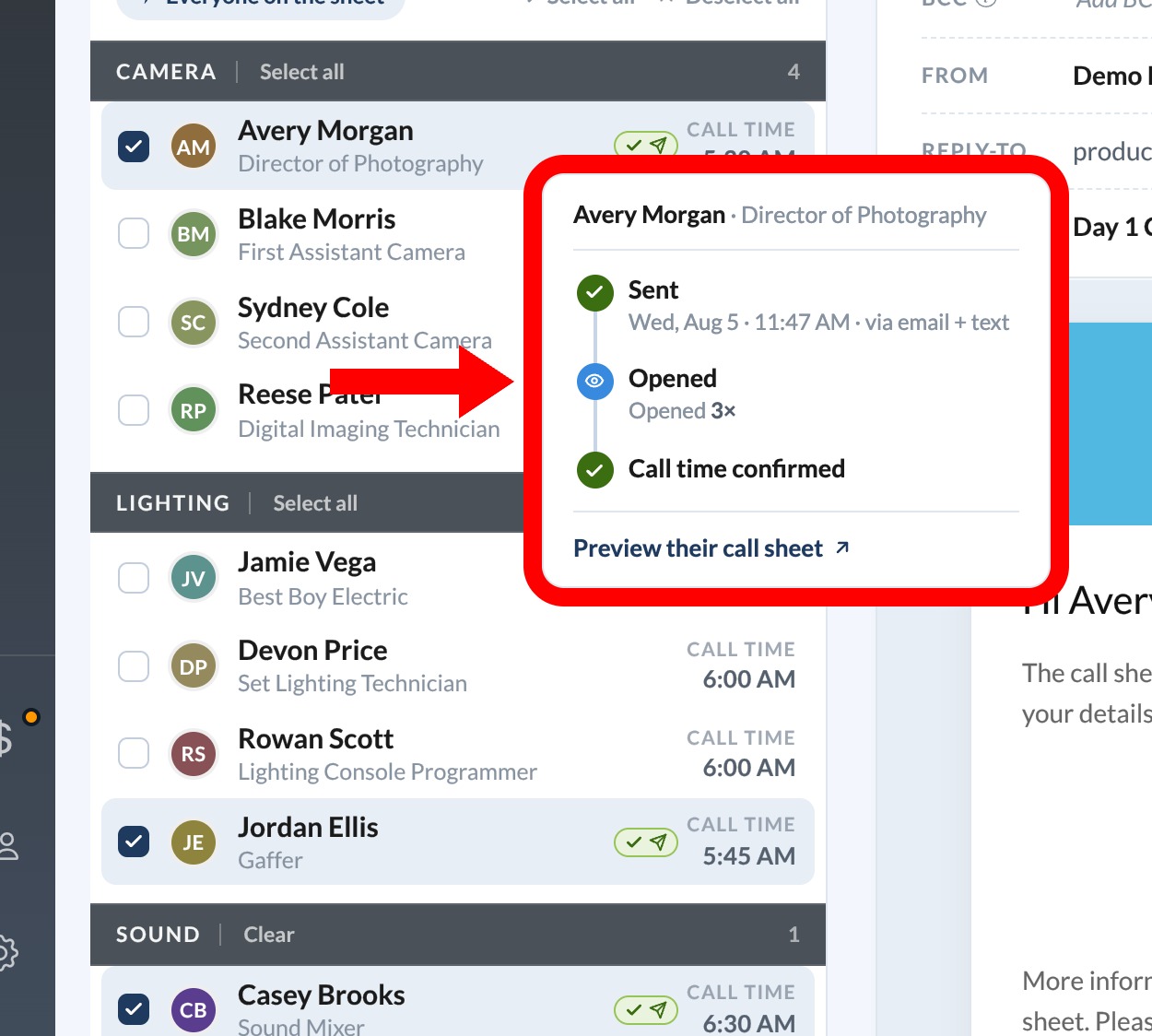
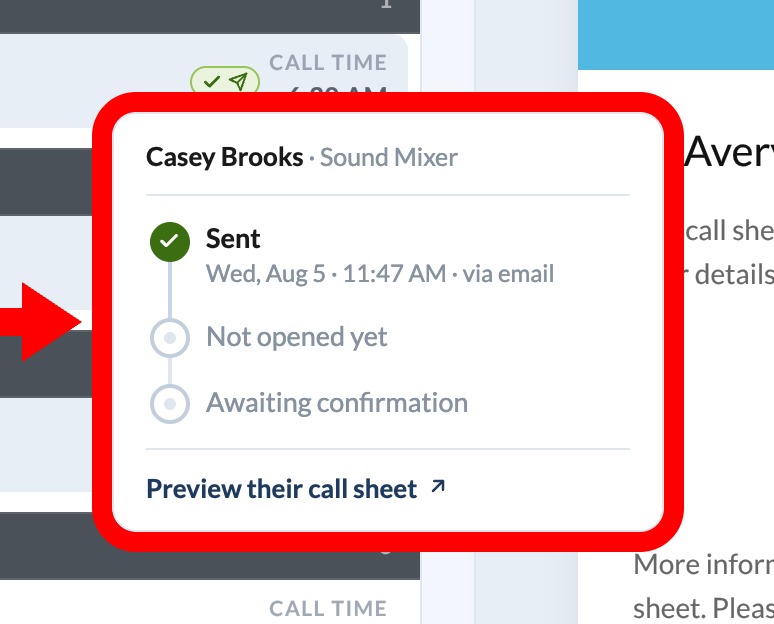
There's no separate Declined status. If someone says they can't make it, follow up outside this panel. For the full post-send recipient list, including Select Unconfirmed and resend, see Track who has confirmed a call sheet.
Preview a recipient's call sheet
Select Preview their call sheet in the popover to open the personalized published version for that person. If it fails:
- Couldn't find this recipient. Refresh, reopen the popover, and check the contact still belongs to the project.
- No call sheet preview available for this recipient yet. Refresh and try again. If it persists, confirm the person has a published recipient record for this call sheet.
- Couldn't load the call sheet preview. Check your connection, refresh, and retry. Contact Support if it keeps failing.