Track who has confirmed a call sheet
What each confirmation status means, and how to fix failed delivery
After a call sheet is published, Track Confirmations is the page you open the next morning. It lists every recipient, the status of their email and text, whether they opened the sheet, and whether they confirmed their call time. Publish and send a call sheet covers the send itself.
Open the confirmation page
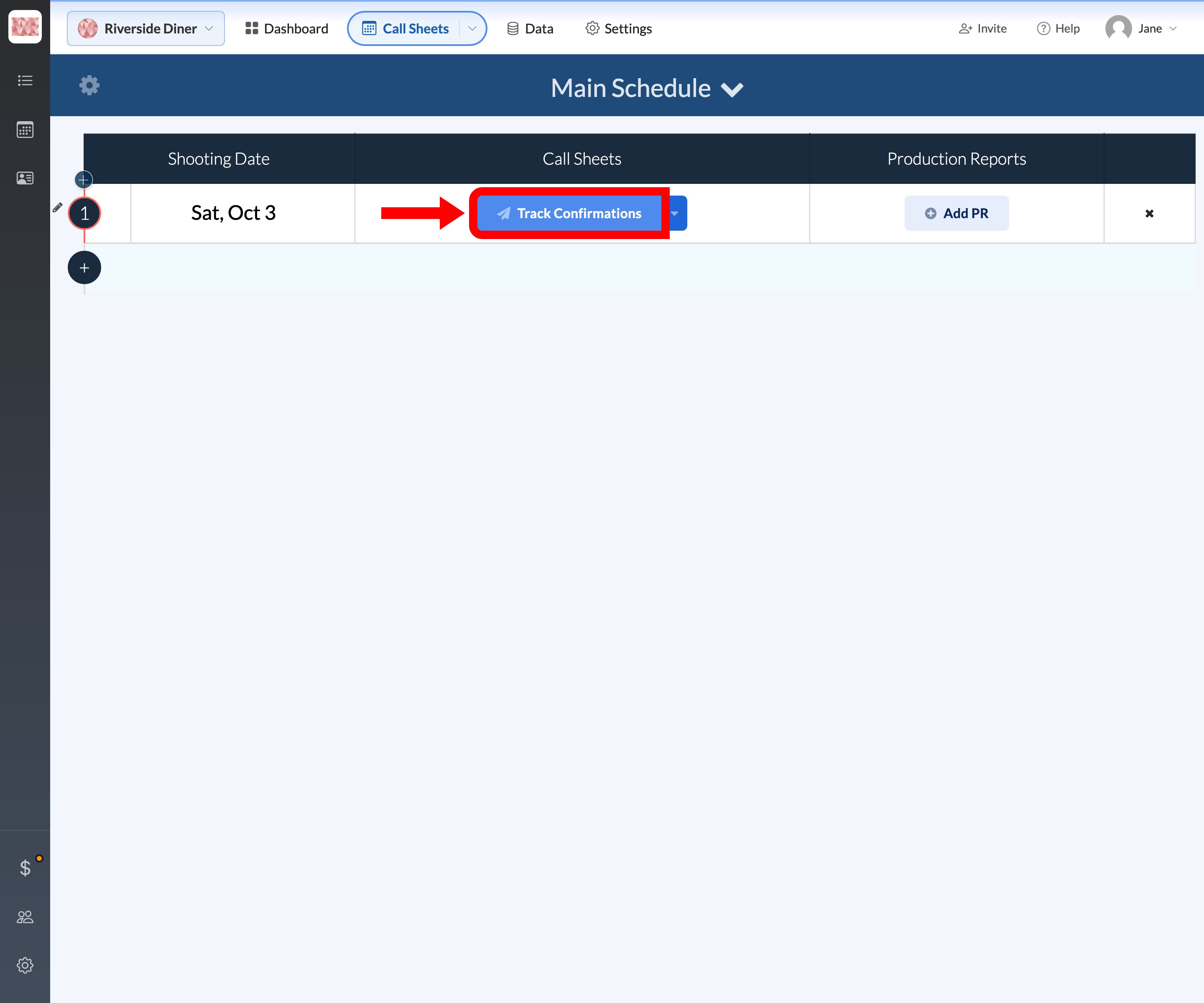
From the project dashboard, click Call Sheets in the top header. On a day whose sheet is published, the main button on that row is Track Confirmations. A draft still shows Edit. If a published sheet has another send scheduled, the main button becomes Sending Scheduled and Track Confirmations moves into the caret menu.
Read the status labels
Auto refresh keeps the list current, and Refresh Now reloads it immediately. The colored bar at the top groups people into lanes, and the same labels appear in each row's Status cell:
- Pending: SetHero hasn't recorded a delivery yet. The Email and SMS columns will show an hourglass. This is normal right after publishing.
- Failed: delivery didn't succeed. The row turns red and an ✗ appears.
- Delivered: the email or text left SetHero. This isn't proof the inbox accepted it.
- Viewed: the person opened their call sheet link.
- Confirmed: the person confirmed their call time.
- Declined: the person declined. A reason can appear next to the status.
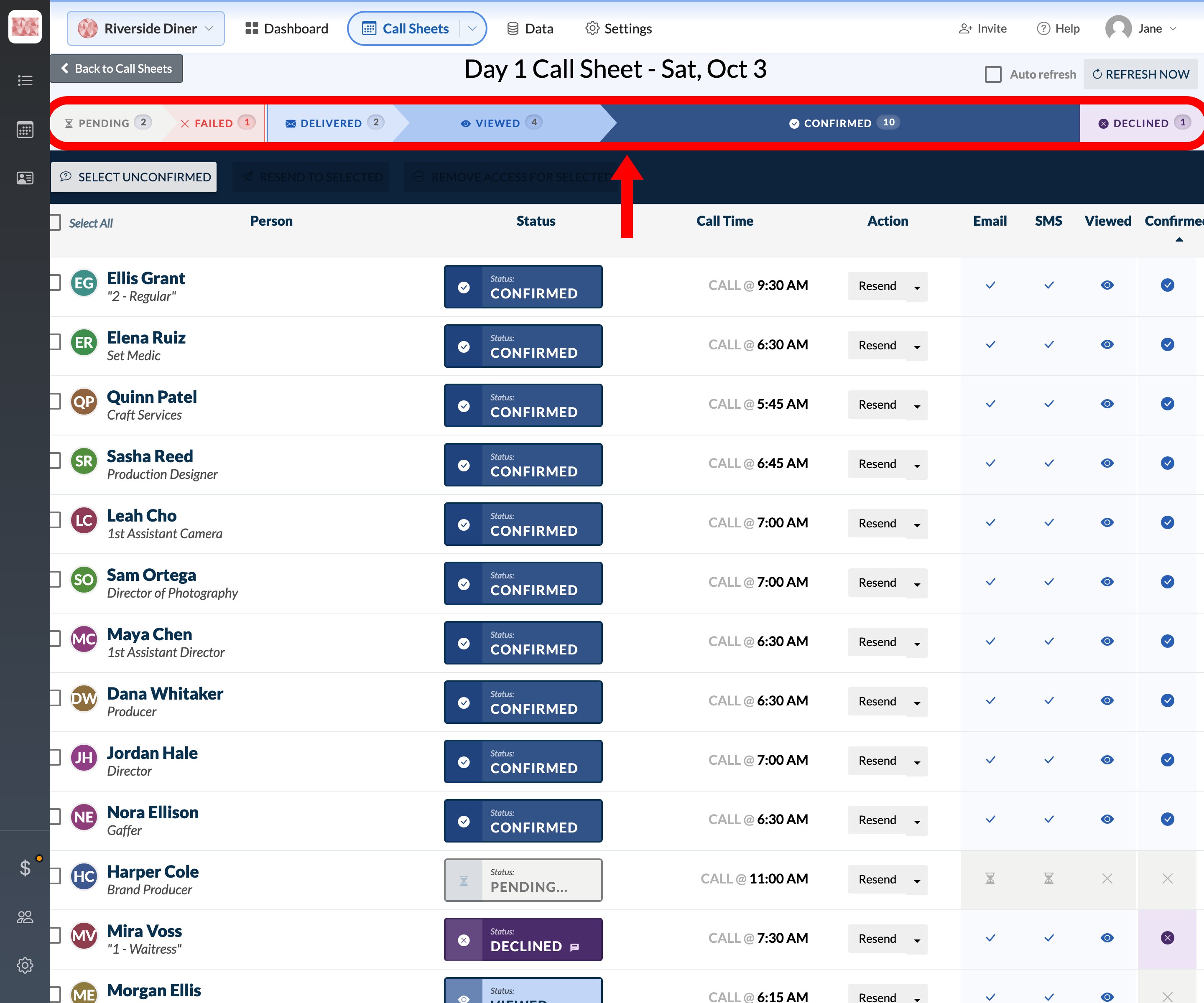
Each row also has Email, SMS, Viewed, and Confirmed columns on the right side. Here's what the icons mean:
- Email and SMS — a ✓ (check) means that channel was delivered successfully. An ✗ (red X) means it failed. An hourglass means it's still pending. A dash means that channel wasn't sent.
- Viewed — an eye icon appears when the person opened their call sheet link. An ✗ means they haven't opened it yet.
- Confirmed — a blue check appears when the person tapped Confirm. An ✗ means they haven't confirmed. A red ✗ with a colored background means they declined.
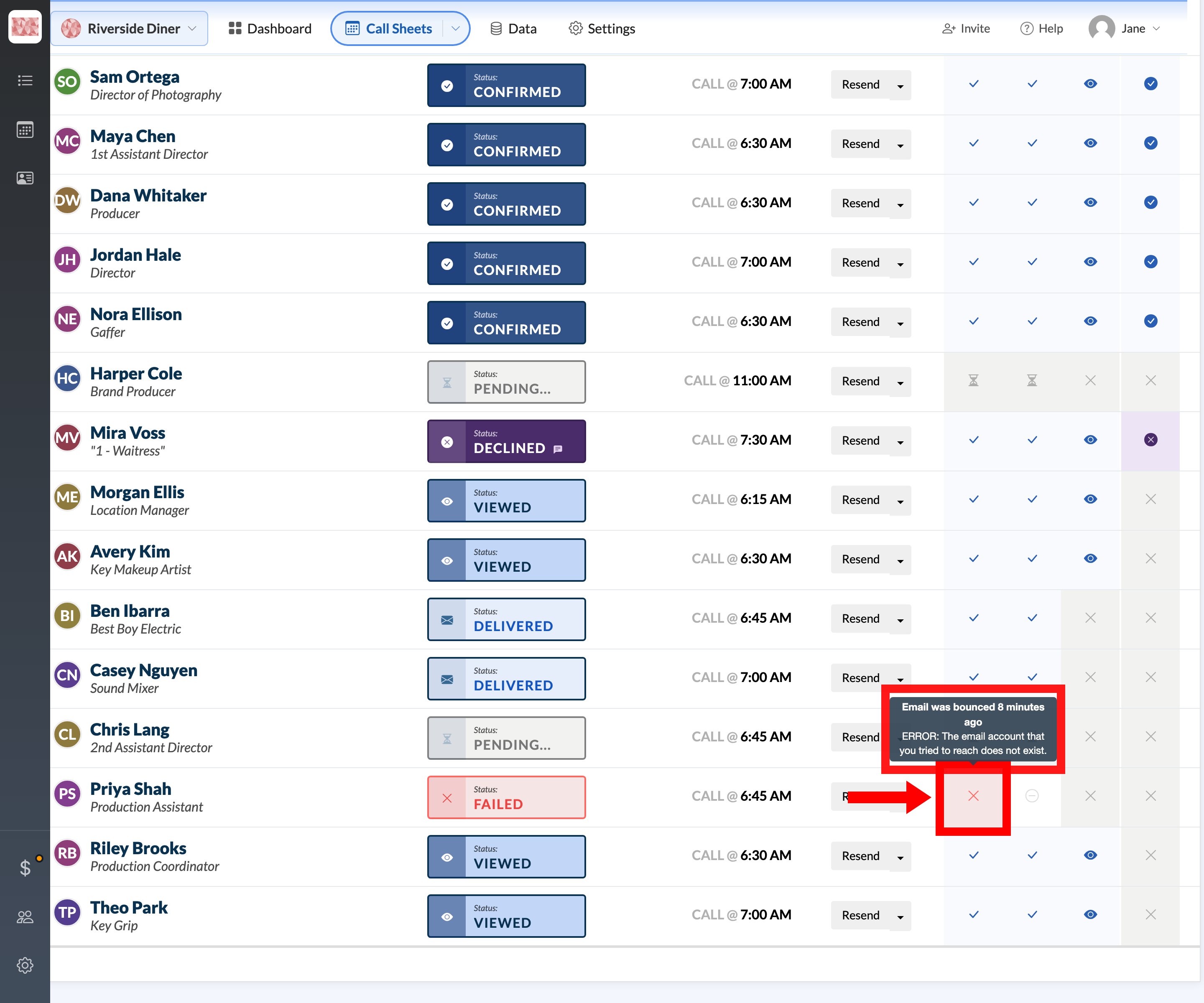
Hover any icon to see the timestamp or error behind it.
Fix delivery errors
Failed means the message didn't get through on any channel. If only one channel failed, the row can stay Delivered, Viewed, or Confirmed but will display a 1 fail badge. Hovering the red Email or SMS icon reveals the error, such as a bounce or an undeliverable number.
To resolve a failure:
- Find out what's wrong with the contact's details (e.g. an incorrect email domain or missing area code).
- Go to the Contacts page, edit their profile, and fix their email address or phone number (see Required info for sending email and text).
- Return to Track Confirmations and click Resend on their row to try again. Don't resend before fixing the contact, or the same error will repeat.
What to do when someone declines
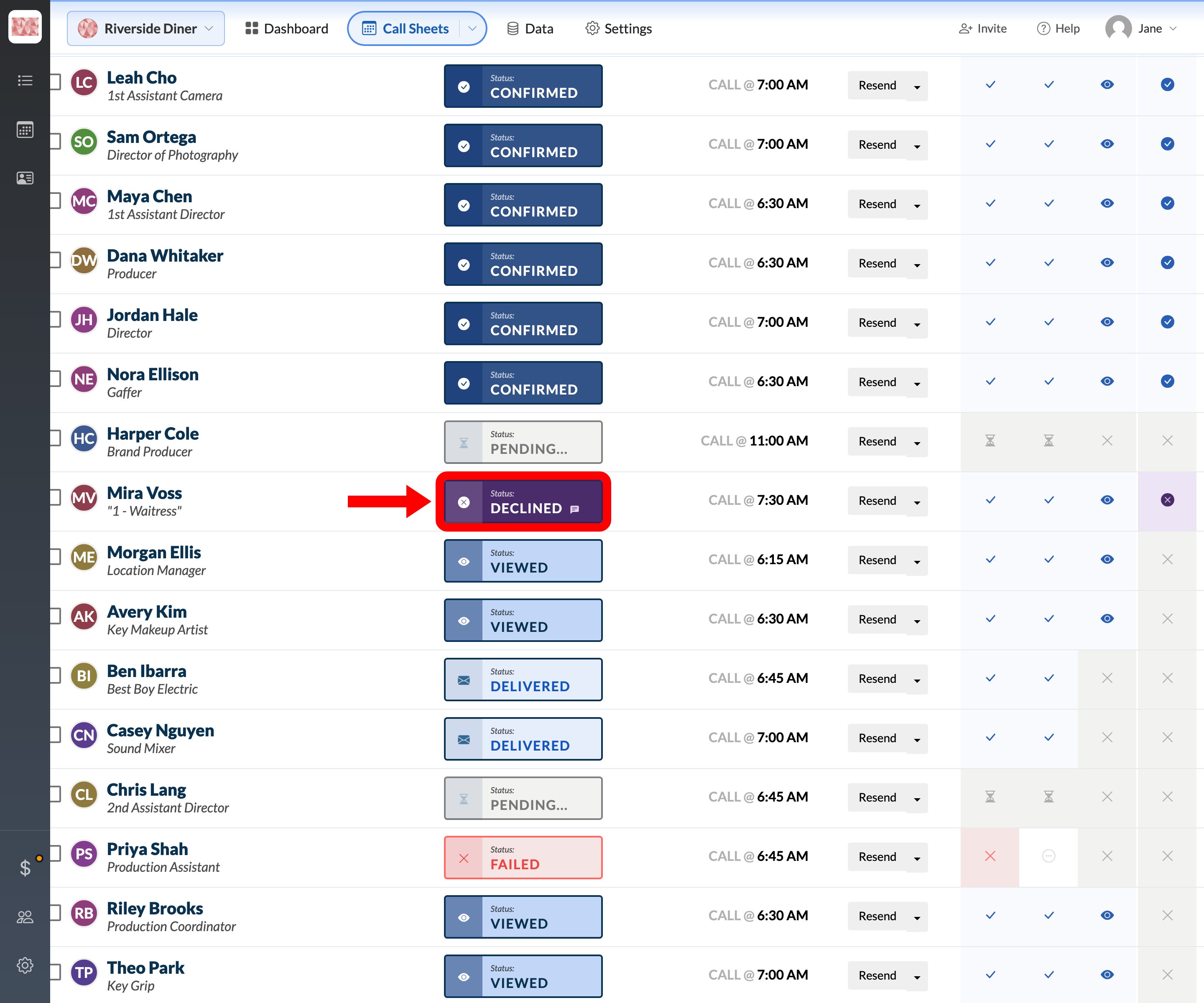
If the company allows people to reject a call time, that person moves to Declined. They can leave a specific reason like "Schedule conflict" or "Not available", which appears as a note icon next to the status. Hover the note icon to read their reason. Declined isn't a delivery error — the message went through and they chose not to take the call.
How someone confirms
Cast and crew don't log in. They tap View and Confirm in the email or View details & confirm here in the text, which opens the web call sheet on their phone. From there, they tap Confirm (or Decline if the company allows it). The mobile call sheet is the tab-by-tab tour.
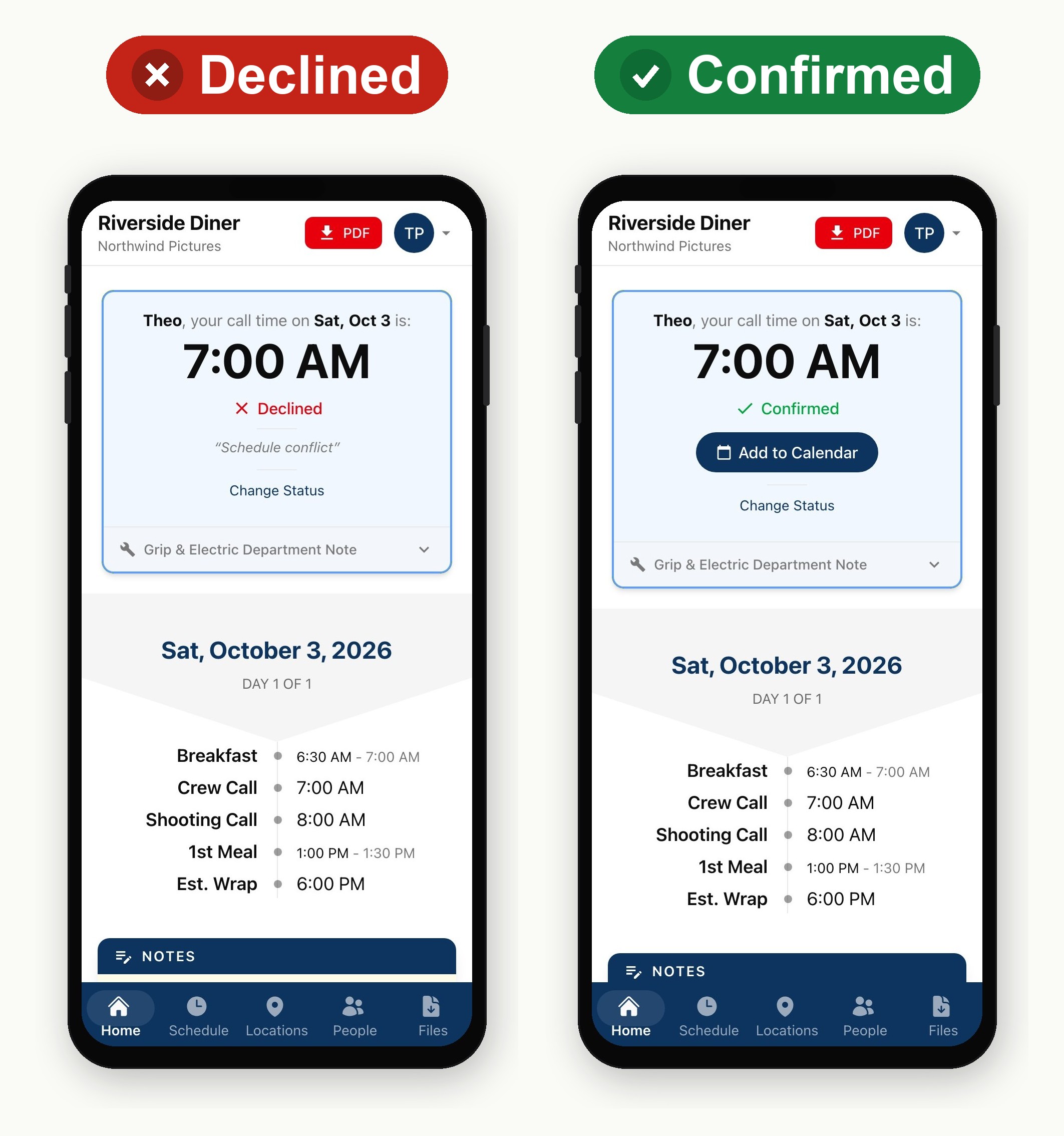
Once they confirm, the row moves to Confirmed and the Confirmed column shows a check. Opening the sheet without tapping Confirm only moves them to Viewed.
Find and nudge people who haven't confirmed
Click Select Unconfirmed in the dark toolbar to check everyone who isn't Confirmed. You can also click the Confirmed or Status column headers to sort.
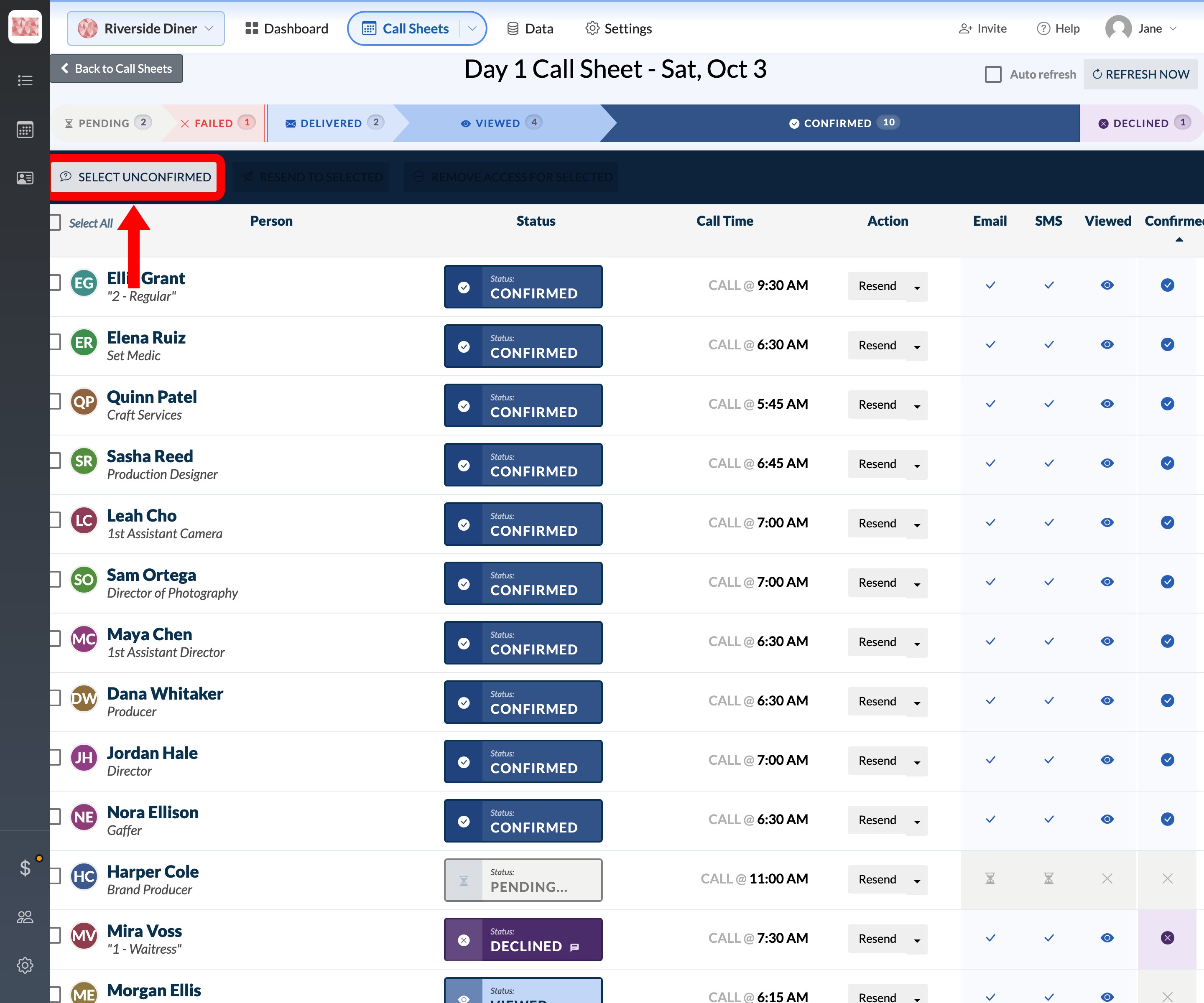
With rows checked, Resend to Selected becomes available. Both Resend to Selected and the individual Resend button open a dialog where you choose Resend Email, Resend SMS, and optionally Reset Confirmation and View Counts.
Note: There's no separate "resend only to unconfirmed" button. Select Unconfirmed, then Resend to Selected, is that path.
What happens when you revise
Editing a published sheet and sending an update doesn't clear Viewed or Confirmed. Existing people keep their earlier activity, and a new recipient starts at Pending. Confirmations reset only when you resend with Reset Confirmation and View Counts checked.
If you only need to change the published document without notifying anyone or altering your confirmation statuses, use the Update Silently option from the publisher instead.

See Update or resend a published call sheet for details on silent updates and resending to specific people.