Payment card, renewals, and invoices
Update your card, find invoices, and fix declined payments
Manage your payment card, billing details, and invoices from Company Billing, available from the dollar icon in the left sidebar. Any company member can view and update this information, not just the owner. Billing basics covers the rest of that page.
Add your card and billing details
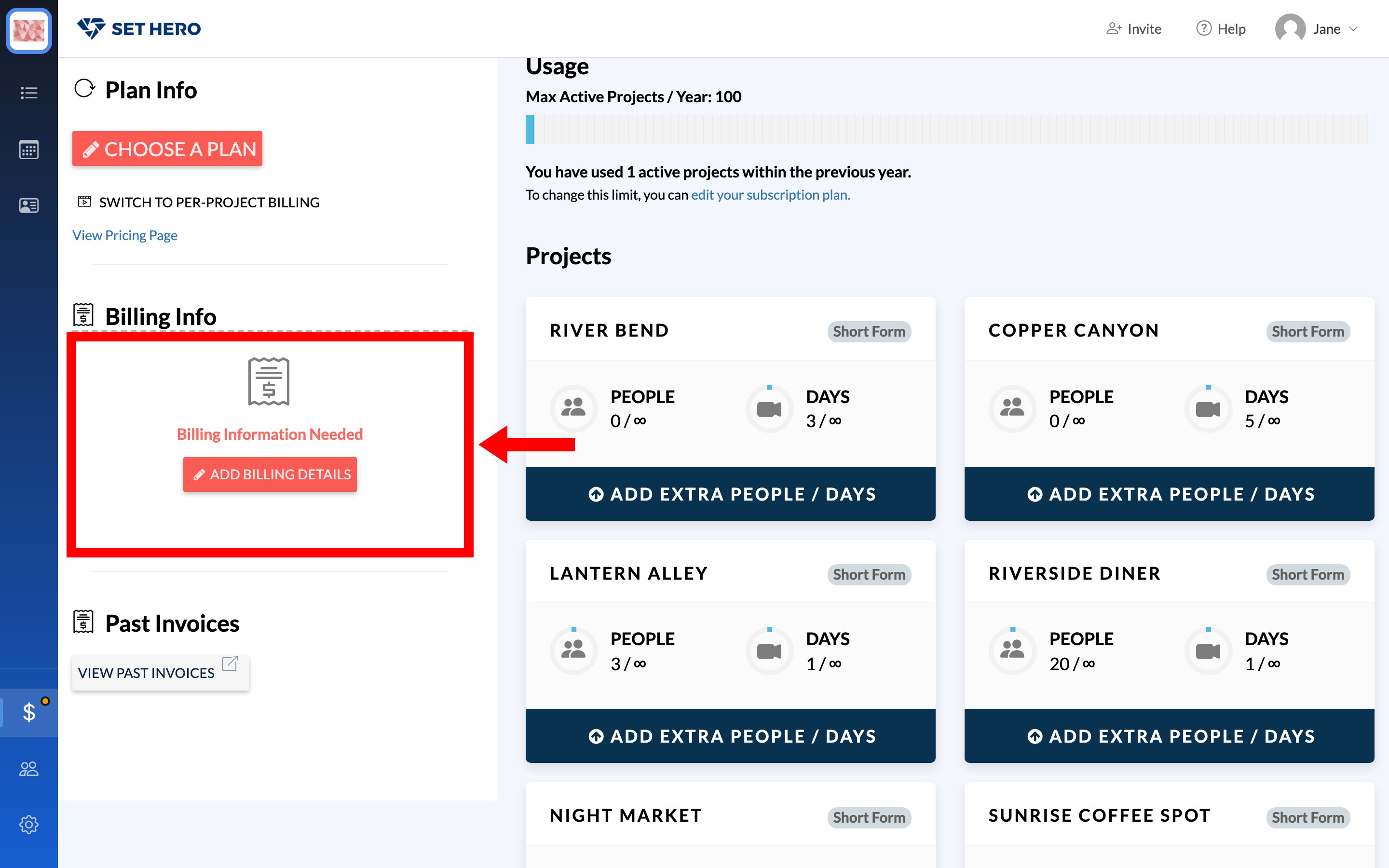
Until a card and address are on file, the Billing Info card reads Billing Information Needed.
-
On the Billing Info card, click Add Billing Details and enter your payment card information.
-
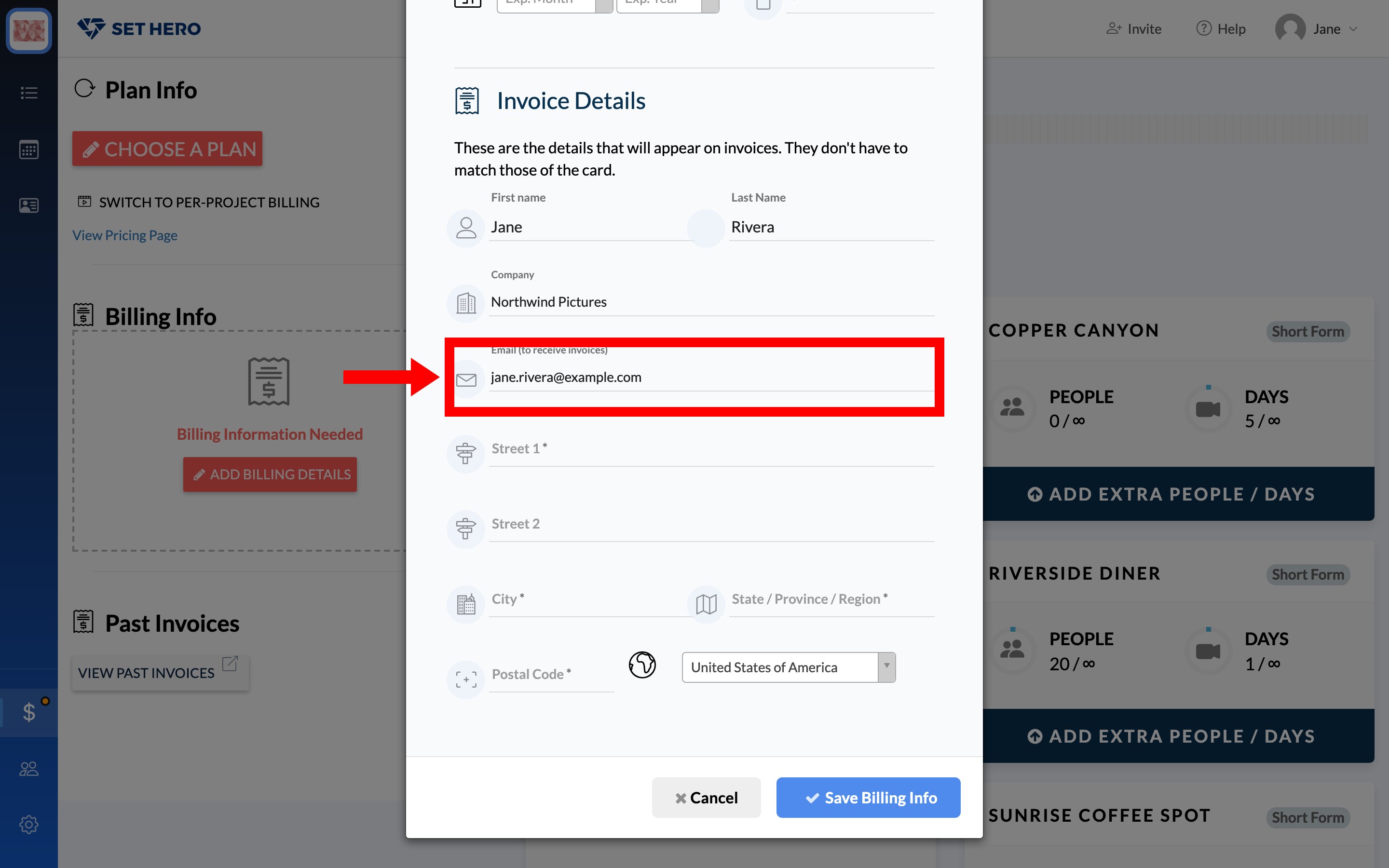
Under Invoice Details, enter the name, company, invoice email, and address you want printed on invoices. These details don't need to match the payment card. For example, you can pay with a producer's card while invoicing the production company.
-
If you select a country outside the US or Canada, an optional EU VAT Tax Number field appears. Leave it blank if you don't have one.
-
Click Save Billing Info when finished.
If you start a purchase before adding a card, clicking Complete Order shows a First time billing setup. prompt with a Setup Billing button that opens this same form, then returns you to the order.
You can update invoice details later with Edit Billing Info. To change the payment card, use Replace Card instead.
Replace the card on file
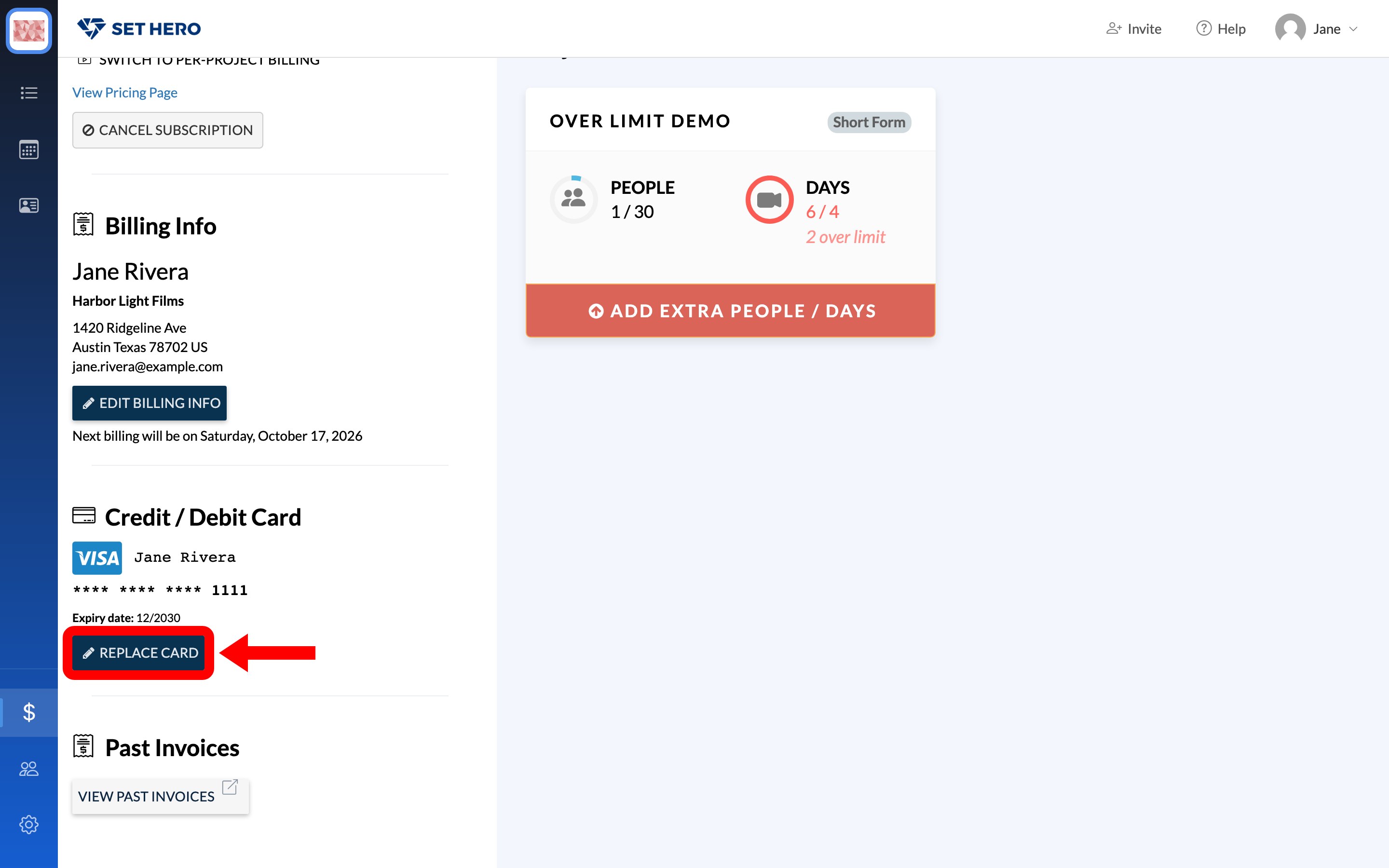
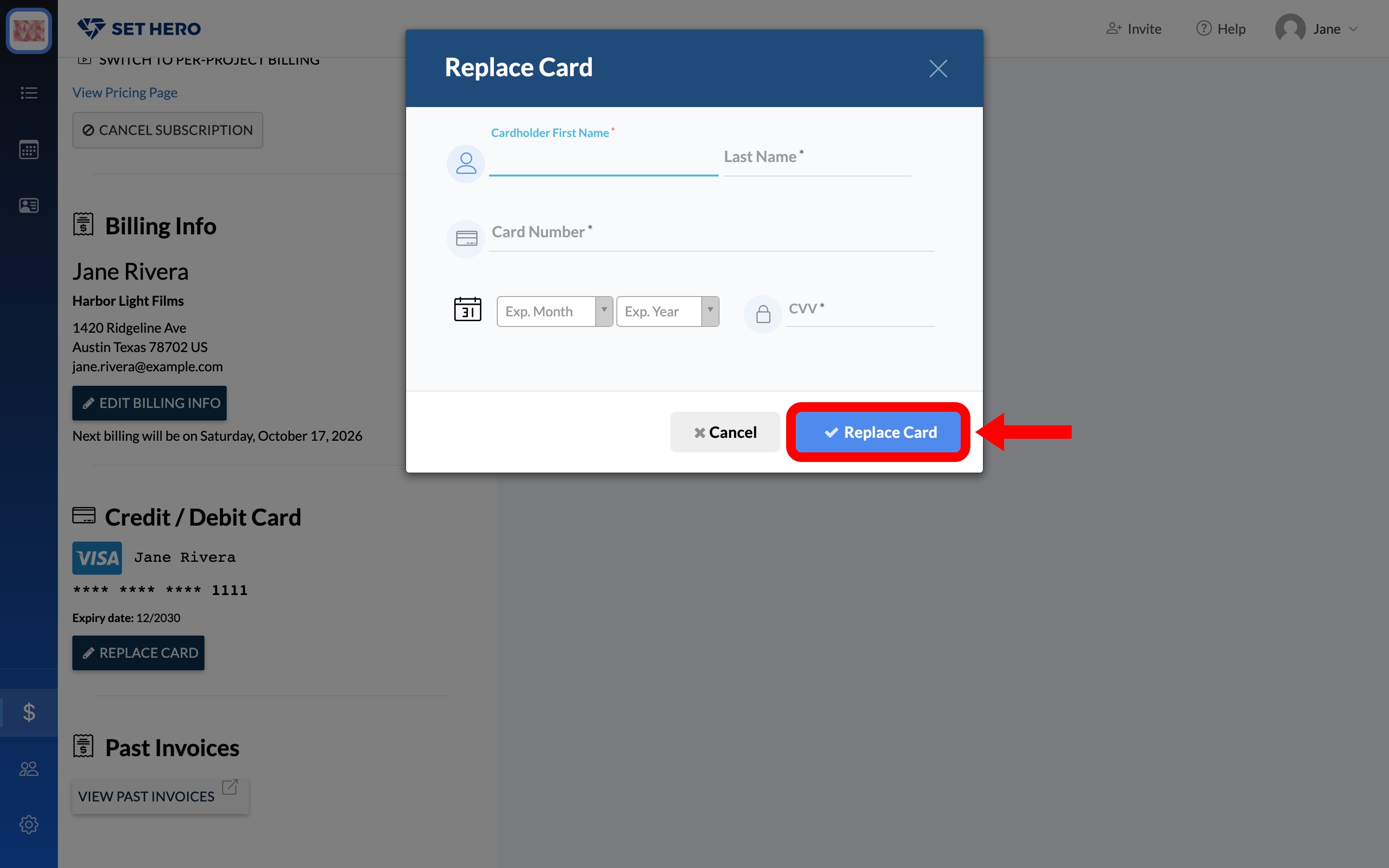
Click Replace Card under Credit / Debit Card. The form opens blank, so enter the new card details in full and confirm with Replace Card.
Important: You can't remove a card without replacing it. To stop future charges, cancel the subscription instead. Removing payment details is not how billing stops. See Cancel your subscription.
Check your next billing date
If you have an active subscription, your next billing date appears on the Billing Info card.
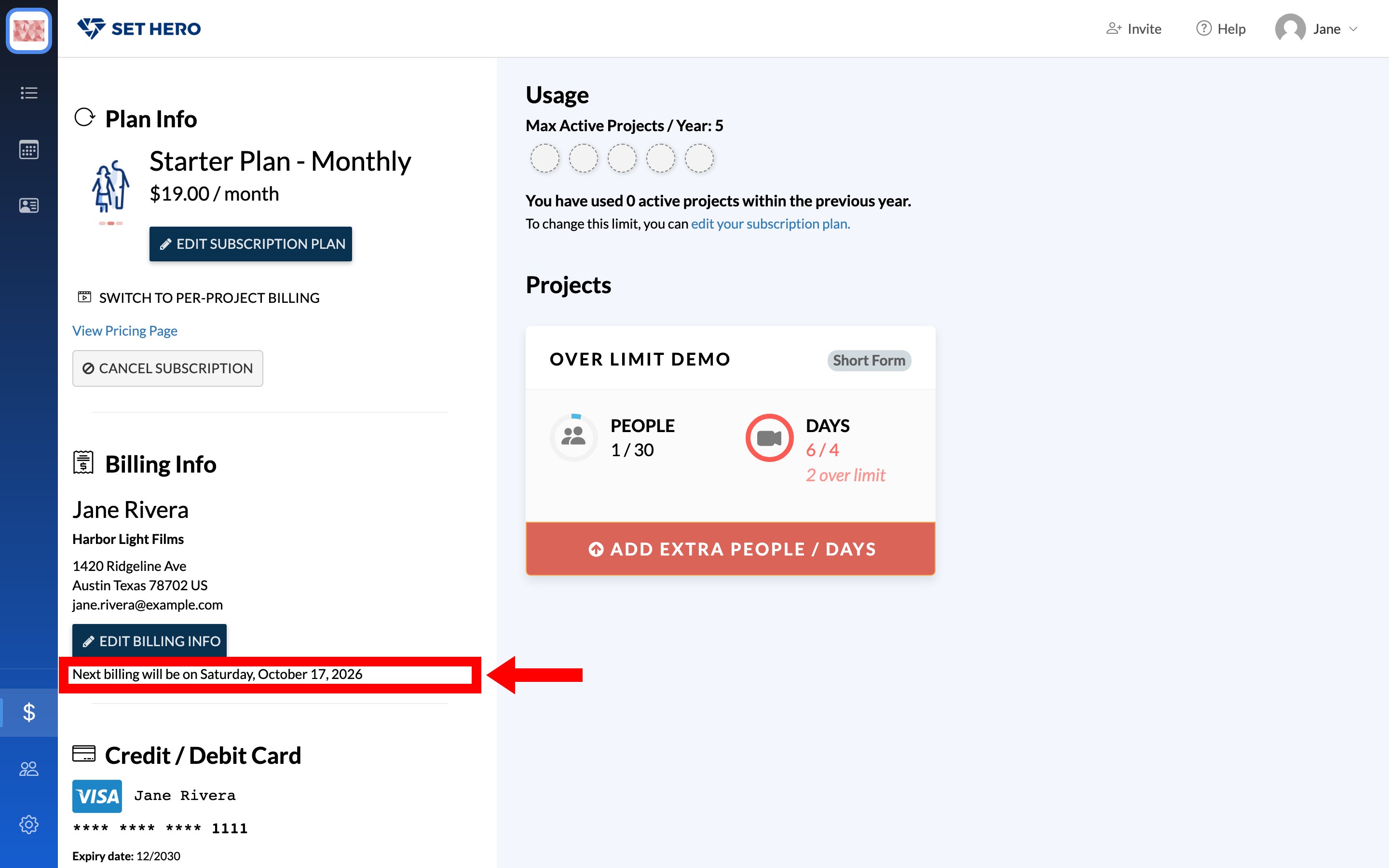
Monthly and yearly subscriptions renew on that date and continue renewing until canceled. A per-project Pay-As-You-Shoot subscription renews weekly until you cancel it from the project's card on the billing page.
You'll receive a reminder email a few days before renewal with the expected date and amount. Change or cancel the plan before that date if you don't want it to renew. If a renewal still catches you out, Refunds and billing mistakes explains the refund window.
Important: Renewal reminders, receipts, invoices, and payment-problem notices come from our billing provider rather than directly from SetHero. They may look different from other SetHero emails. Receipt subject lines begin with "Your SetHero receipt [#…]", and these emails are genuine.
Find and download an invoice
Click View Past Invoices to open the billing portal in a new window. Under Manage Subscriptions, open Billing History to view past charges and download invoices.
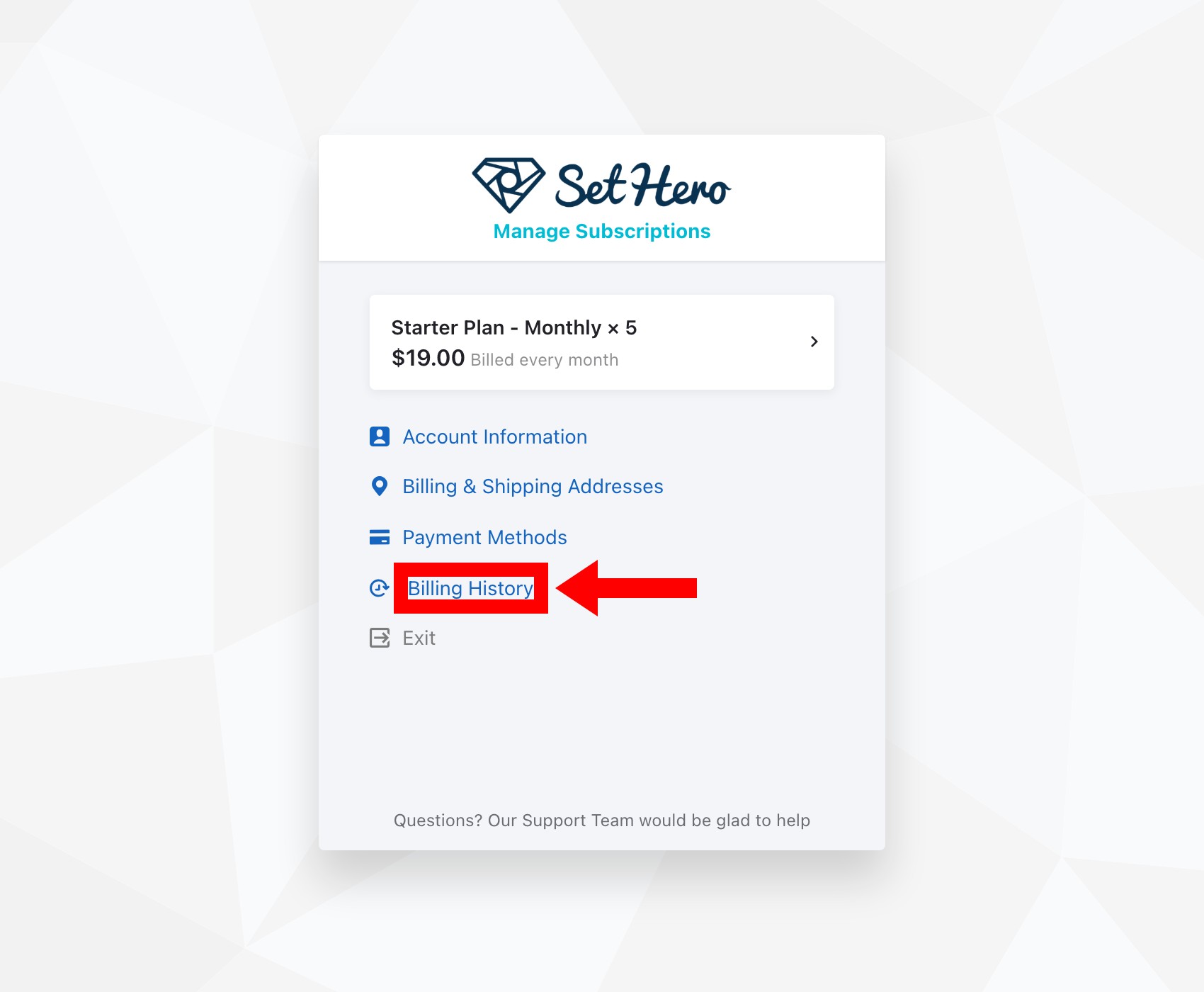
Note: You can't cancel a subscription from the billing portal. Return to the Company Billing page in SetHero to cancel.
Change the invoice email
Invoices and receipts go to the address listed under Email (to receive invoices), which can be different from your sign-in email.
To send future invoices to a bookkeeper or production email, click Edit Billing Info, update the email address, and save your changes.
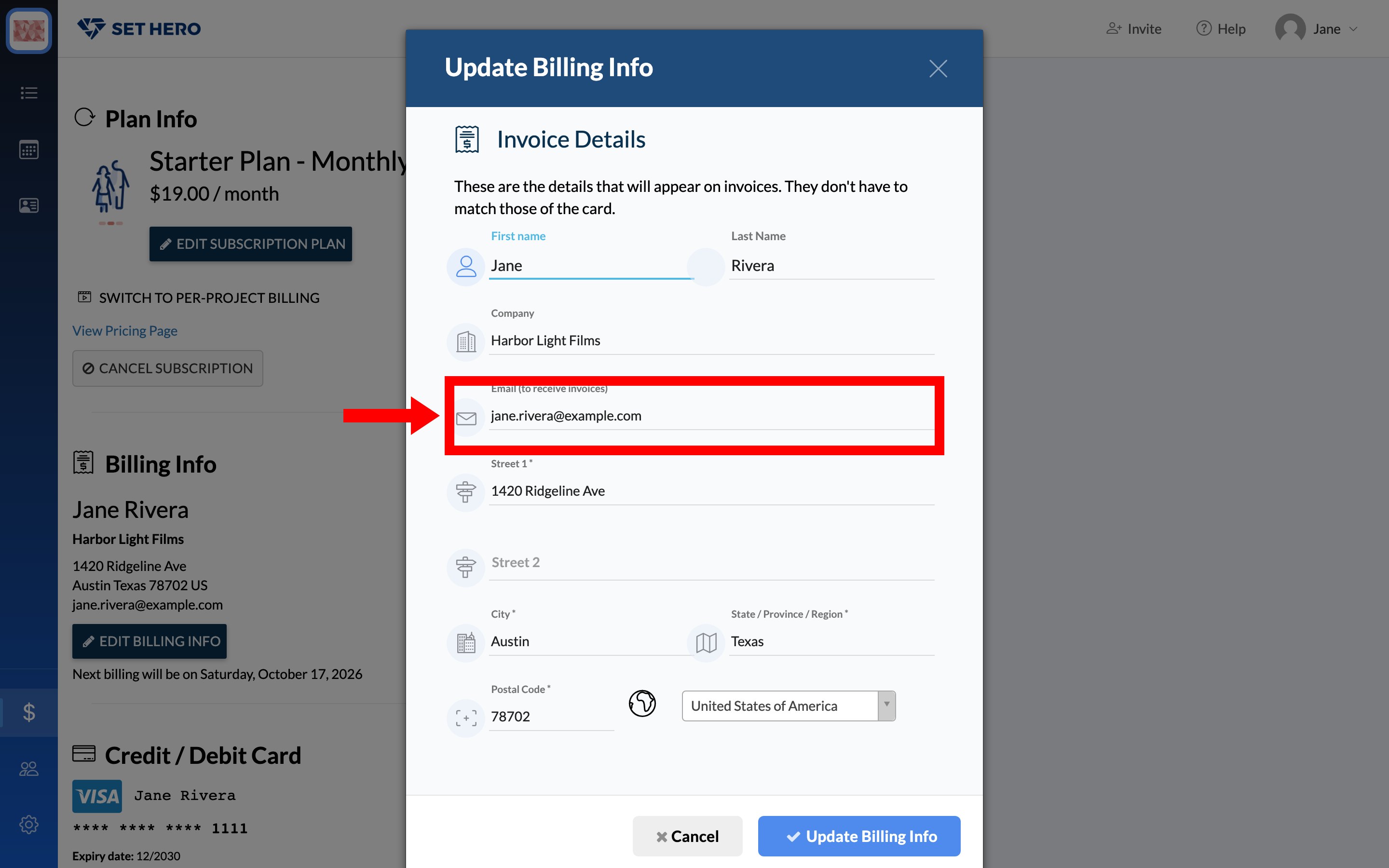
New invoices will go to the updated address. Previously sent invoices won't be resent automatically.
Fix a declined card or failed upgrade
A failed purchase may show "Error processing plan update," while a rejected replacement card may show "Error updating card info." Any additional message comes from the card issuer or billing provider.
The message "Card details are blank or not valid" usually means the form is incomplete rather than the card being declined.
First, select Replace Card and carefully enter the card details again. If the card is still rejected, contact the bank using the number on the back of the card or check the available balance. Cards issued outside the US are supported and aren't declined for that reason alone.
Once the card saves successfully, try the purchase again.
Failed subscription renewals
Renewals commonly fail because the saved card has expired or was replaced by the bank. You'll receive an email titled "[Important] There's a problem with your payment", and the billing provider will retry the charge over the next few days.
Replace the card from Company Billing so the next retry can collect the payment.
Important: If the payment doesn't clear, the subscription is downgraded. Publishing call sheets and production reports will stop working until billing is restored.
Failed project upgrades
If a project upgrade fails, the project returns to its previous size. Nothing is left partially upgraded or paid. After fixing the card, run the upgrade again from the project's card on the billing page. See Upgrade a single project.
The payment succeeded, but the plan hasn't updated
Log out and back in, or hard-refresh the page. This resolves most delayed updates.
If the old plan or limits still appear, contact support and include the plan you purchased so the team can check your account.