Reusing scenes and locations across days
How to reuse project locations and scenes on new call sheets
Every scene and location you add to a project is saved in its Data lists, so you can pull them into any day's call sheet without retyping them.
Reuse a location
- Open the call sheet, select Edit beside Day Details, and go to the Location & Notes tab.
- Under Locations, click Select Location on the row you want to fill.
- Choose a location from the list. You can type to search by name, street, city, or zip code.
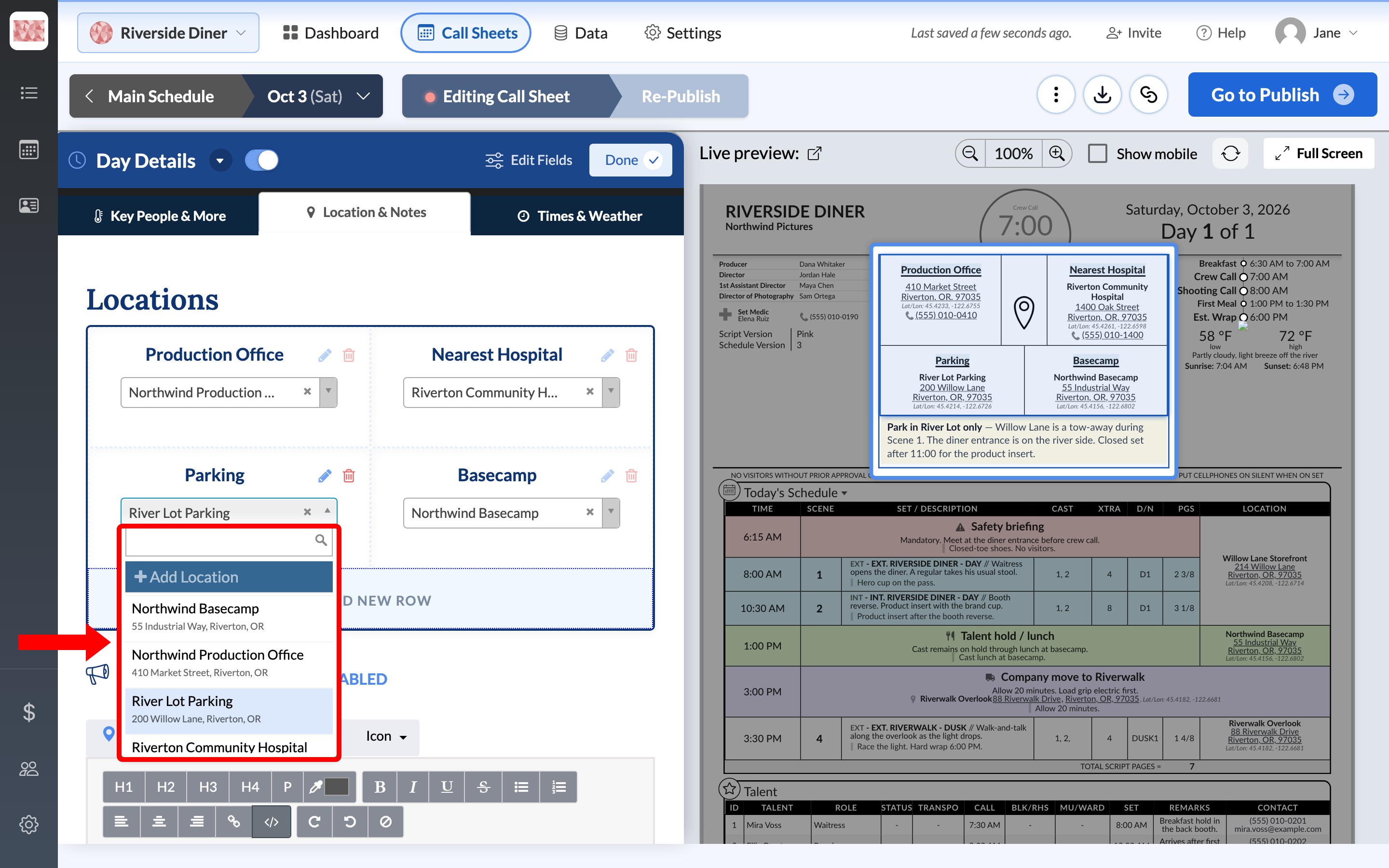
Locations, parking, and the nearest hospital covers adding new locations and changing the rows.
Add scenes to a call sheet
There are three ways to add saved scenes to a day. Build today's schedule covers the rest of the schedule, including banners and company moves. Each one starts from your project's scene list, so the scene's details fill in for you.
Add several scenes at once
- Open the call sheet and select Edit beside Today's Schedule.
- Click the arrow beside Add Scene and choose Lookup scenes. A panel opens with your scene list.
- Search or scroll, then select each scene you want.
- Click Add to Schedule.
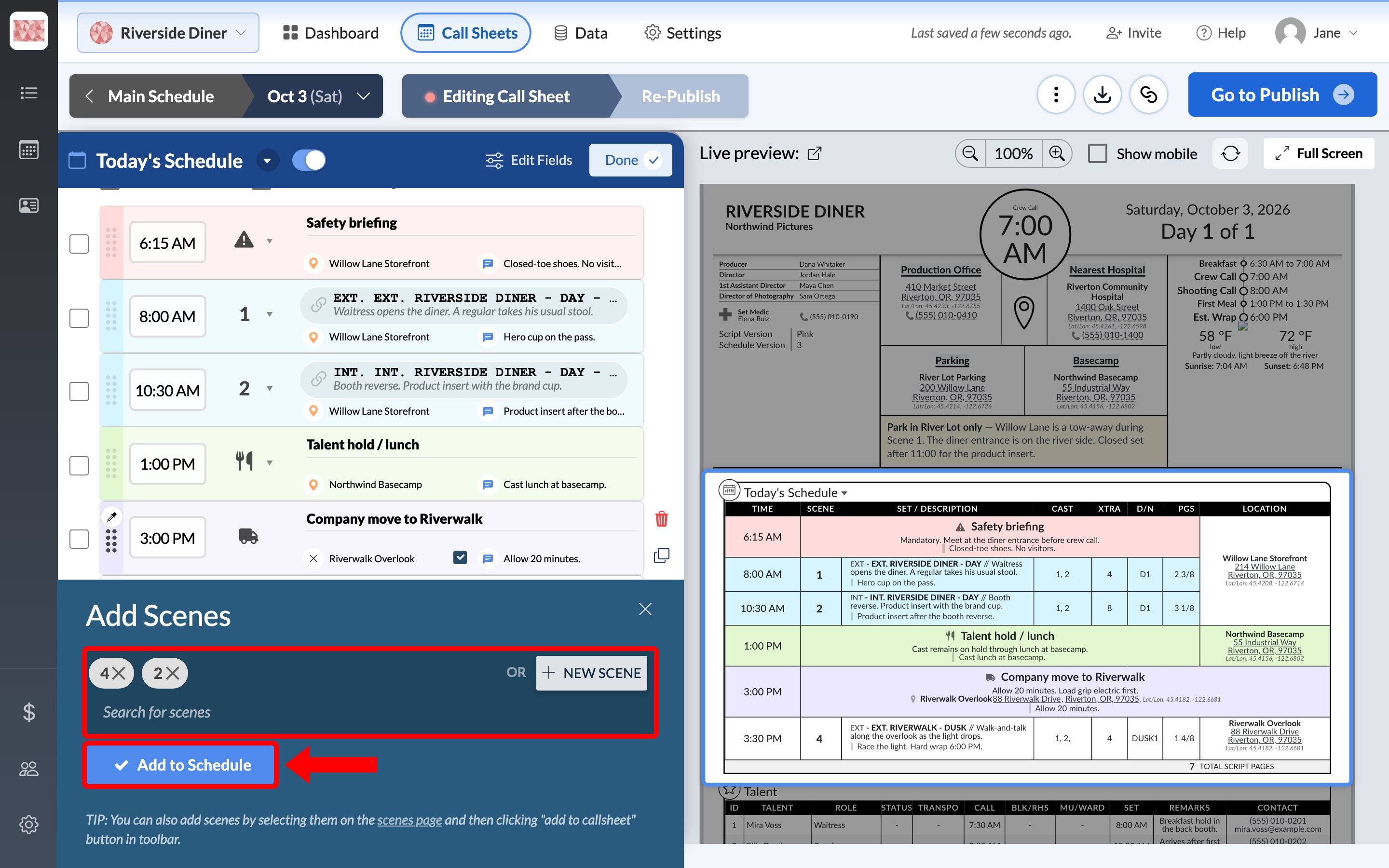
SetHero remembers this choice, so the main button then reads Lookup Scenes. To go back, click the arrow and choose the other option.
Add one scene to a new row
-
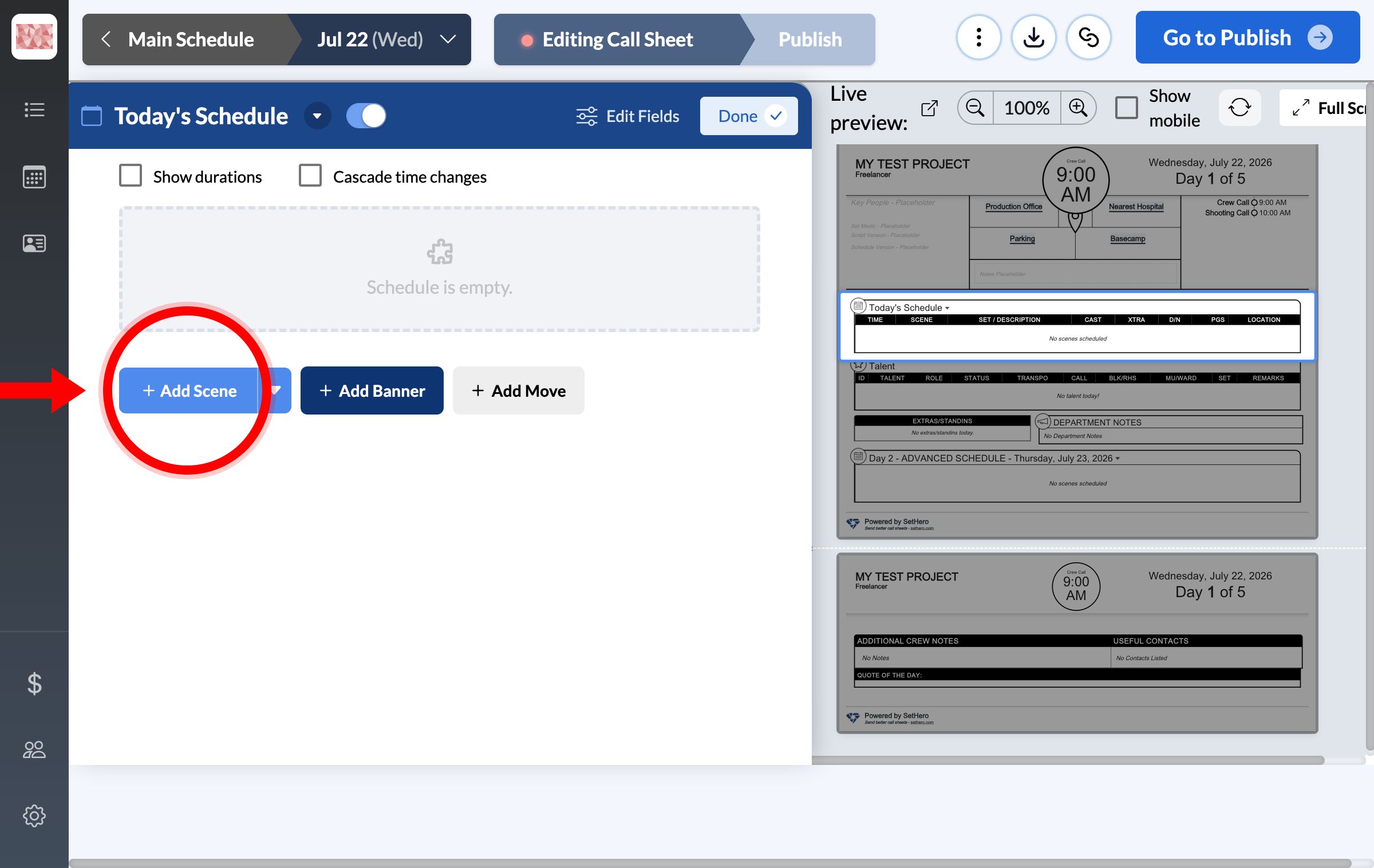
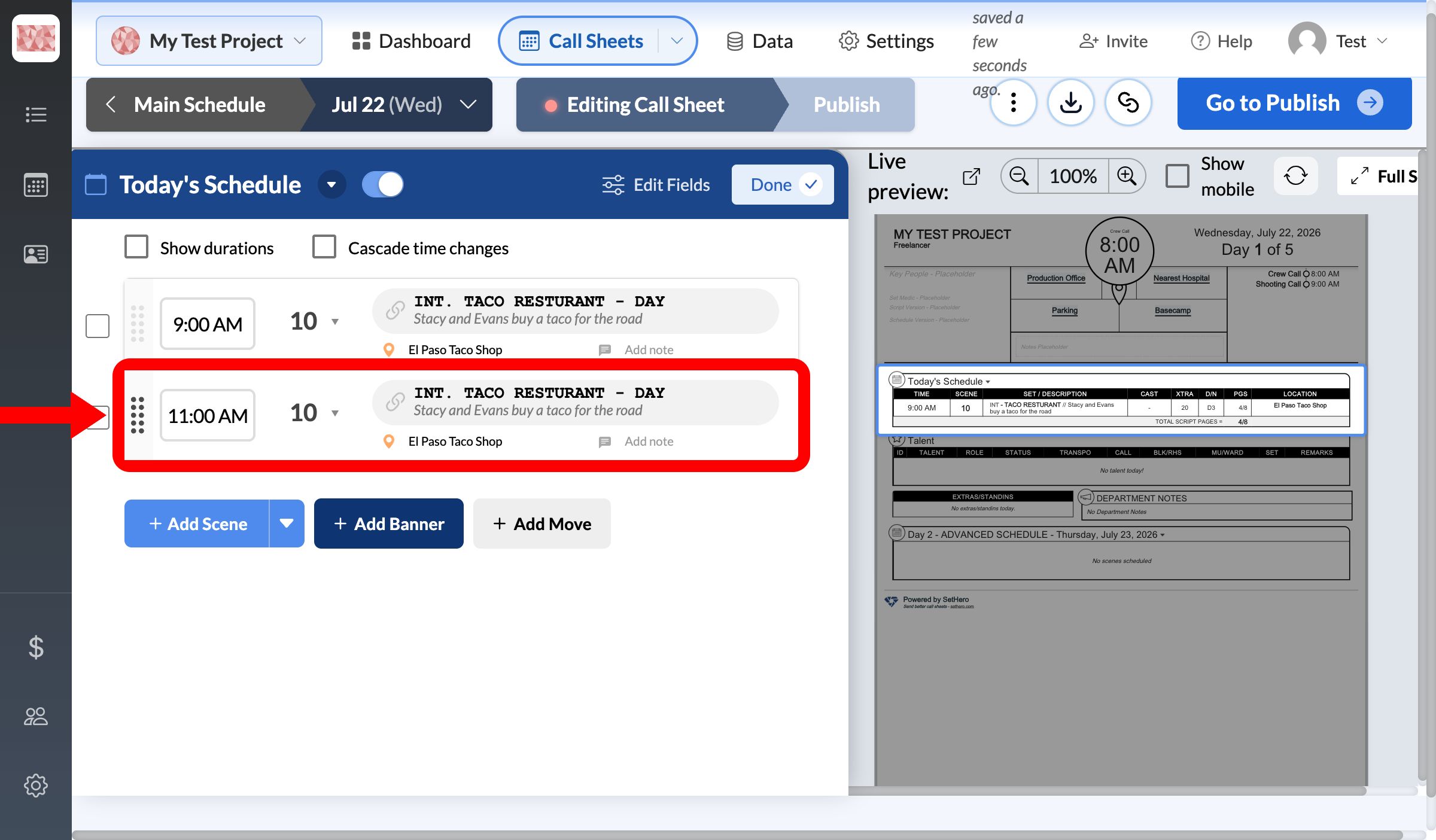
In Today's Schedule, click Add Scene to create a row.
-
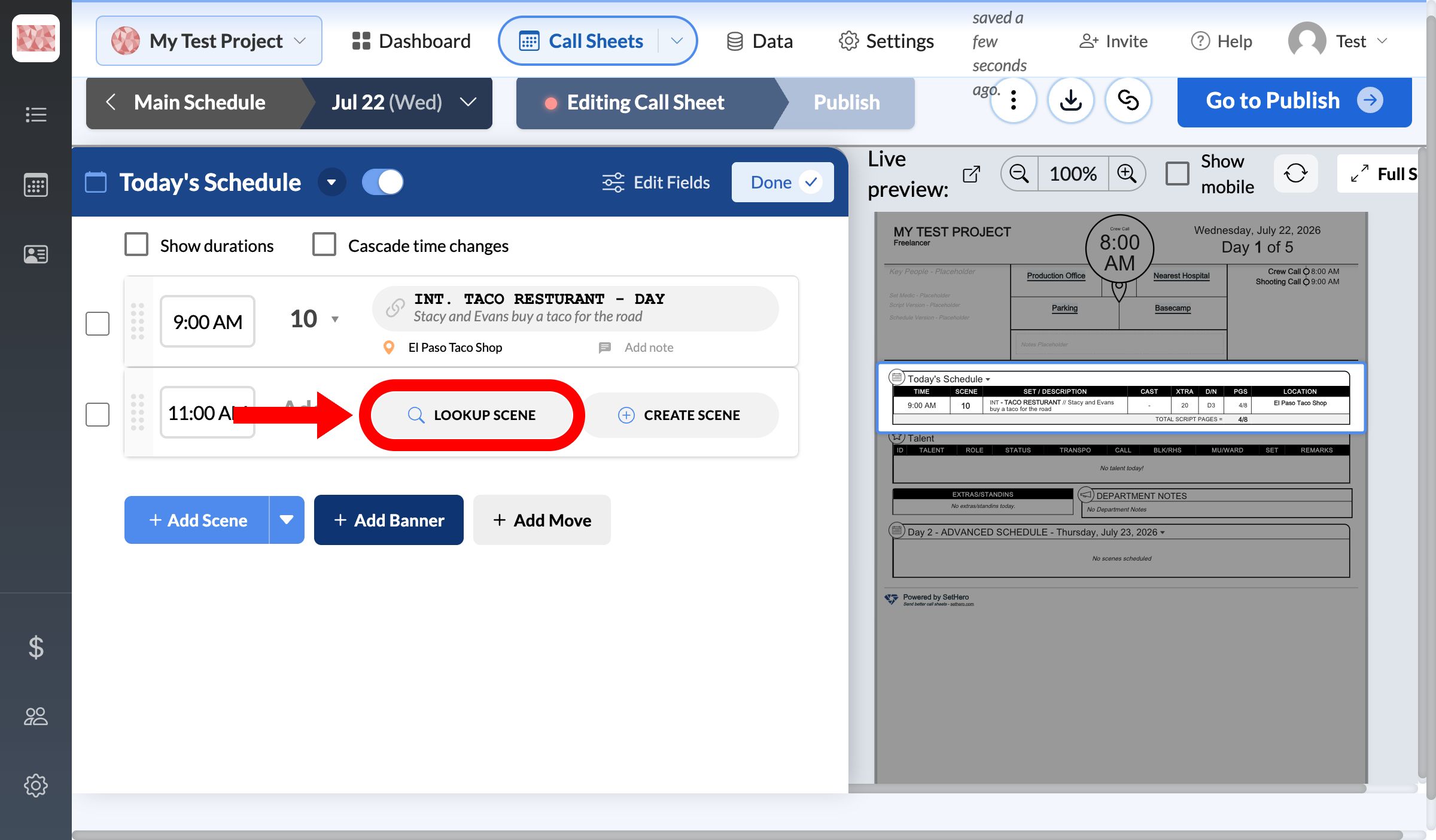
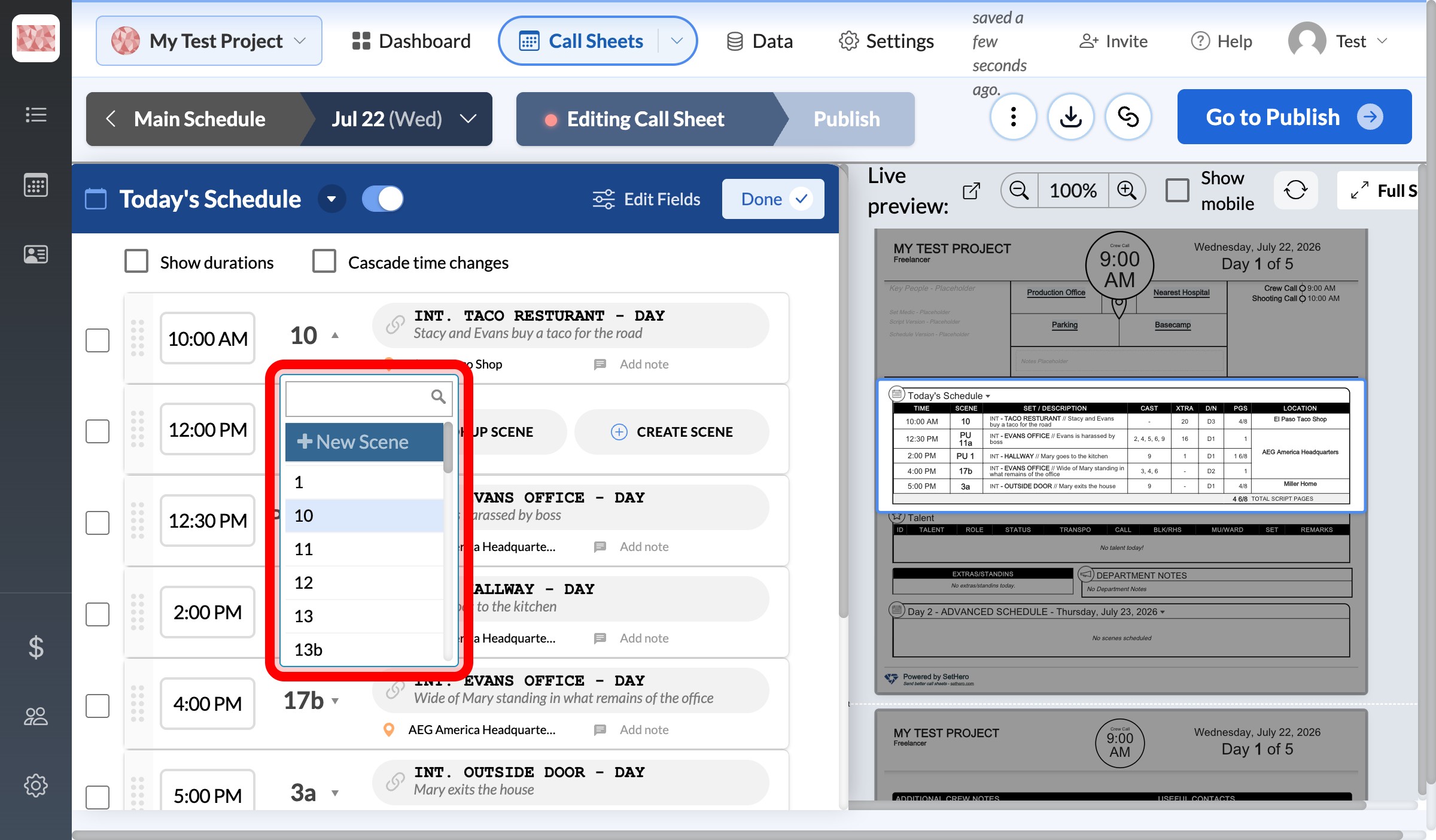
On the new row, click LOOKUP SCENE.
-
Choose the scene from the list, then click Add.
Add scenes from your scene list
- Click Data in the top navigation bar, then Scenes.
- Select the scenes you want.
- Click Add to Callsheet, choose the day's call sheet, and click Add to Call Sheet.
If your scenes aren't in SetHero yet, see Import scenes from a spreadsheet or Import scenes from a script or other tools.