Build today's schedule
How to add scenes, banners, and company moves, and keep the day's times in order
Today's Schedule is the timeline of the shoot day on your call sheet. It can hold three kinds of rows: scenes, banners for anything that isn't a scene, and company moves.
Open the schedule
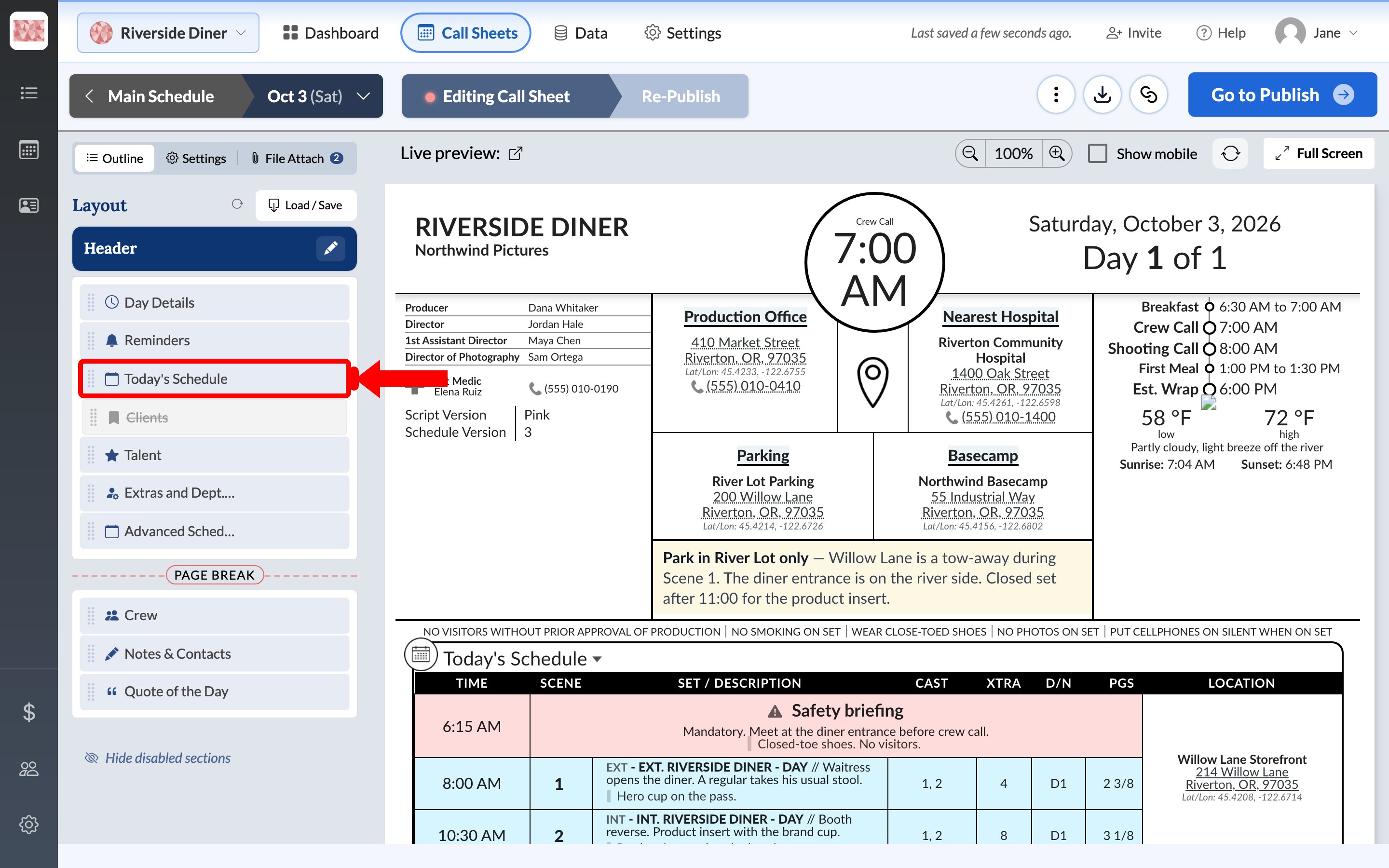
On the Outline tab of the call sheet, click Today's Schedule in the Layout list.
Add rows
Use the buttons below the rows. Each new row goes at the end of the schedule.
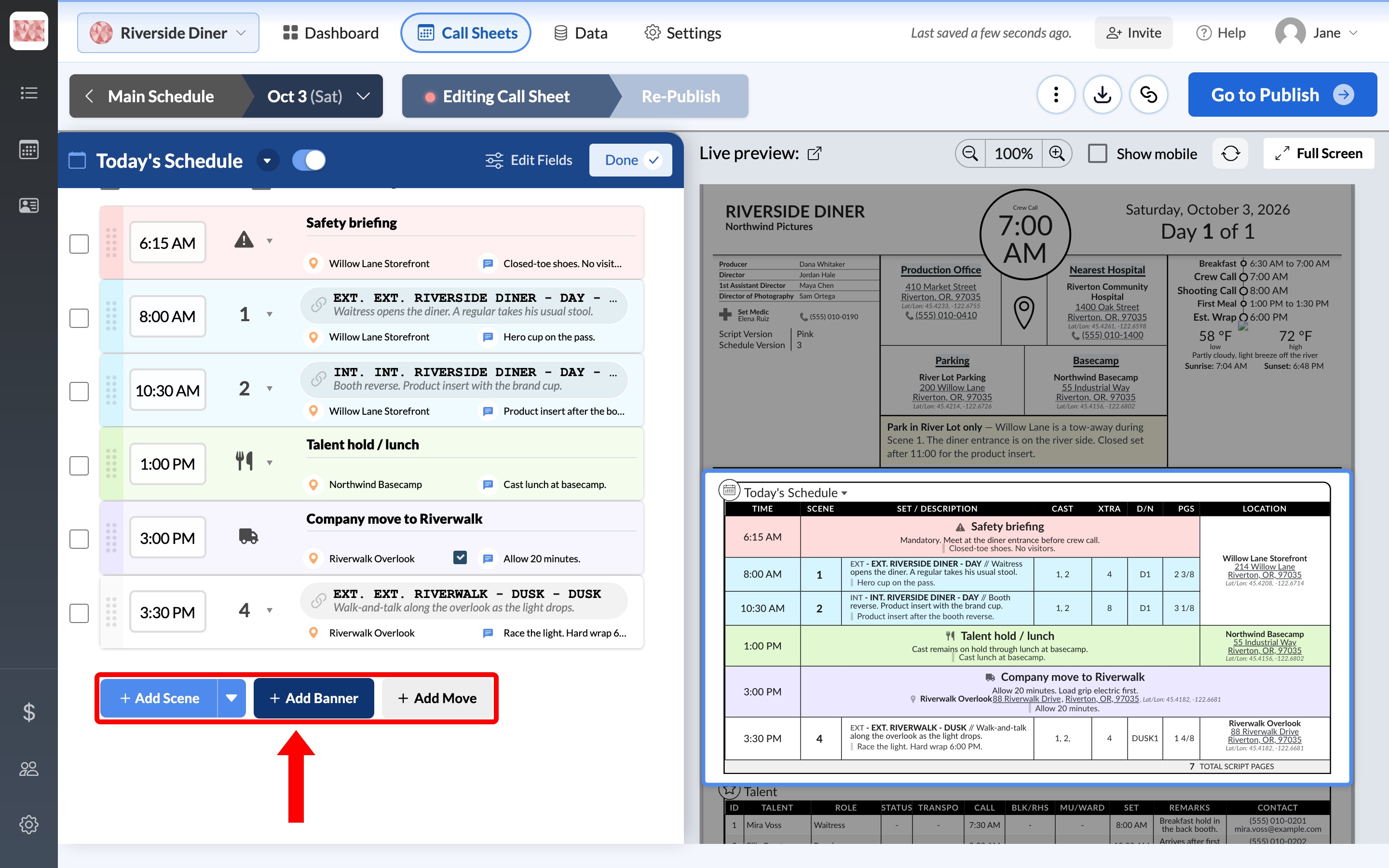
- Add Scene adds a row for one scene. To add several saved scenes at once, click the arrow beside it and choose Lookup scenes. Reusing scenes and locations across days covers every way to do this.
- Add Banner adds a titled row for something that isn't a scene, such as a safety briefing or lunch.
- Add Move adds a row titled Company Move, which you can rename.
Scene rows
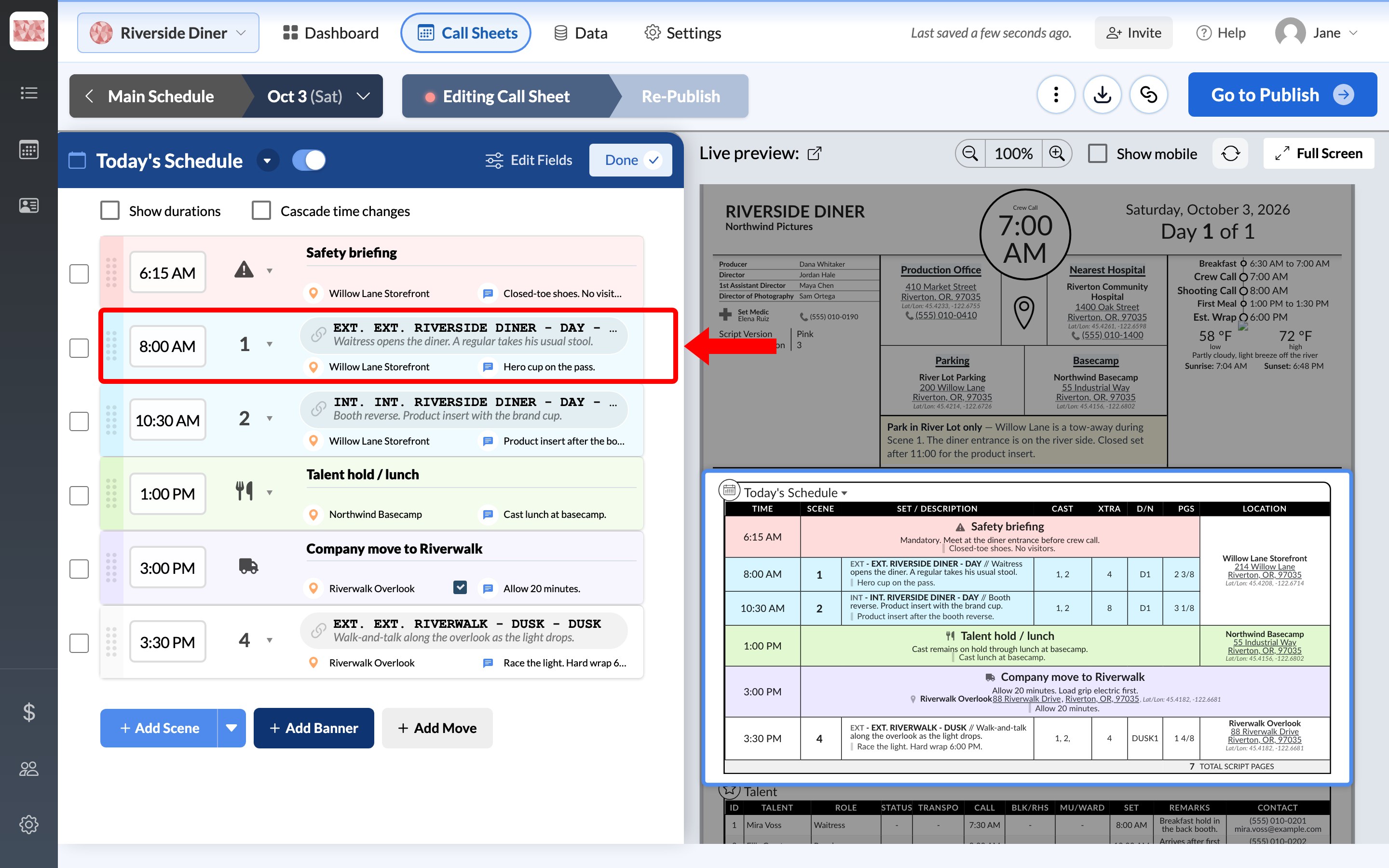
A scene row shows the time, the scene number, and the scene's details. Below those, you can set a location and add a note. The note appears under the row on the call sheet.
Banner rows
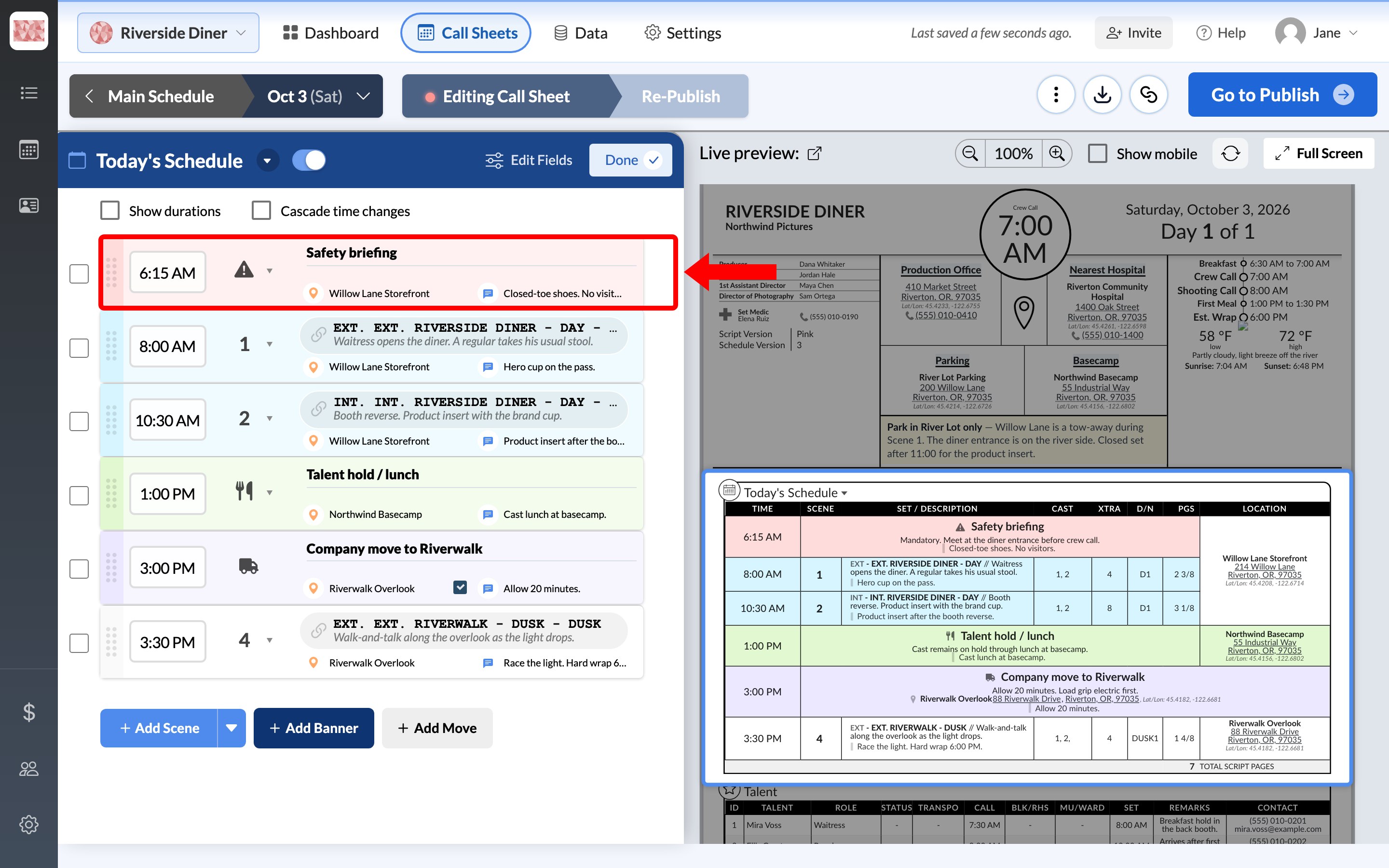
Enter a title, then choose an icon from the dropdown beside the time. A banner row also has its own location and note.
Note: A banner for lunch or breakfast only adds a row to the schedule. To show meal times in the call sheet's header, see Add and remove meal breaks.
Company moves
A move row spans the whole schedule on the call sheet, so the crew can see it at a glance. Choose the destination as its location, and use the note for details such as how long to allow.
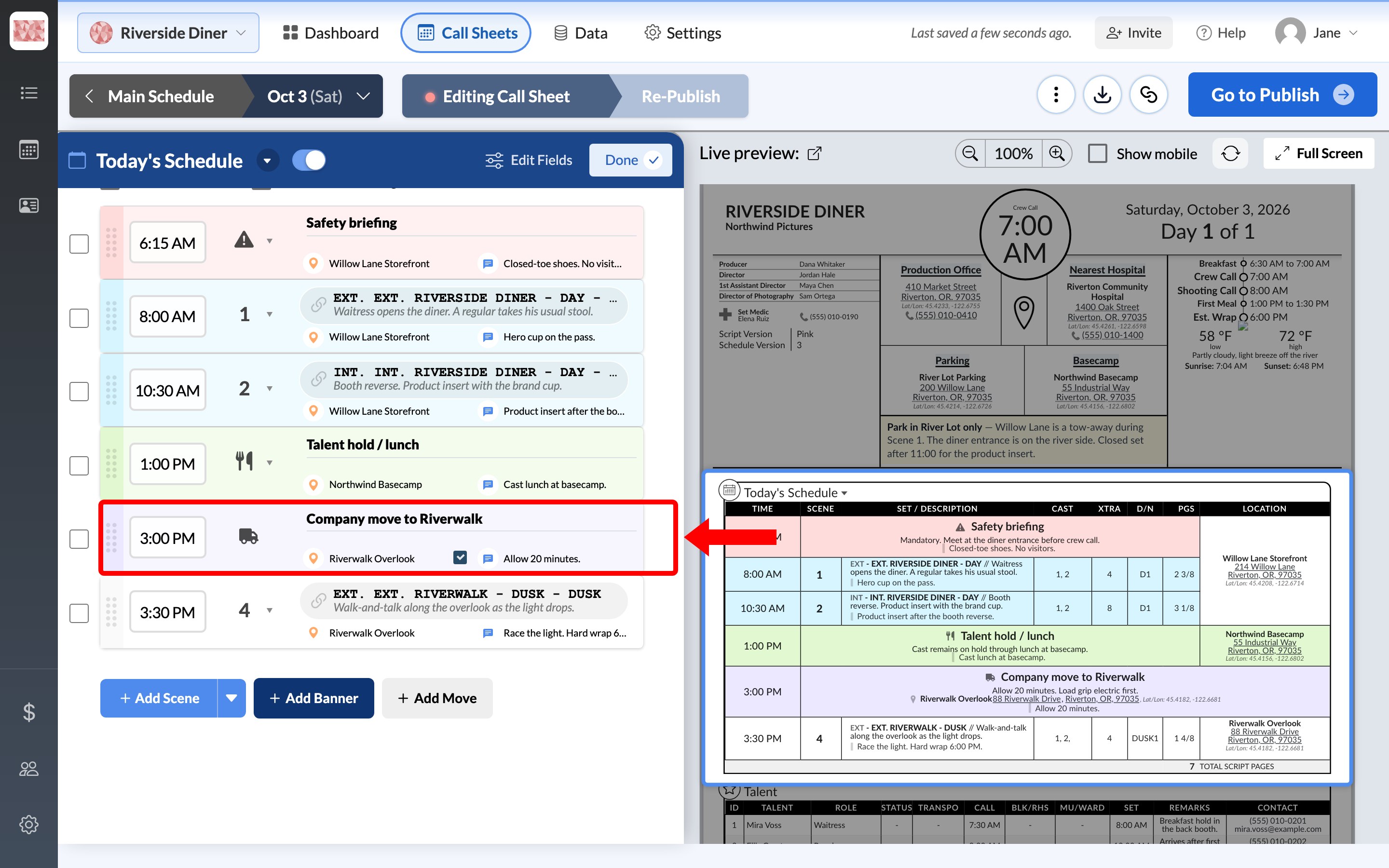
Set the times
Click a row's time to change it. New rows start with a time based on the row above.
Two checkboxes above the rows help when the day's timing changes:
- Show durations adds a duration field to each row, such as
1h 30m. - Cascade time changes recalculates the rows below when you change a time. Each later row's time becomes the time of the row above it plus that row's duration.
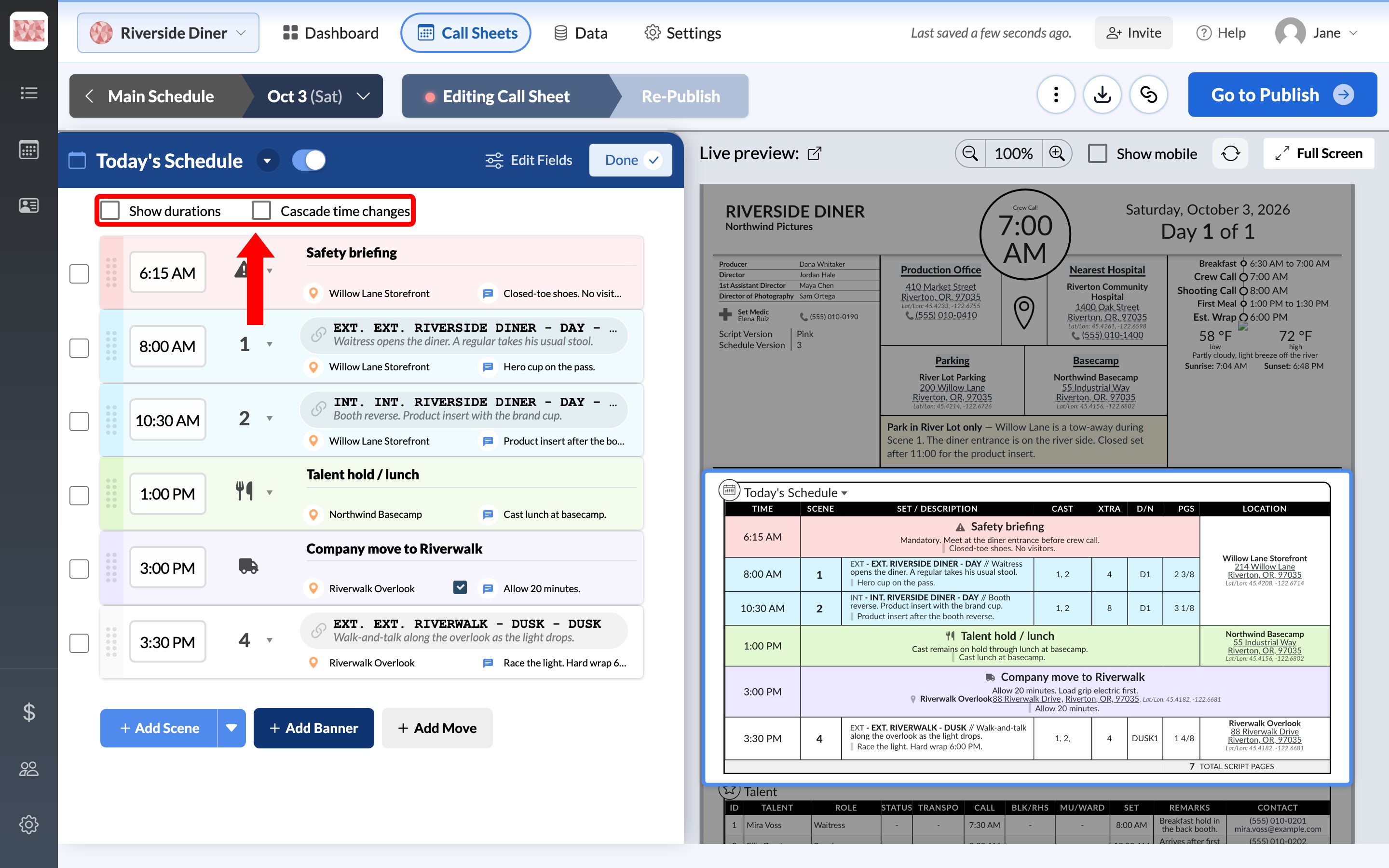
Important: Cascading uses each row's duration, not the gap you see between the times. Turn on Show durations and check the durations first, or later rows may move further than you expect. To move the whole day by a set amount, use Move all times when the day shifts.
Change or remove rows
Hover over a row to see its controls:
- Move it: drag the dotted handle on the left.
- Remove or copy it: use the trash and duplicate icons on the right.
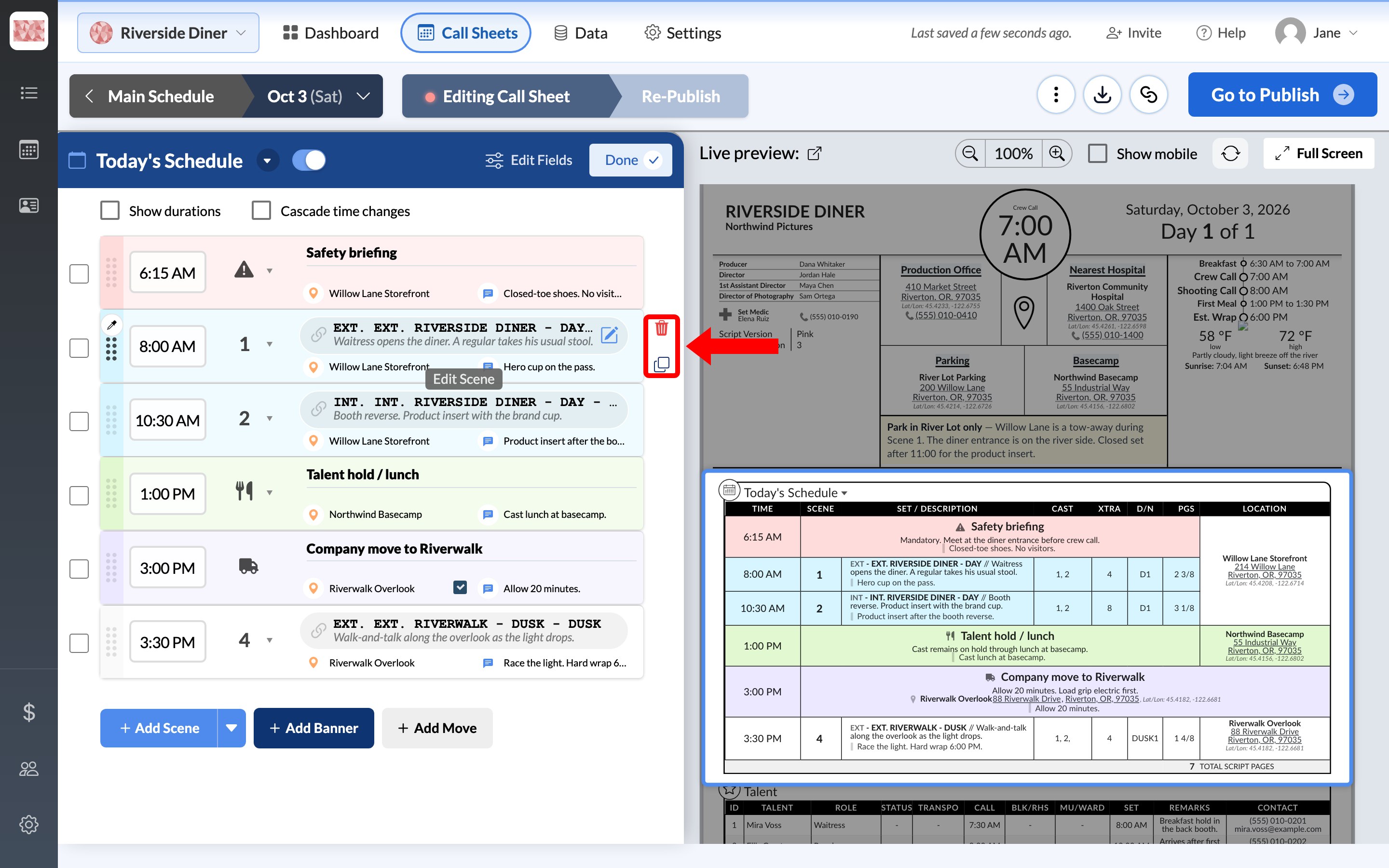
Change a row's color
Hover over the eyedropper at the row's top-left corner, then click a color: gray, yellow, blue, purple, green, or red. Click the × to clear it. The color also shows on the row in the call sheet.
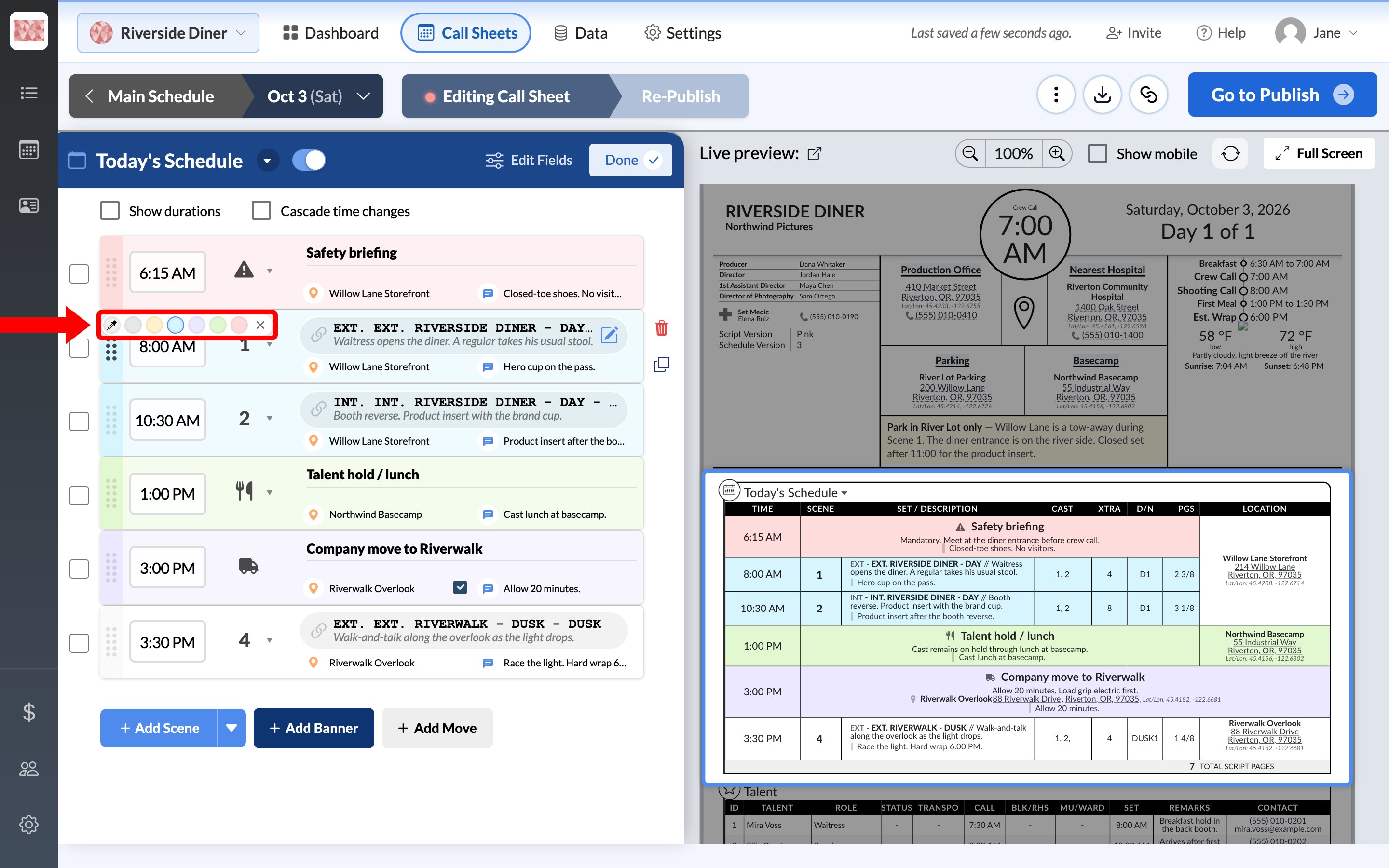
To remove several rows at once, check the box beside each one, then click Delete selected.
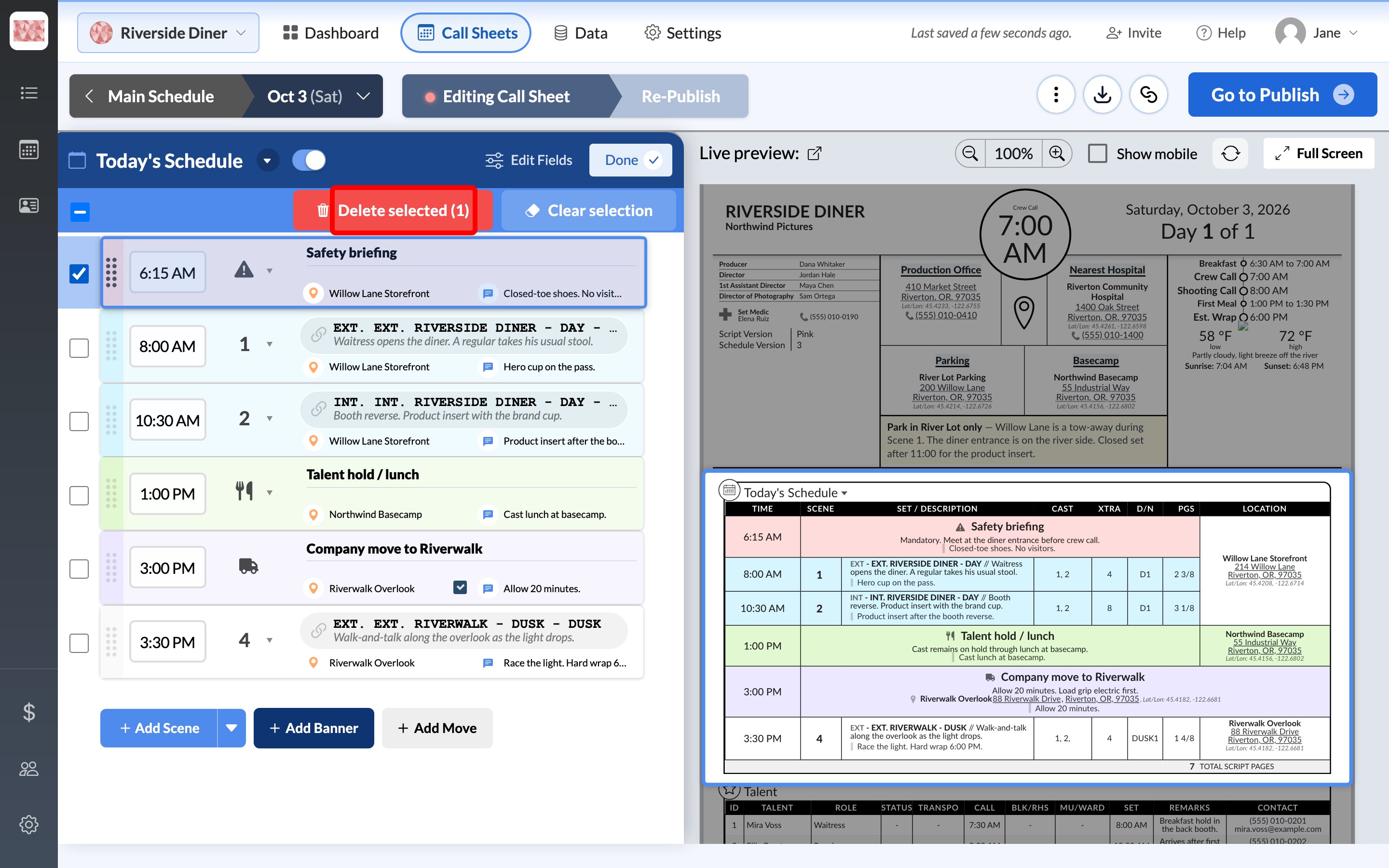
Removing a scene from the schedule doesn't delete it from your project, so you can add it to another day.
To rename or hide the schedule's columns, see Customize sections and fields. To show tomorrow's work at the bottom of the call sheet, see Advance schedule, reminders, and quote of the day.