Export your contacts
Which contacts export, what the spreadsheet includes, and how re-import works
People and Company Contacts both download as an Excel workbook. The file is a table of people with names, emails, and phones, not a laid-out call sheet. Export a call sheet to PDF or Excel is the other Excel.
The download doesn't send mail or change anyone. It can include phone numbers, emails, home addresses, pay rates, and notes, so share it carefully.
Export this project's people
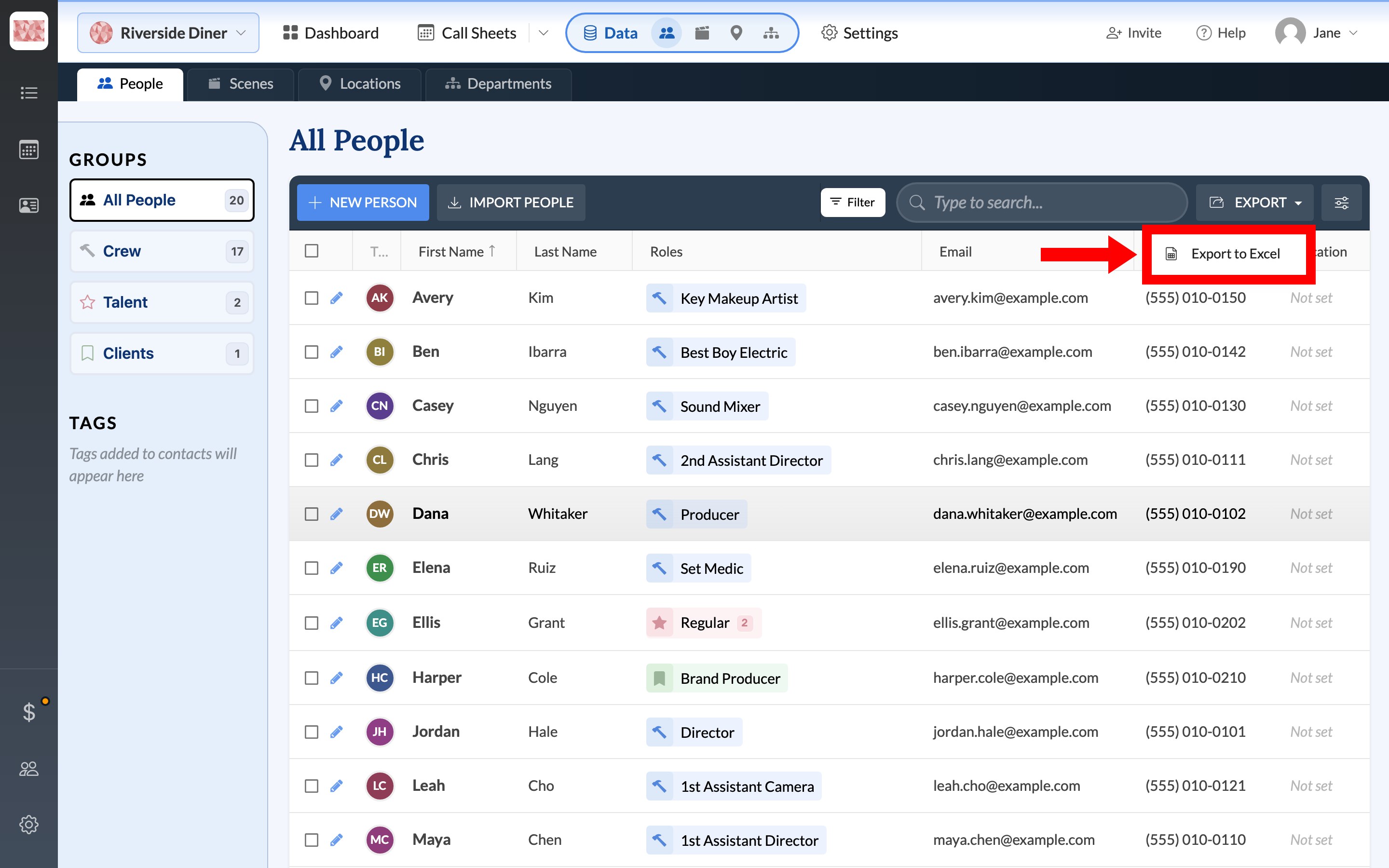
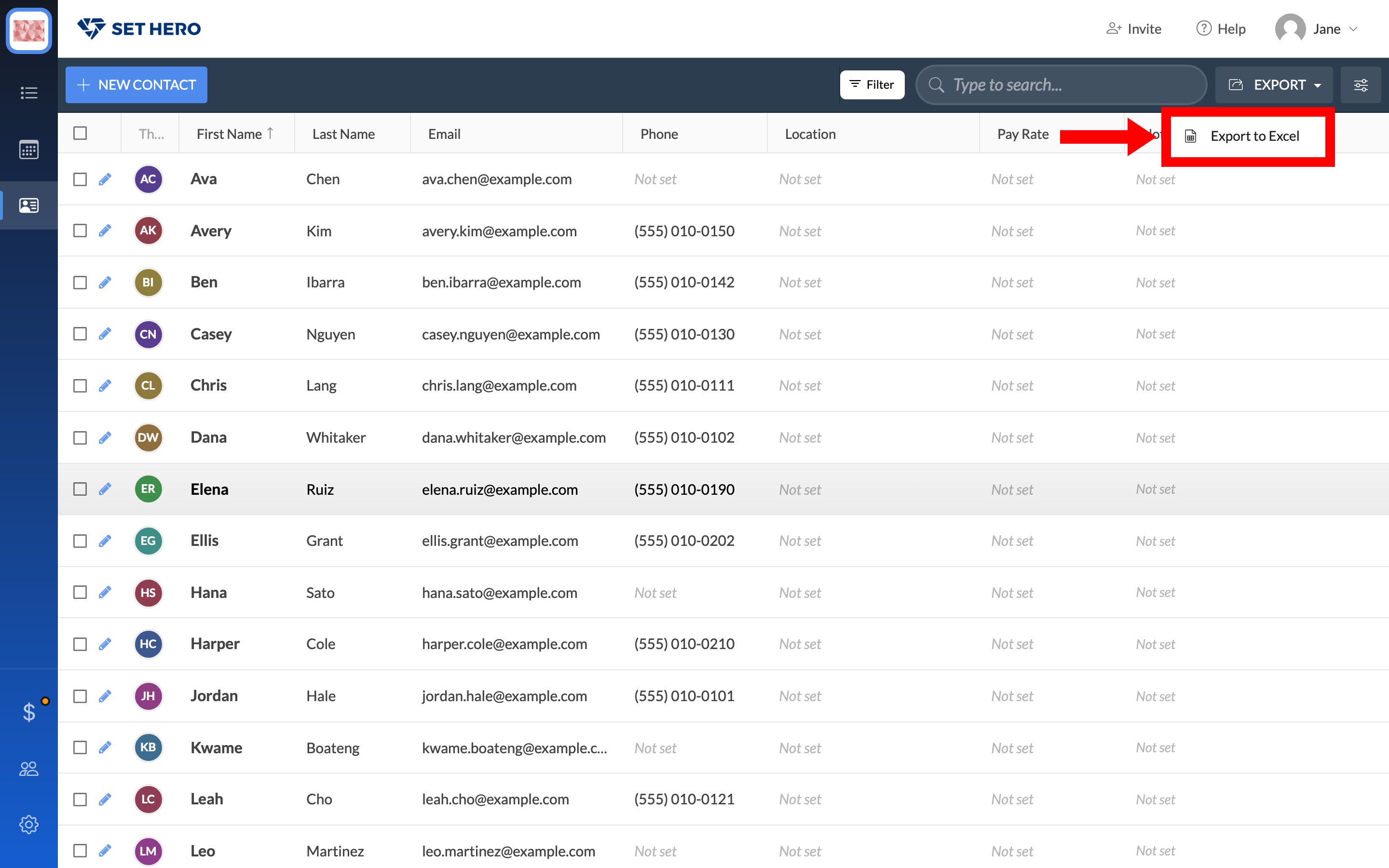
From the project dashboard, click Data to open People. On All People, Export sits on the right of the toolbar, next to Filter and search. Click it, then Export to Excel. The file is SetHero_People_Export.xlsx and saves straight to your browser with no confirm step.
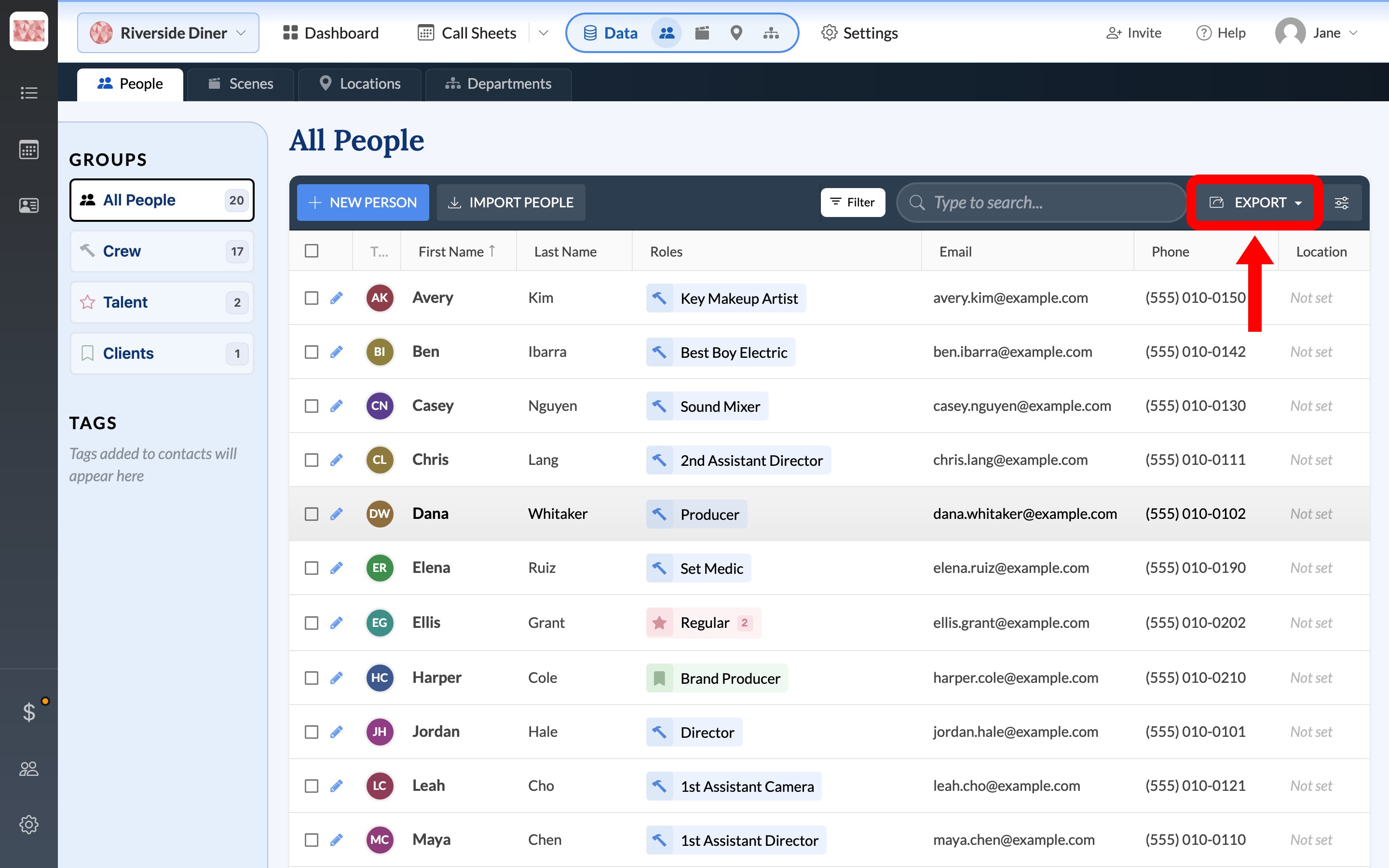
Note: The Export button disappears when any row is checked. Clear the checkboxes to bring it back.
This is the people assigned to this project. Company-only contacts aren't in it.
What the spreadsheet includes
One sheet, with these default columns in order: First Name, Last Name, Roles, Email, Phone, Location, Pay Rate, Notes, Tags.
Roles is plain text. Crew show the job title, such as Key Grip. Talent add the character number in parentheses, such as Regular(2). Empty fields stay blank.
Customize columns changes which fields export and in what order. Thumbnails, the permission switches, and the checkbox column never go into the file.
Limit who is in the file
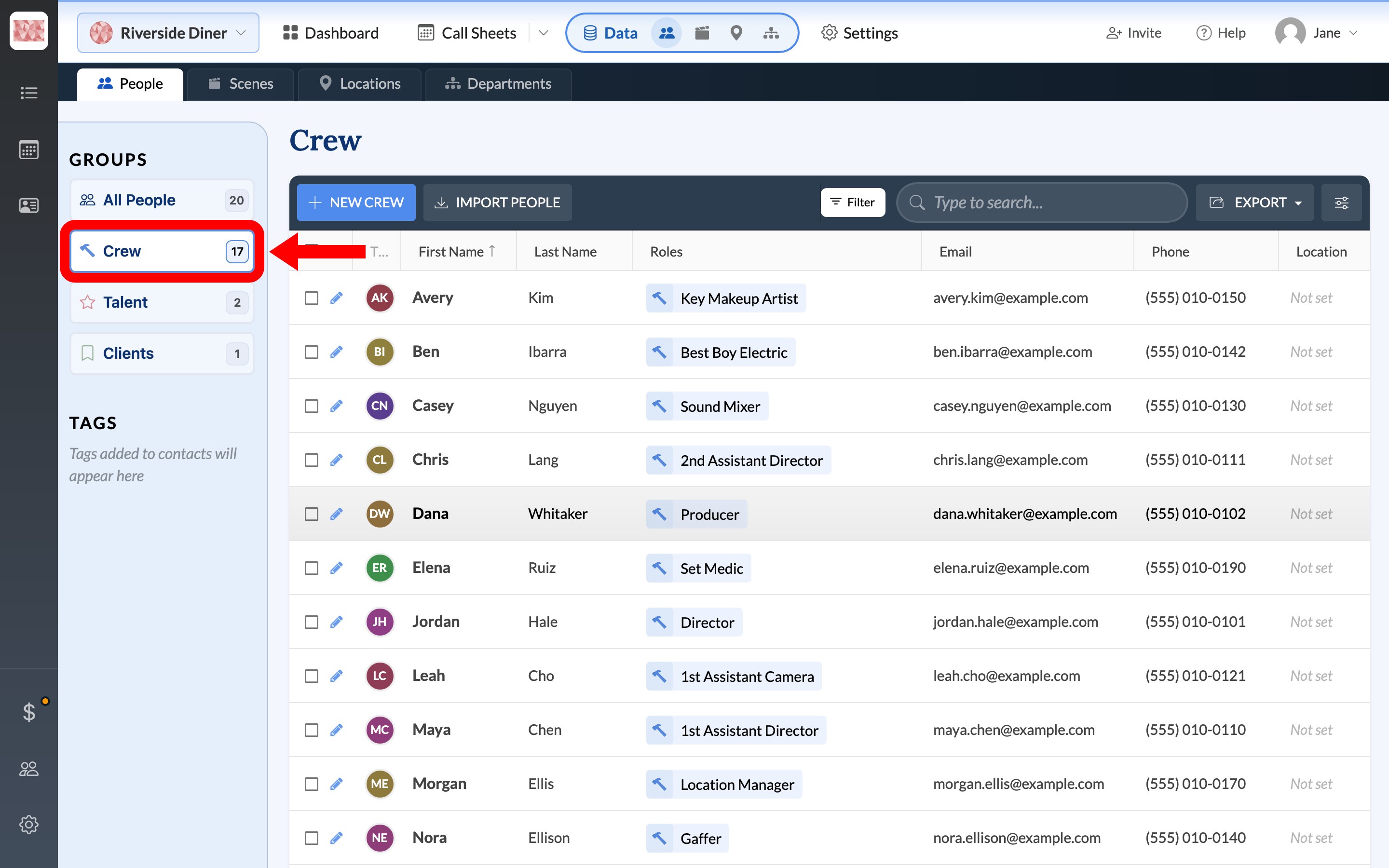
The export follows the grid you're looking at, so it only includes the people showing. GROUPS on the left is the first cut: All People, Crew, Talent, or Clients. Search and Filter narrow it further by tags, location, notes, pay rate, roles, or departments. Tag and filter your contacts covers tags.
On Talent, the By Role view exports a different sheet, SetHero_Talent_Export.xlsx, with one row per role: Role Name, Role ID, Person, Email, and Phone.
Download the company book
The company book is everyone in the company, including people not on this project. On the left rail, Company Contacts is the person-card icon under Company Calendar.
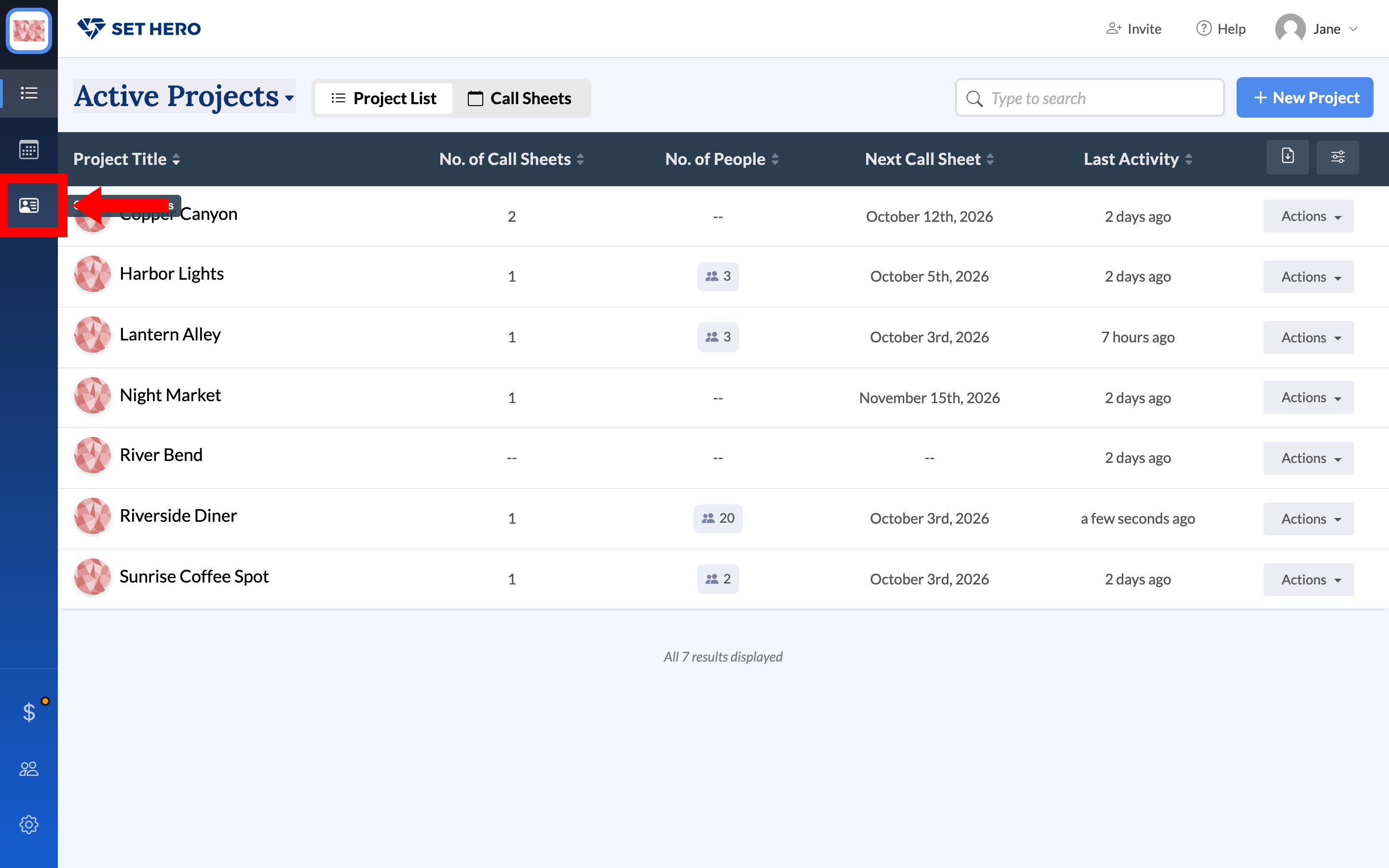
Use Export → Export to Excel there. The file is SetHero_Contacts_Export.xlsx, with the same columns minus Roles. The Projects pills on the grid don't export. Search and Filter work the same way, and there's no Import on this page.
Take the file back into SetHero
Important: The People export isn't an import template. Import contacts from a spreadsheet needs Job Title, Character Name and Character Number, or Title, plus Full Name. The export has Roles instead. For a clean re-import, add those columns or start with the sample templates and Clean up your spreadsheet before importing.
The headers that do line up are First Name, Last Name, Email, Phone, Location, Pay Rate, Tags, and Notes. If a re-import creates duplicates, Merge duplicate contacts.