Import Cast IDs and Character Names
How Cast IDs work, and how to import IDs and character names
When organizing your talent in SetHero, you'll frequently use Cast IDs (often called Character Numbers) and Character Names (Roles). These two fields work together to uniquely identify your cast members across your project, from the script all the way to the call sheet.
How Cast IDs work
A Cast ID is a unique number or short code assigned to a specific character. Cast IDs identify characters in your scene breakdown and appear on call sheets. Call-sheet row order is controlled separately; SetHero may use the Cast ID only as a secondary sort.
- Cast IDs must be unique: Every character should have their own ID. If you have non-speaking extras, they generally do not receive a Cast ID unless they are a featured extra that appears on the Cast list of the call sheet.
- Pairing with Character Names: The Cast ID is permanently linked to the Character Name (or Role). For example, if "Aaron Border" plays Character Number 1, his Cast ID is
1and his Character Name isAaron Border.
Importing your cast list
The fastest way to add your talent and their Cast IDs is by importing a spreadsheet. You can use our sample Cast Import Template or your own file. This section covers the cast-specific field mappings; for the full import workflow, see Import contacts from a spreadsheet.
1. Start the import
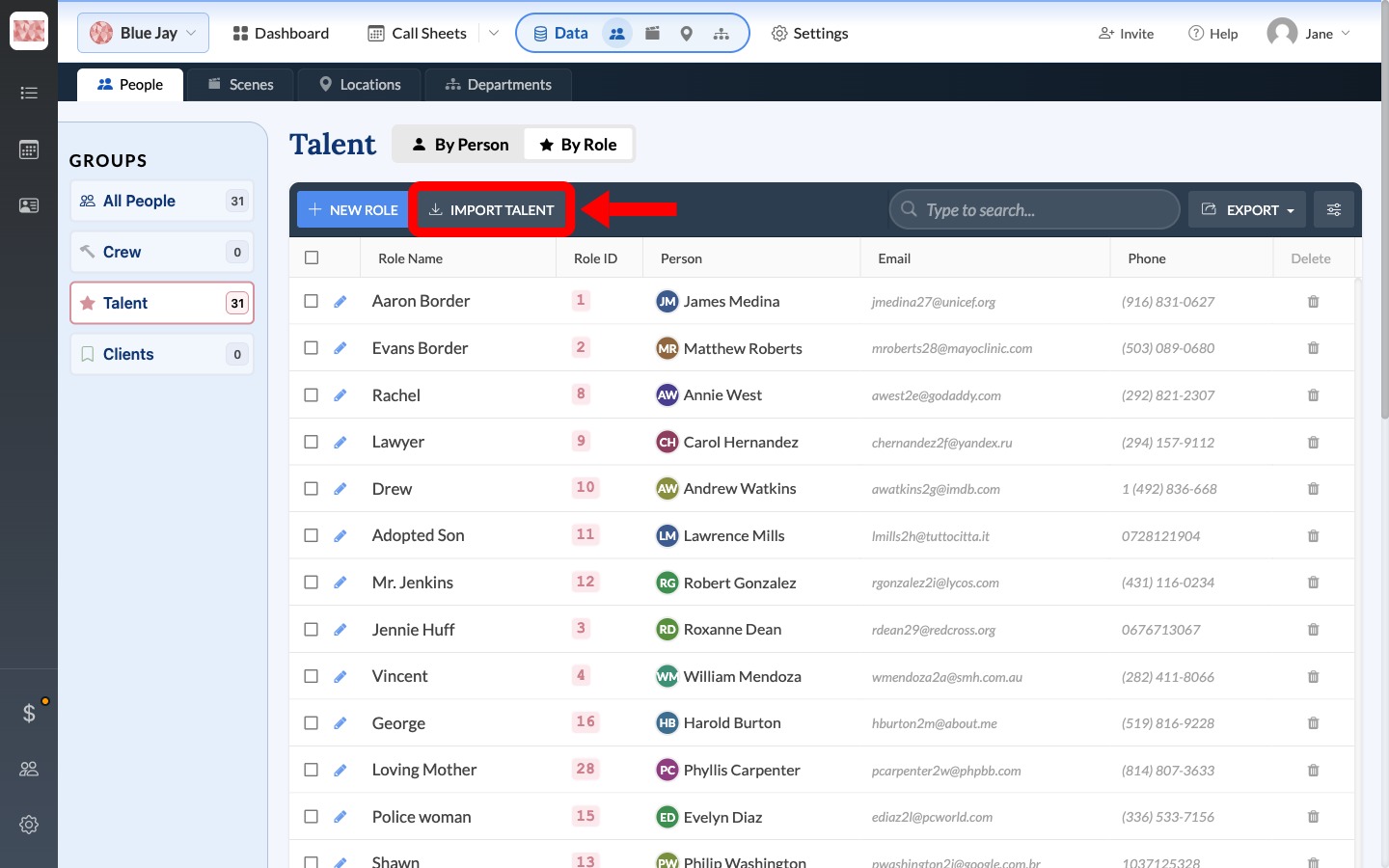
From your project dashboard, navigate to Data > People. Select Talent, switch to By Role, then click Import talent to open the import wizard.
2. Upload your spreadsheet
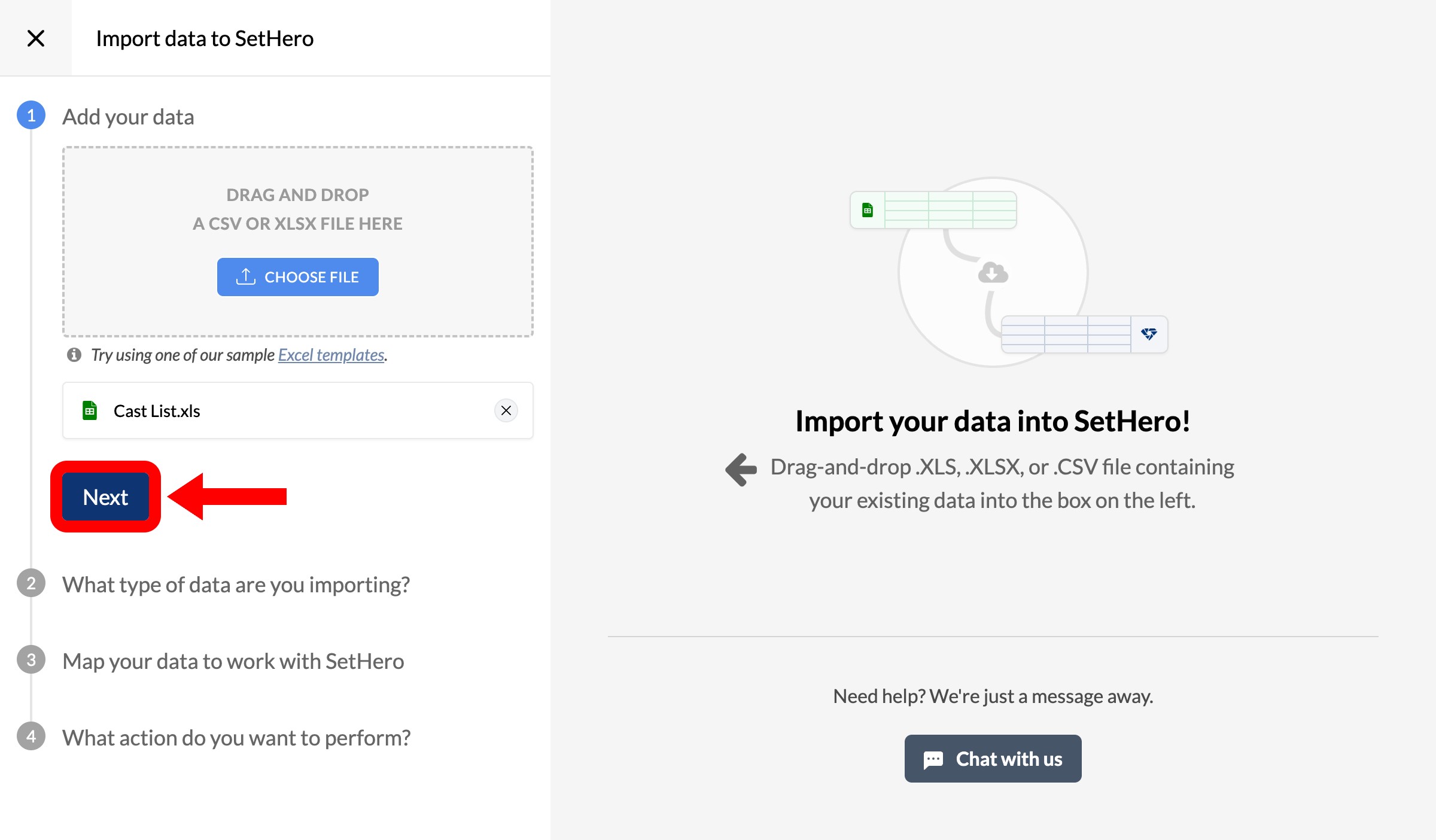
Drag and drop your .xls, .xlsx, .csv, .tab, or .tsv file into the upload area, or click "choose file". Files must be under 5 MB. Once the file is loaded, click Next. If you are preparing your own file, see Clean up your spreadsheet before importing for formatting tips.
3. Map your columns
In the mapping step, SetHero will automatically try to match your spreadsheet columns to SetHero fields. It's crucial to verify that the Cast ID and Character Name columns are mapped correctly:
- Character Number should map to the column containing your Cast IDs.
- Role (or Character Name) should map to the column containing the character's name.
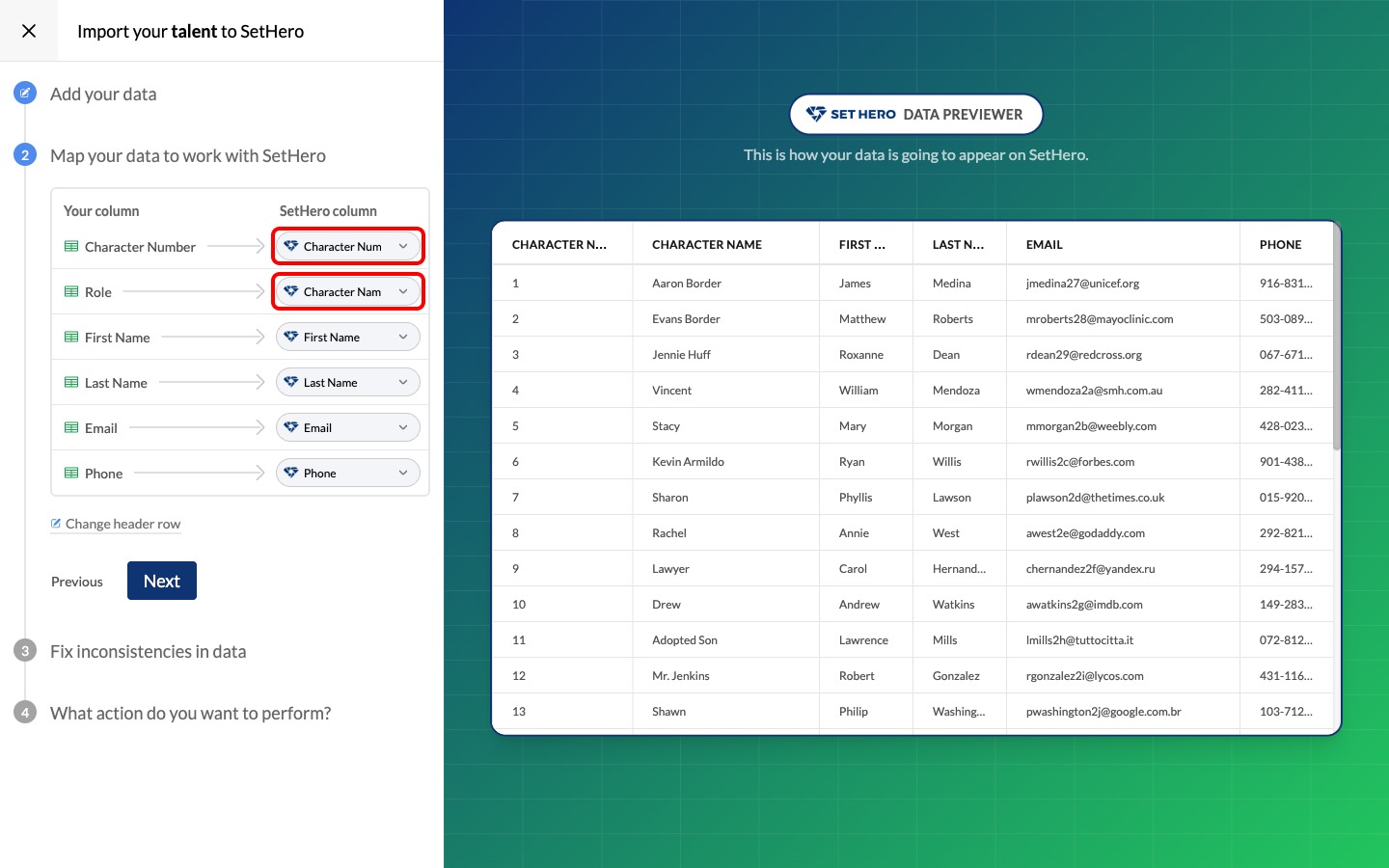
Once your columns are mapped, click Next to proceed to review and import your talent.
4. Verify the imported information
Complete the remaining review and import prompts. For the remaining import prompts, follow Import contacts from a spreadsheet. Then return to Data > People > Talent and select By Role. Confirm that the Role Name, Role ID, and Person columns match your spreadsheet.
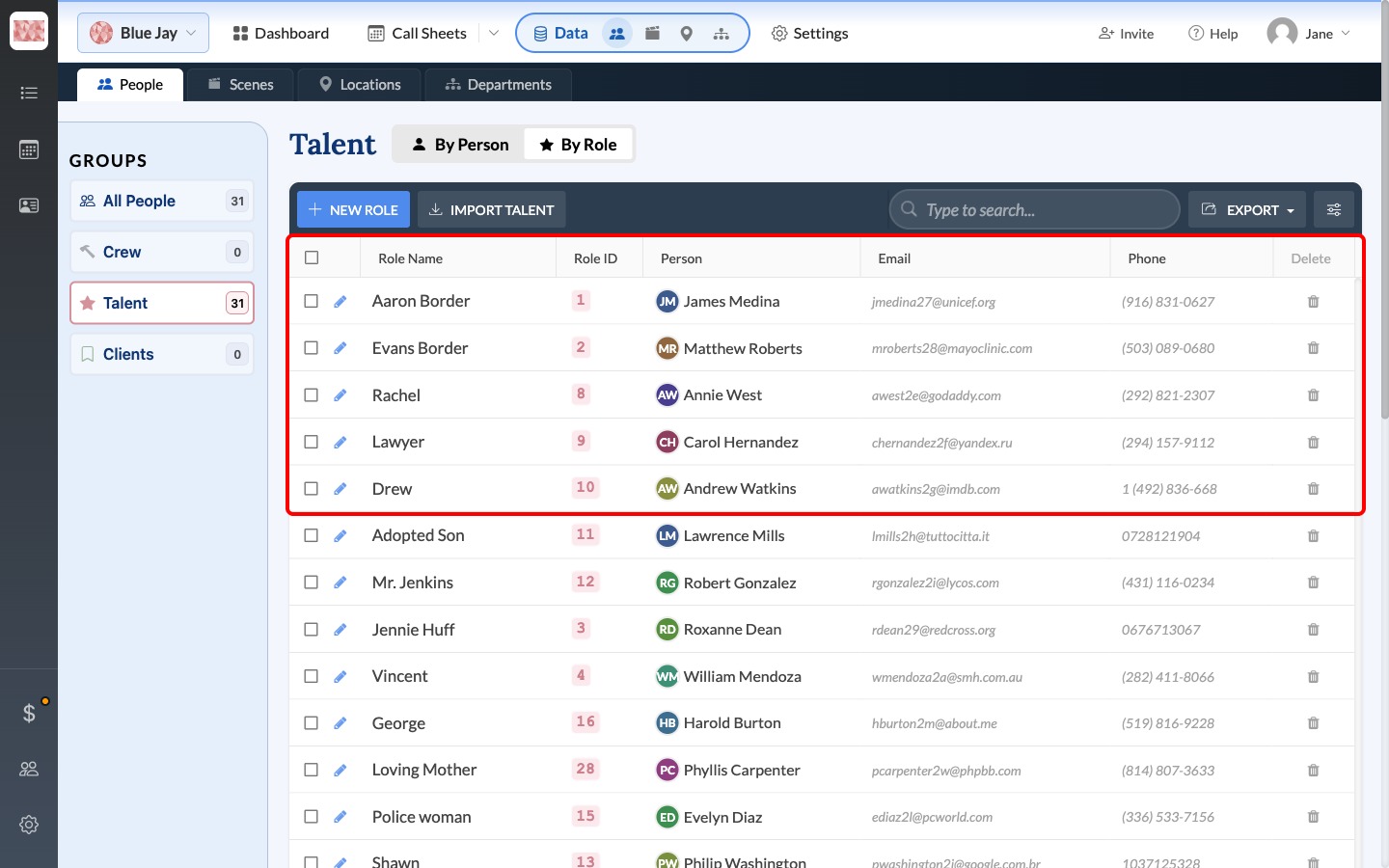
SetHero will use these Cast IDs in this project whenever you add scenes or generate call sheets.
Tip: If you need to make changes to your cast list after importing, you can easily add contacts manually or fix duplicate contacts if you accidentally imported the same person twice.