Preview and proof your call sheet before sending
How to proof your call sheet with the live preview and a final PDF check before sending it to cast and crew
Before you send a call sheet to your cast and crew, it's worth taking a few minutes to proof everything. SetHero gives you several ways to preview your call sheet while you're still editing, so you can catch mistakes before anyone else sees them.
Use the live preview while editing
As you build your call sheet, the live preview panel on the right side of the editor updates in real time. Every change you make — times, locations, notes, cast details — is instantly reflected in the preview.
You can use the preview controls to:
- Zoom in and out to check small details like times and names
- Show mobile to see how the call sheet looks on a phone
- Full Screen to expand the preview for a closer look
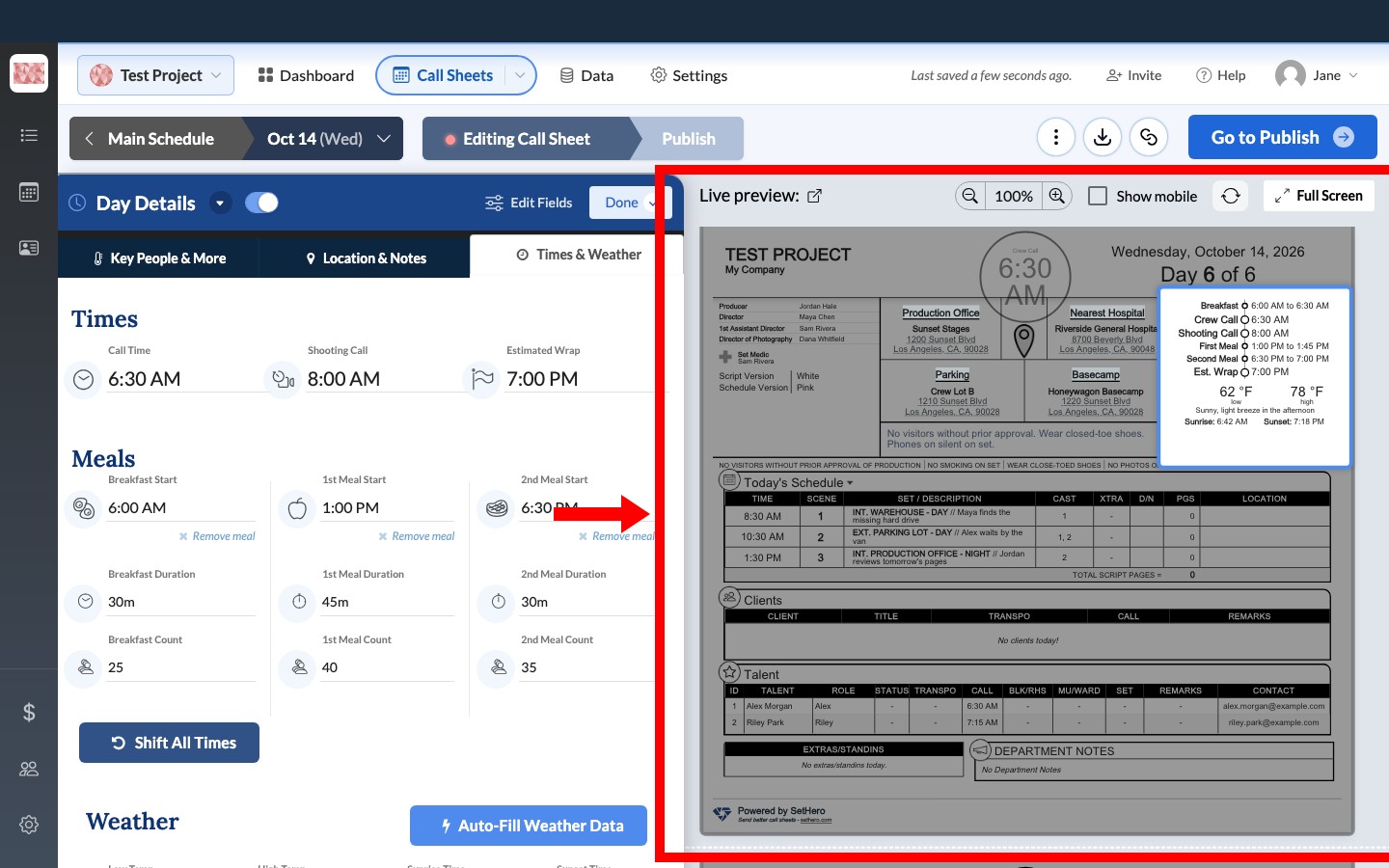
Tip: Keep an eye on the live preview as you fill in each section. It's much easier to spot a typo or missing field in the formatted preview than in the form fields.
Download a PDF for a final check
Before you send, download a PDF to see the call sheet exactly as a finished document, including its page breaks:
-
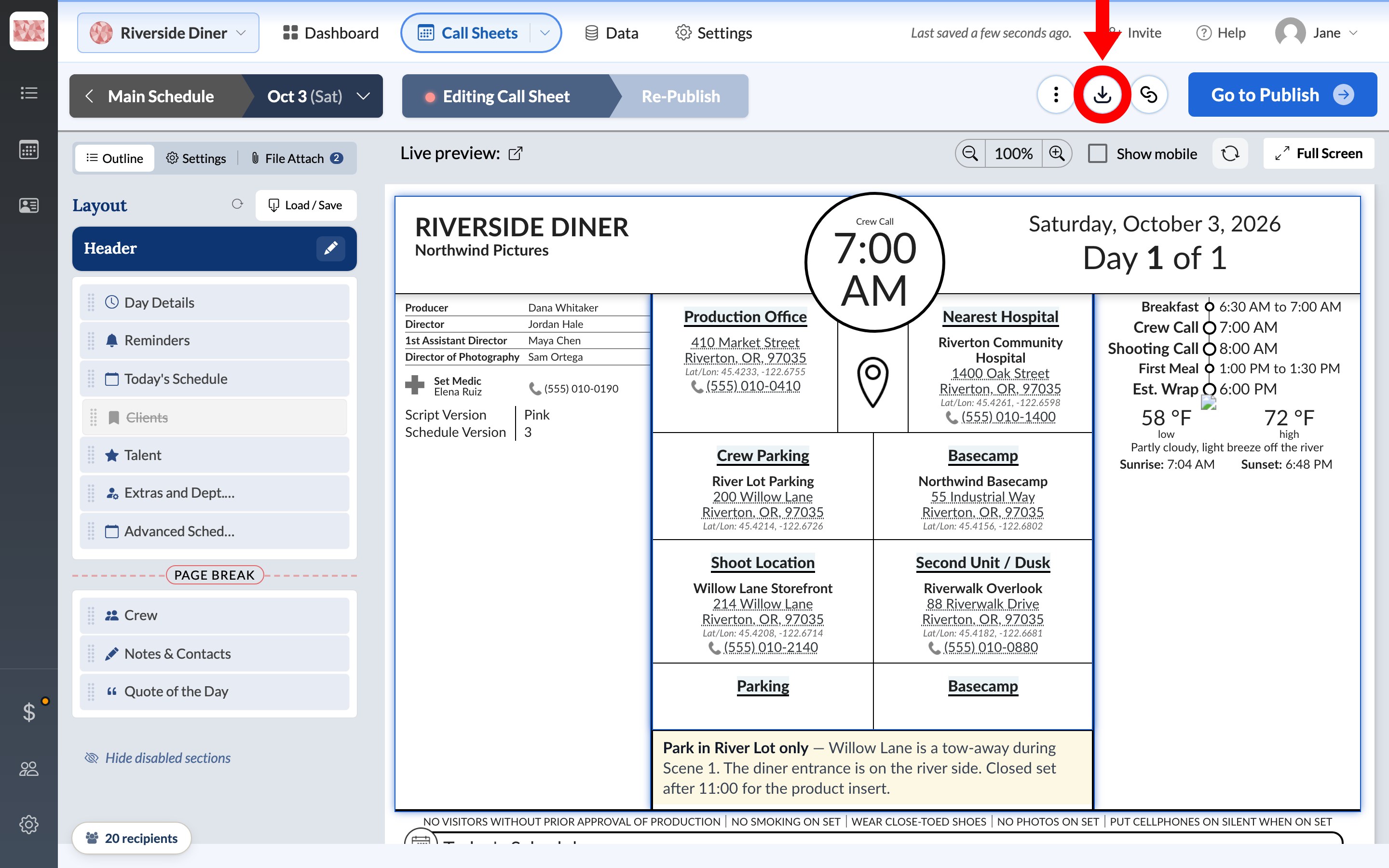
Click the circular Download PDF icon at the top of the editor. SetHero saves your work and opens a preview.
-
Check the preview, or click Download to save a copy to read through or print.
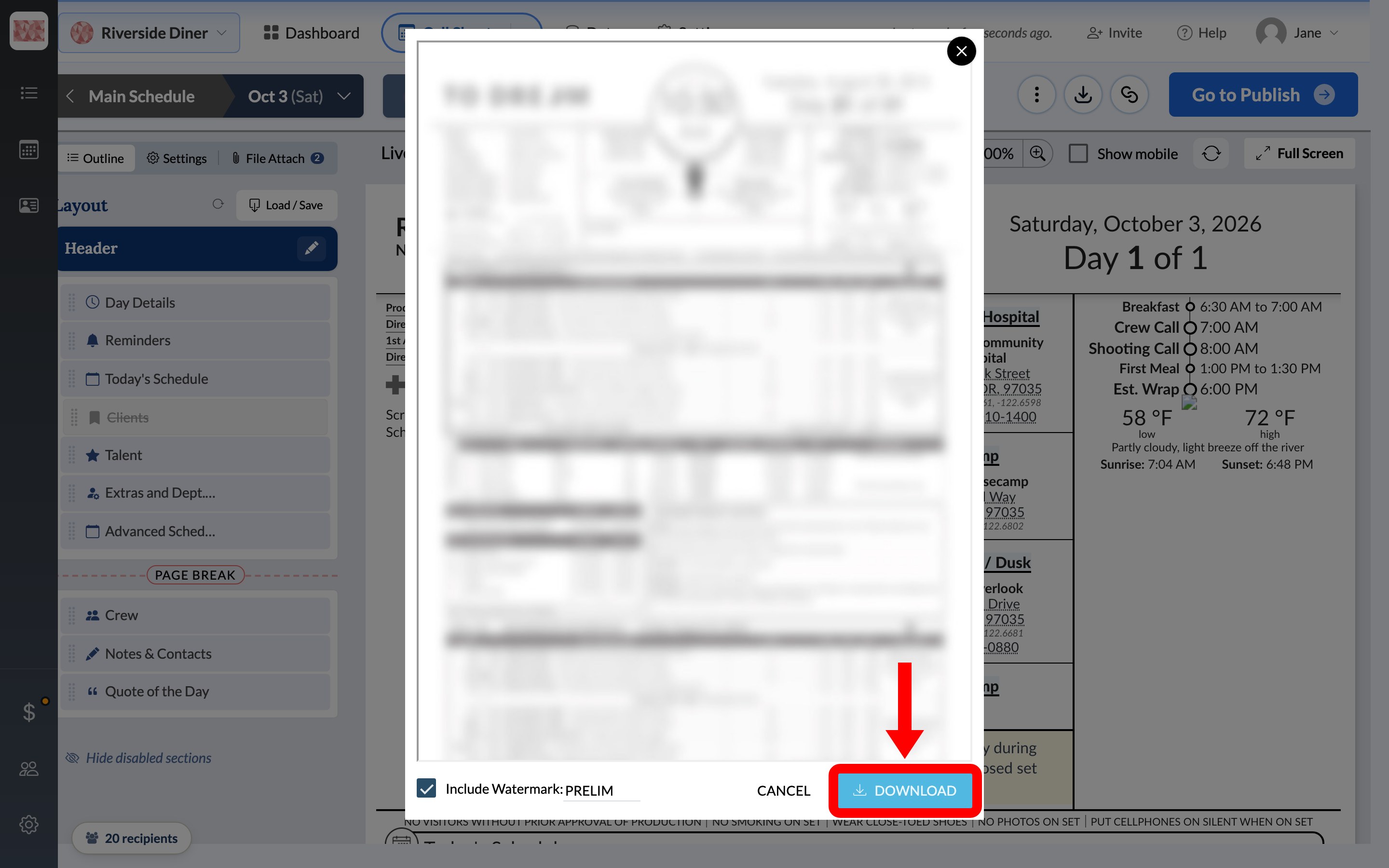
Note: This copy may show a PRELIM watermark. The call sheet your crew receives won't have one, so you don't need to remove it before publishing. To download a clean copy anyway, see how to remove the watermark.
Go to publish
Once you're satisfied with the preview, click Go to Publish in the top-right corner of the editor. This opens the publishing workspace. Nothing is sent yet.
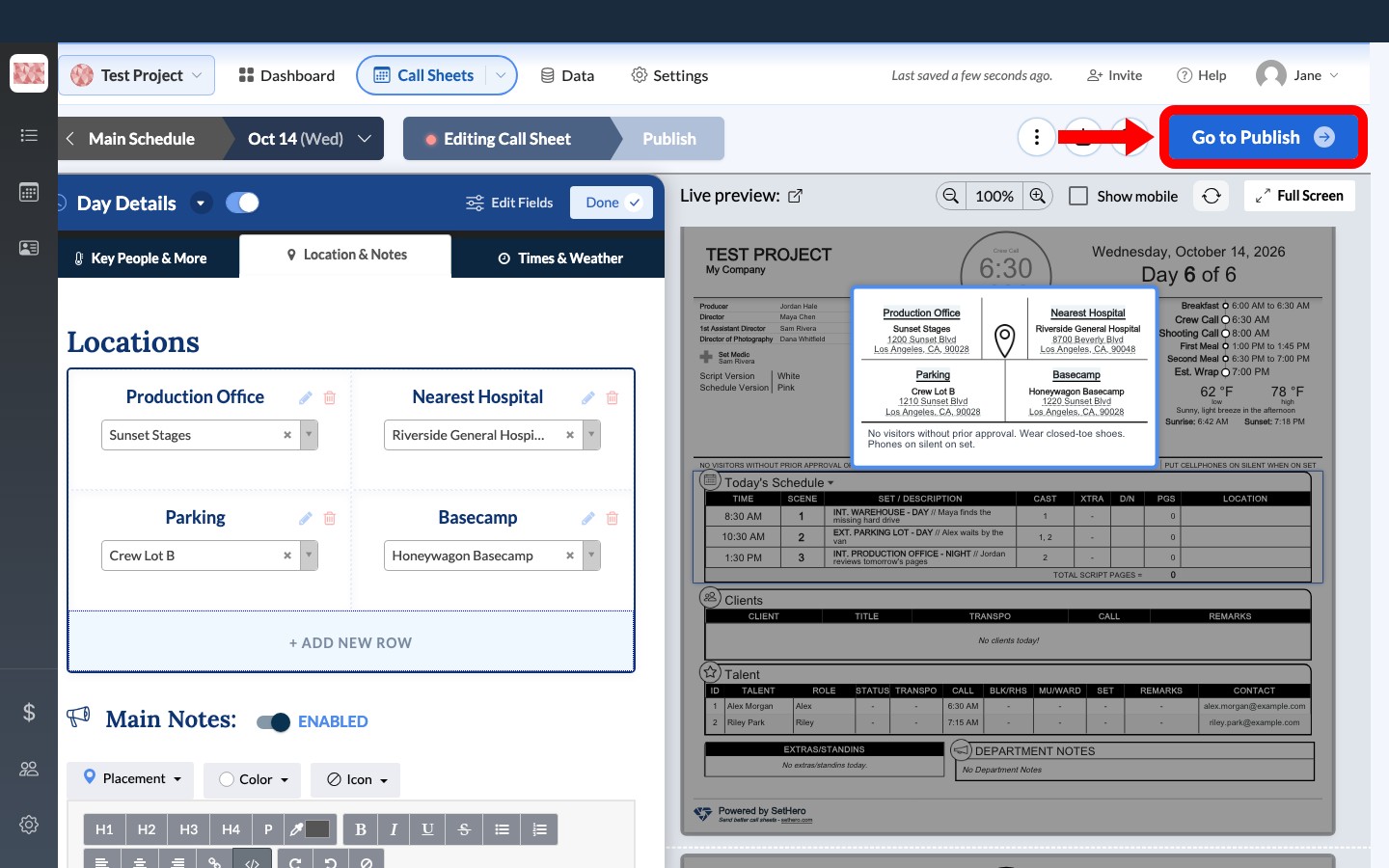
From there, choose your recipients and check that they have the contact details each delivery method needs. To see the real email and text first, send a test call sheet to yourself.
Note: You can always click Back to Editing in the top-right corner to return to the editor if you spot something that needs fixing.
If the preview won't load
A browser extension, usually an ad blocker, can stop the call sheet preview from loading. To find and fix the problem:
- Hard-refresh the page: press
Cmd+Shift+Ron a Mac orCtrl+Shift+Ron Windows. - If it still won't load, open SetHero in an incognito or private window. Extensions are usually off there, so if the preview loads, one of them is likely the cause.
- Turn off your ad blocker for SetHero: click its icon in your browser's toolbar and choose the option to pause or disable it on this site. Then reload the page.
- If that doesn't help, turn off your other extensions one at a time, reloading after each.
If the preview still won't load, email support@sethero.com with your browser and any error message you see.