Set up shooting days from an empty schedule
How date ranges create shooting days, weekends, and off days
A new project's Call Sheets tab starts empty. Until you create days, there's nowhere to attach a call sheet. This page covers that first setup. Once rows exist, Adding or editing shooting days is where you change them.
Open the empty schedule
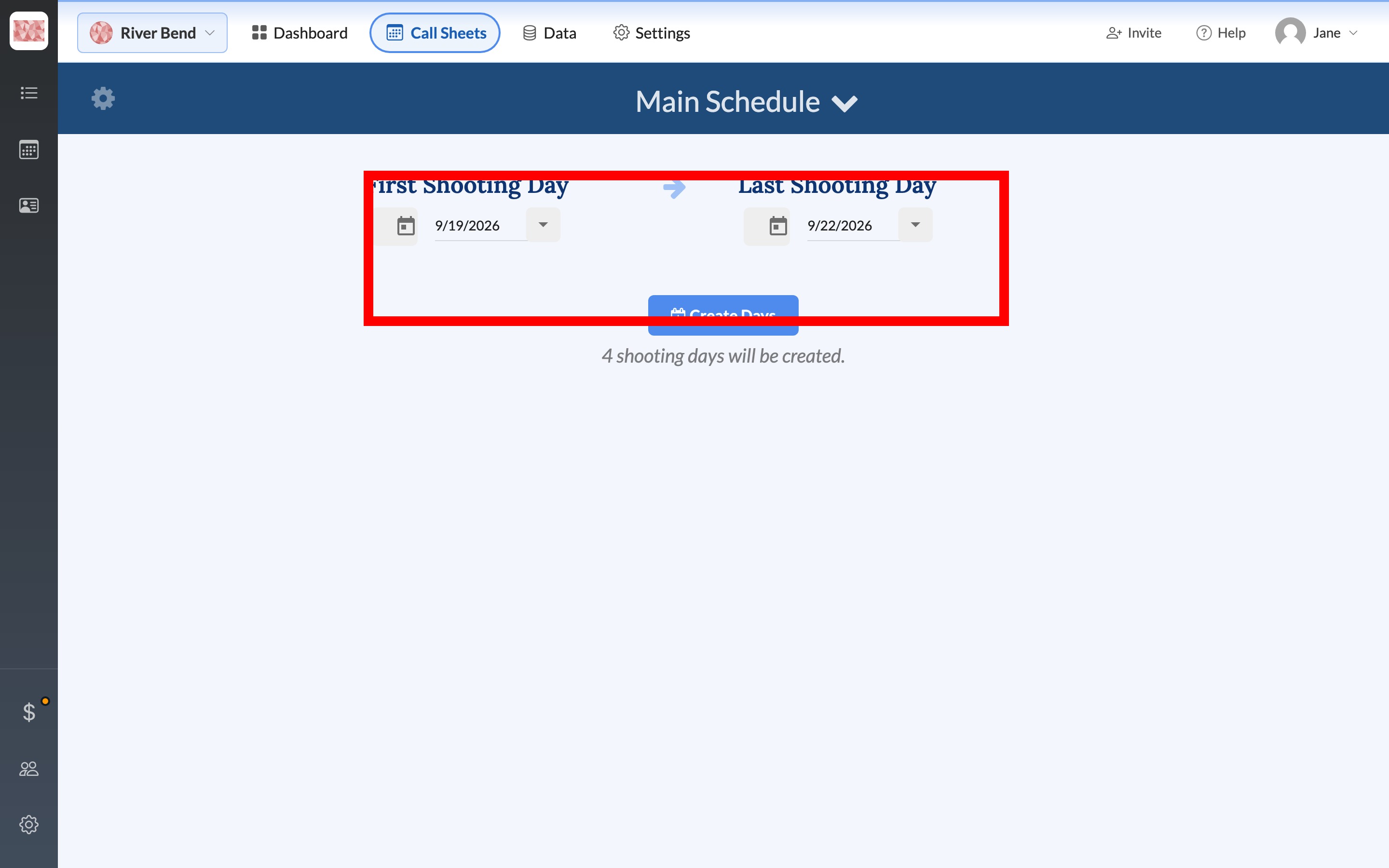
From inside the project, select Call Sheets in the top header. You'll see First Shooting Day, Last Shooting Day, and a Create Days button. The line under the button tells you how many days the current range will create.
Pick your dates
Select each date field and choose a day on the calendar. The same date in both fields makes a one-day schedule, which is the path Your first call sheet in 15 minutes uses. A longer range creates one shoot day for every date in between, weekends included.
Tip: For a range longer than five days, Working Days vs Off Days appears under the pickers, with a switch for each weekday. Turn off Saturday and Sunday there, and SetHero creates weekend breaks instead of making you insert off days one by one later.
Create the days
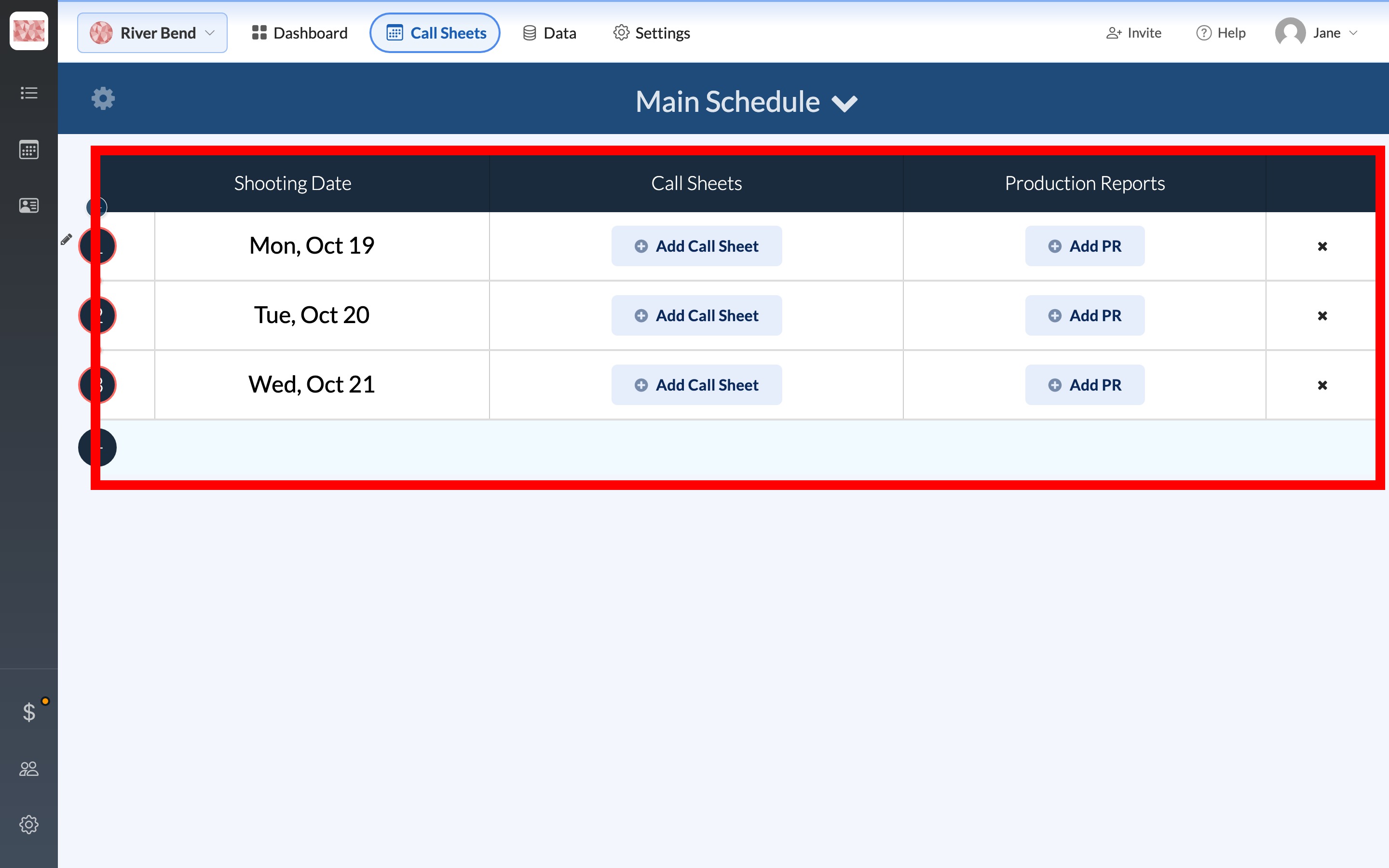
Click Create Days. The form is replaced by the schedule table, one numbered row per date, each with Add Call Sheet and Add PR.
What's next
Schedule page overview is a tour of the table you just made. To insert, delete, or shift days, use Adding or editing shooting days. Day numbers and the "of" total are Setting the day numbering (Day 3 of 12), and moving later dates together is a cascade date shift. A second unit or reshoot block belongs on its own schedule. See Create, rename, or delete schedules.