What is a production report?
What production reports track, who receives them, and when to publish
A daily production report (also known as a DPR) is the official record of what actually happened during a shooting day. While a call sheet plans the schedule, a production report tracks the real times, scenes filmed, and hours worked as the day unfolds.
Call sheets vs. production reports
Both live in your SetHero project schedule, but they serve different purposes and go to different people:
| Feature | Call Sheet | Production Report |
|---|---|---|
| Purpose | Planned schedule for the day | Record of what happened on set |
| Timing | Before the shoot day | Updated throughout and after the shoot day |
| Audience | Cast and crew | Producers, studio reps, payroll, insurance |
| Content | Planned times, scenes, locations | Actual times, scenes shot, coverage, hours |
| Delivery | Email and text | Private email with optional PDF |
Tip: Call sheets tell your team where to be and when. Production reports give stakeholders a clear picture of daily progress.
Find reports and read their status
Click Call Sheets in the top navigation to open your schedule. The Production Reports column on the right shows one status button per shooting day:
- Add PR: no report exists yet. Click to create one.
- Edit: a draft report is in progress.
- View PDF: the report is published. Click to view it, or open the menu arrow and select Revise to make changes.
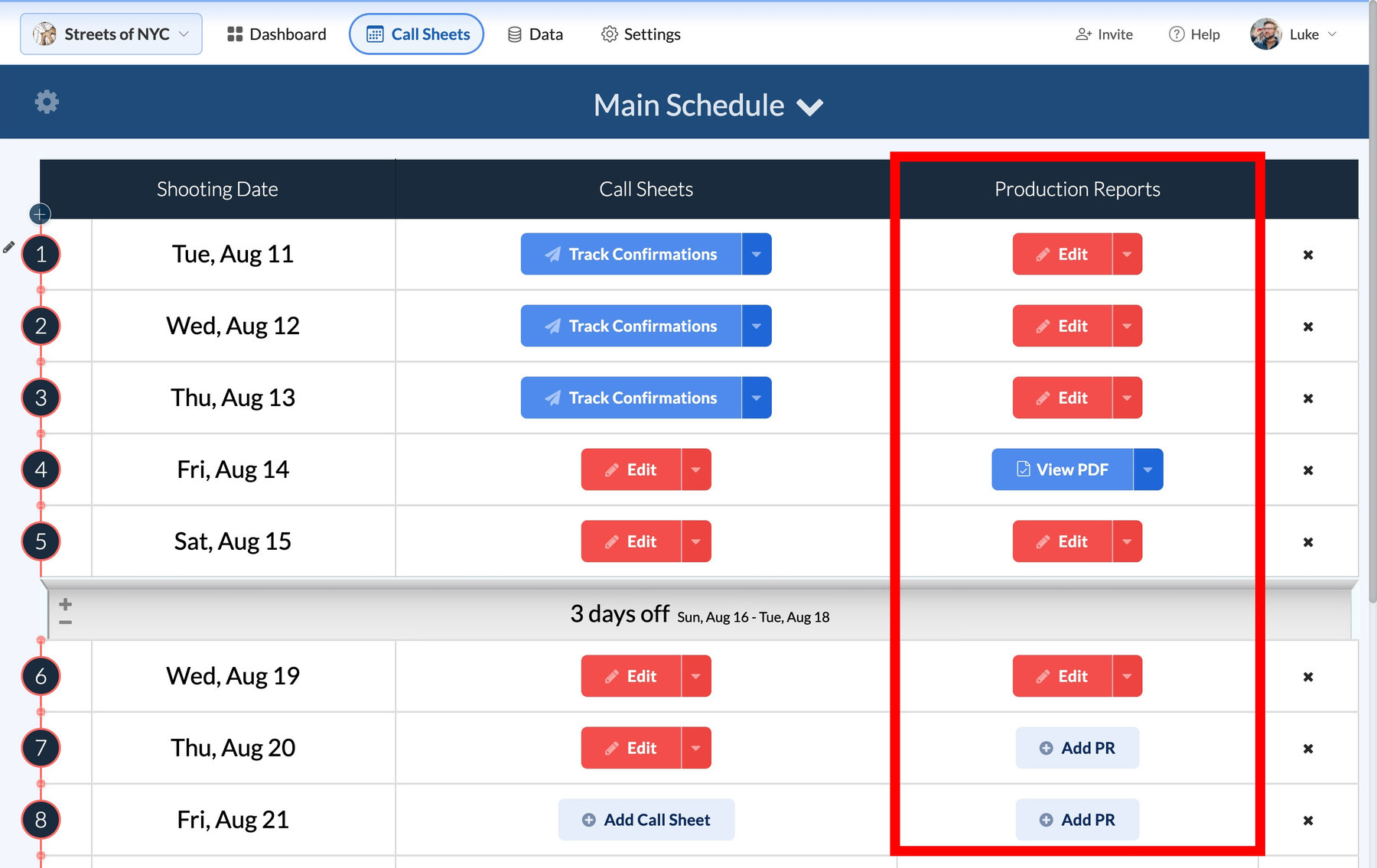
Each shooting day holds one report. If your project runs multiple schedules, such as a 2nd Unit, each schedule keeps its own set of reports.
Inside the report editor
Add PR or Edit opens the Production Report Editor: a left-hand panel with seven tabs and a Live preview on the right that updates as you work.
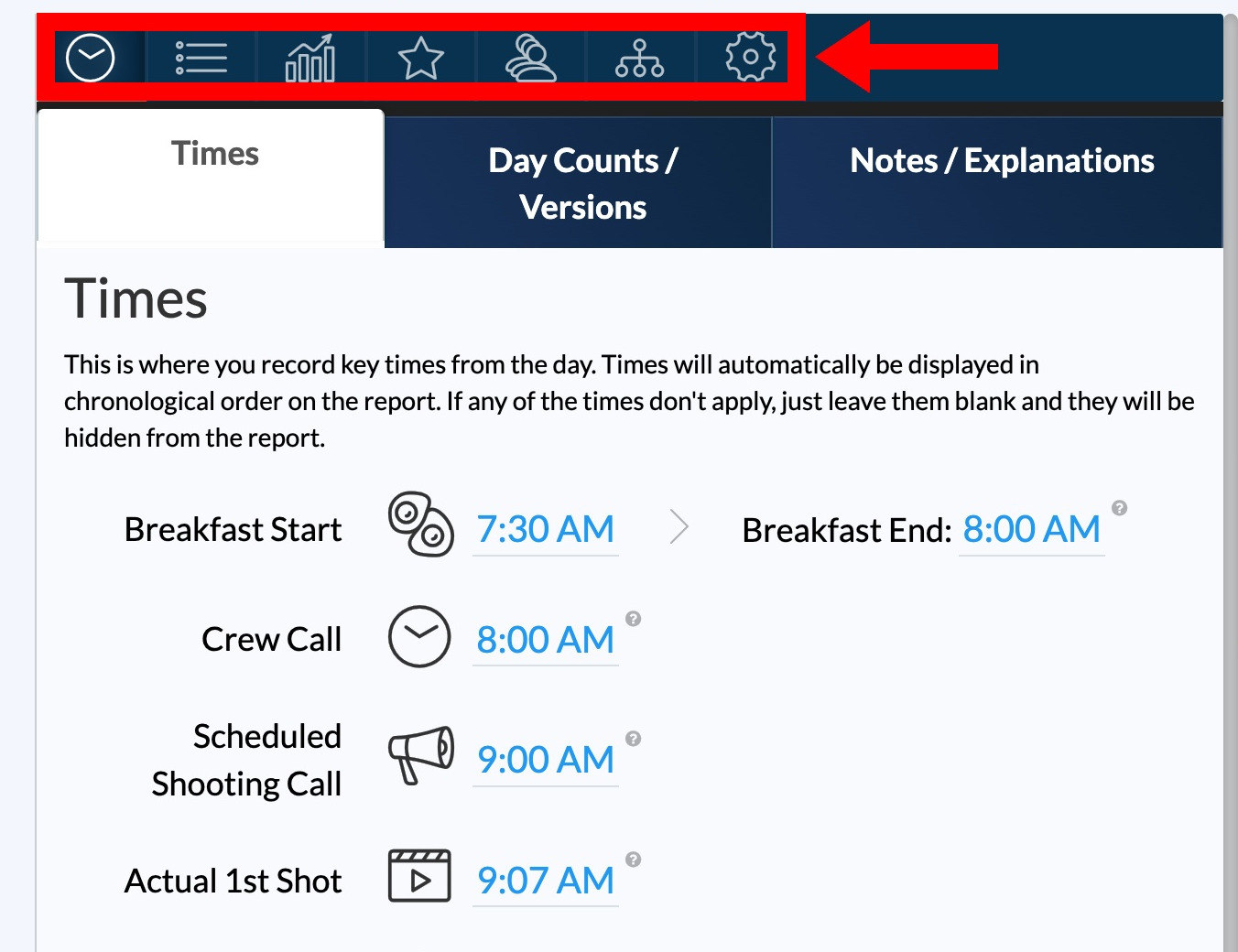
- Times, Counts, & Notes: crew call, meals, wrap, day counts, script and schedule versions, and general notes. See Record the day's times on a production report and Record day counts, schedule status, and script versions.
- Scenes: which scenes were shot and which were scheduled but missed.
- Coverage: scenes, pages, setups, minutes of footage, and roll counts, with to-date totals. See Track coverage, camera rolls, and script totals.
- Cast: arrival, makeup, set, and wrap times for each actor (an Exhibit G-style time log). See Complete the cast time log on a PR.
- Extras & Standins: background counts, call times, and rates. See Add extras and stand-ins to a production report.
- Crew: unit call and wrap times and individual crew hours. See Log crew working hours and meal penalties.
- Misc Info / Settings: branding, page layout, footer, and signature lines. See Customize a production report's layout and branding.
Scenes shot vs. missed
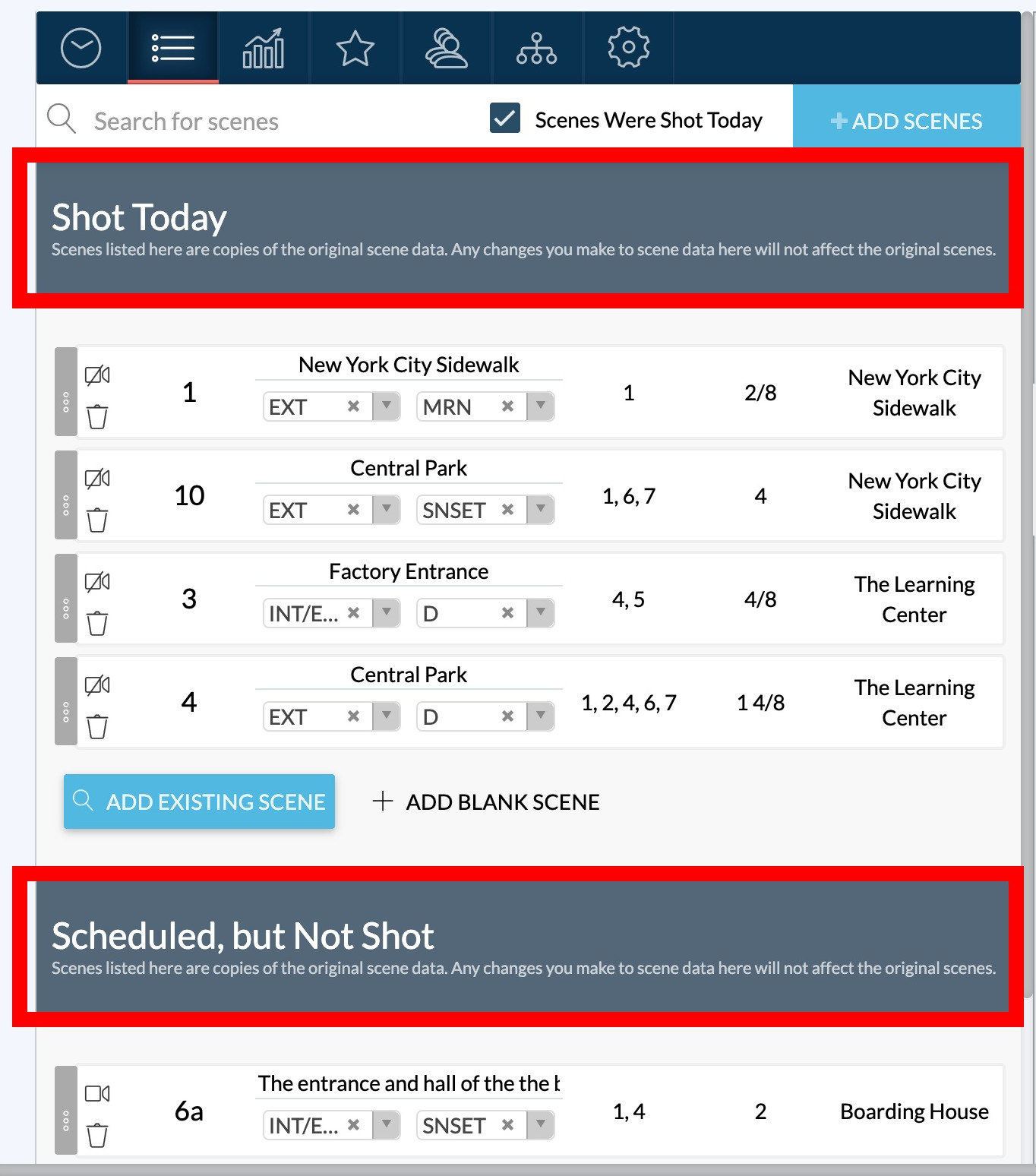
The Scenes tab keeps two lists: Shot Today and Scheduled, but Not Shot. Producers can see at a glance what's still owed. You can move scenes between the lists or add ones picked up on set. See Log which scenes were shot on a production report.
Preview and publish
The Live preview shows the finished document as you fill in the tabs. Click Full Screen to see the whole multi-page report. If something isn't showing up, see Why information is missing from your production report.
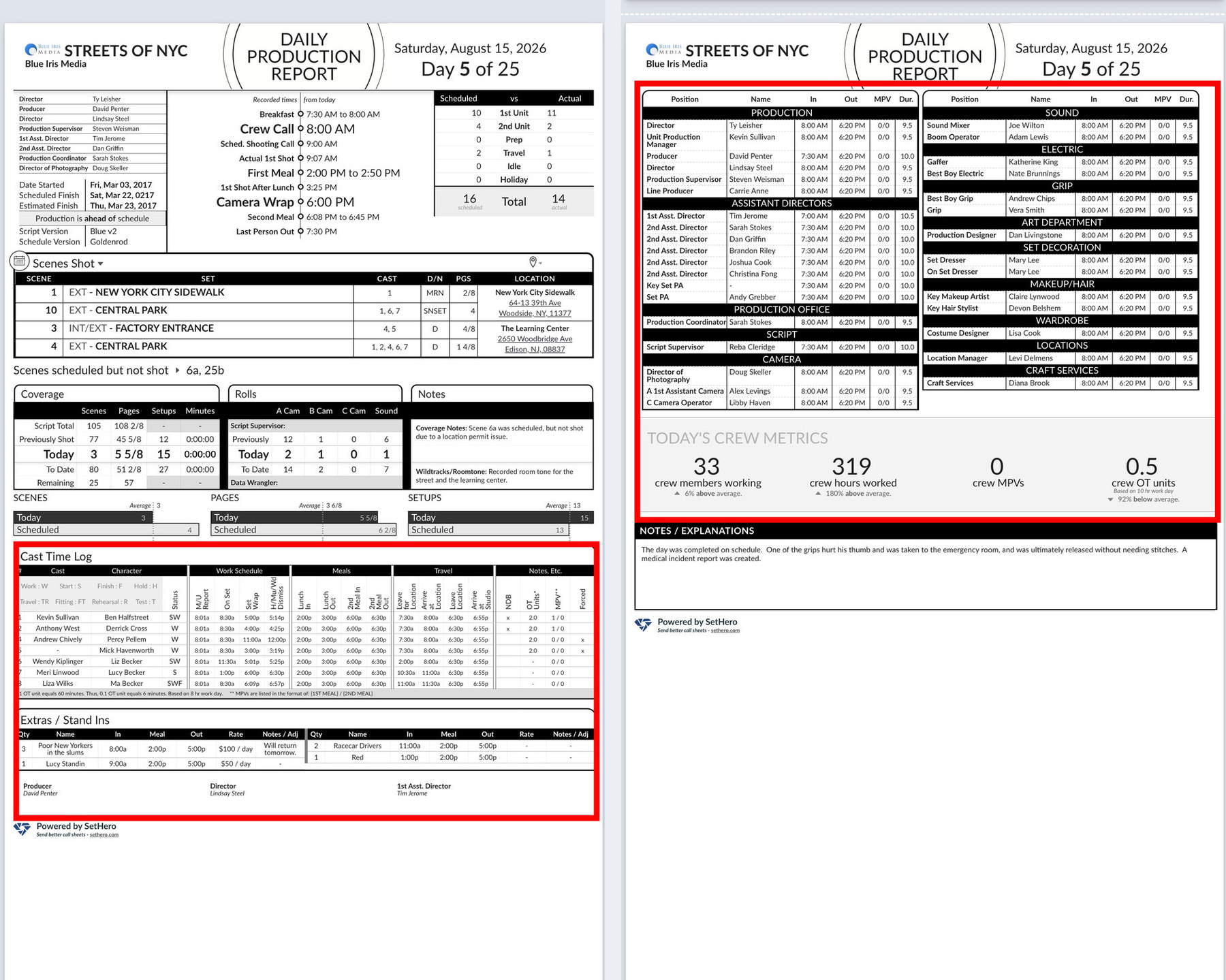
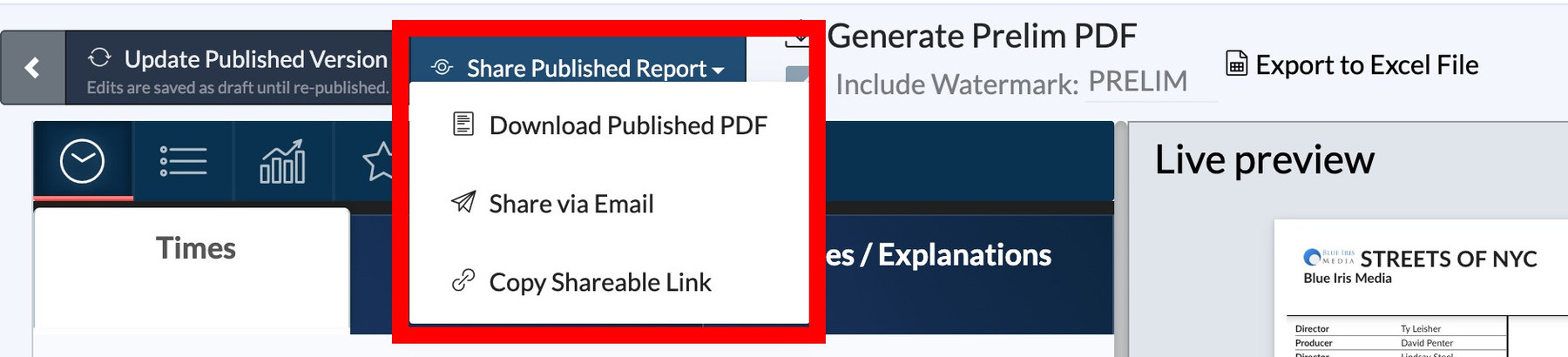
When the details are complete, click Publish and Share. You choose recipients and how to deliver: download the PDF, share by email with an optional attachment, or copy a link to view online. See Publish and send a production report.
Draft, prelim, and published
A report moves through three states:
- Draft: your working version, private to your team. The schedule shows Edit.
- Prelim: an optional watermarked snapshot you can send while shooting is still underway.
- Published: the final report, delivered to your recipient list.
Need to change something after publishing? Choose Revise from the schedule dropdown, make your edits, and republish when you're ready. See Update a production report after publishing.