Common mistakes on your first call sheet
Five things to check before you send your first call sheet
These five things are easy to miss on a first call sheet. You'll find the first four in Day Details on the Outline tab.
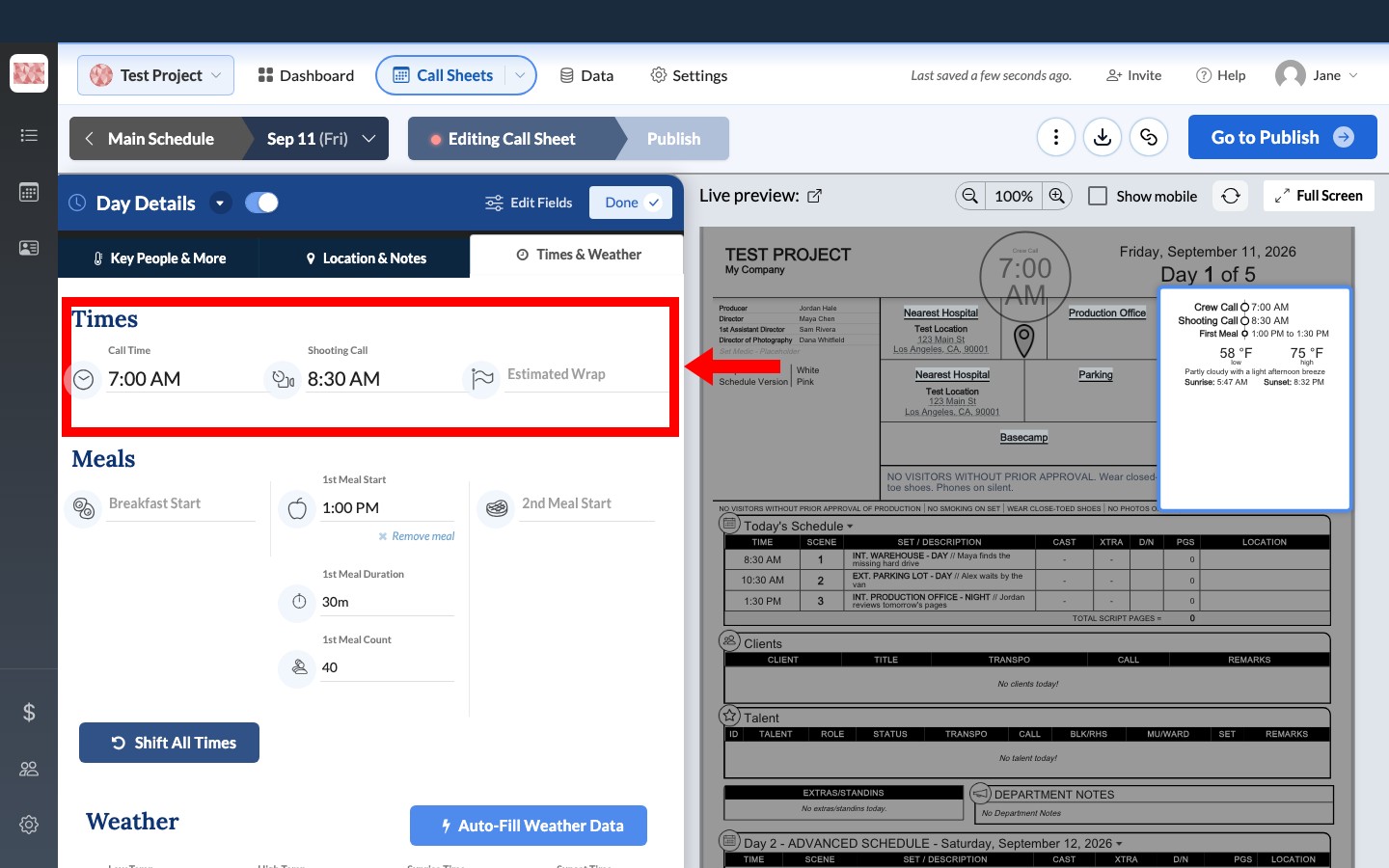
No call time
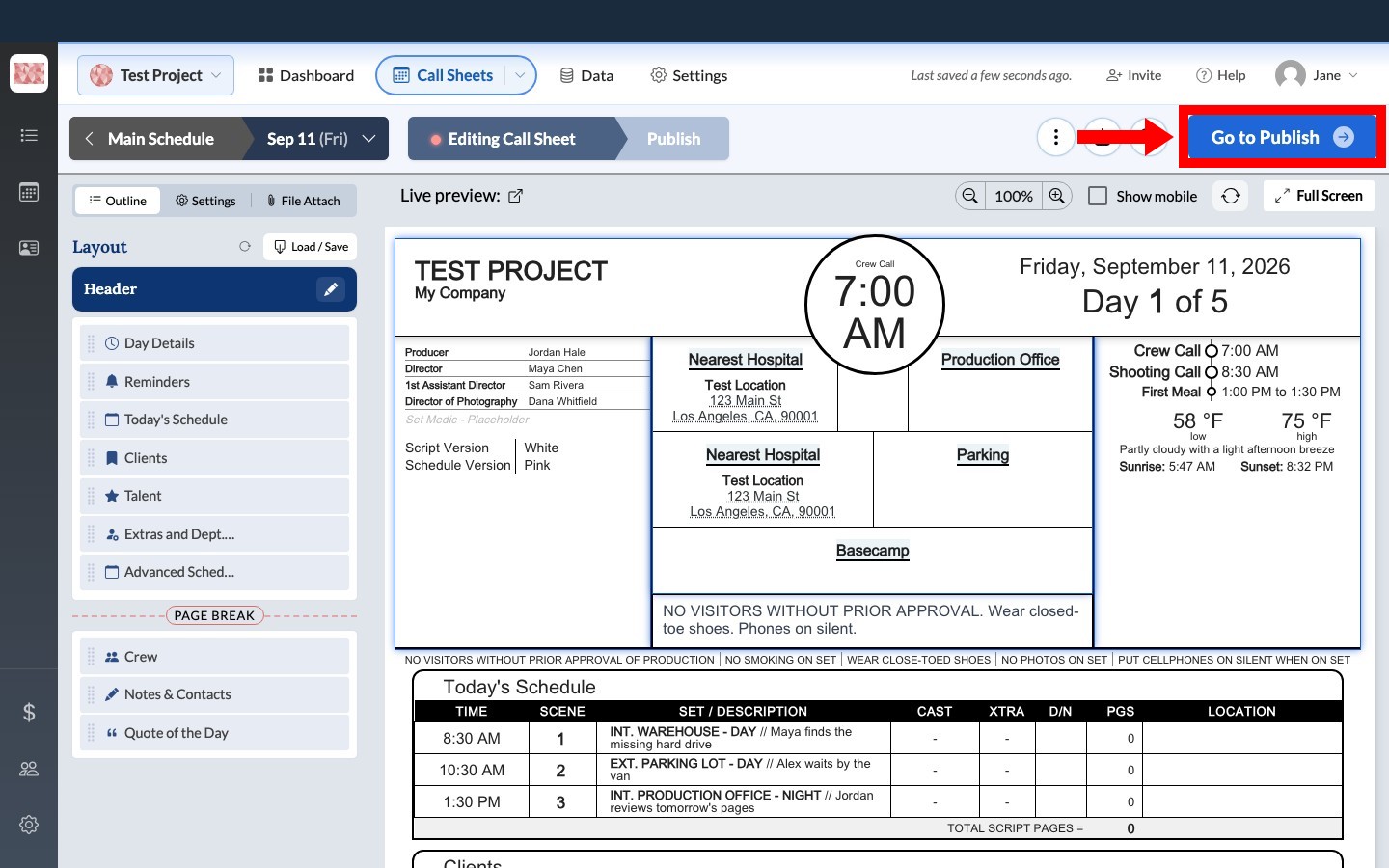
Without a general Call Time, crew rows show No call time. Set it under Times & Weather. To give someone a different time, see Set crew call times for individuals, departments, and the whole unit.
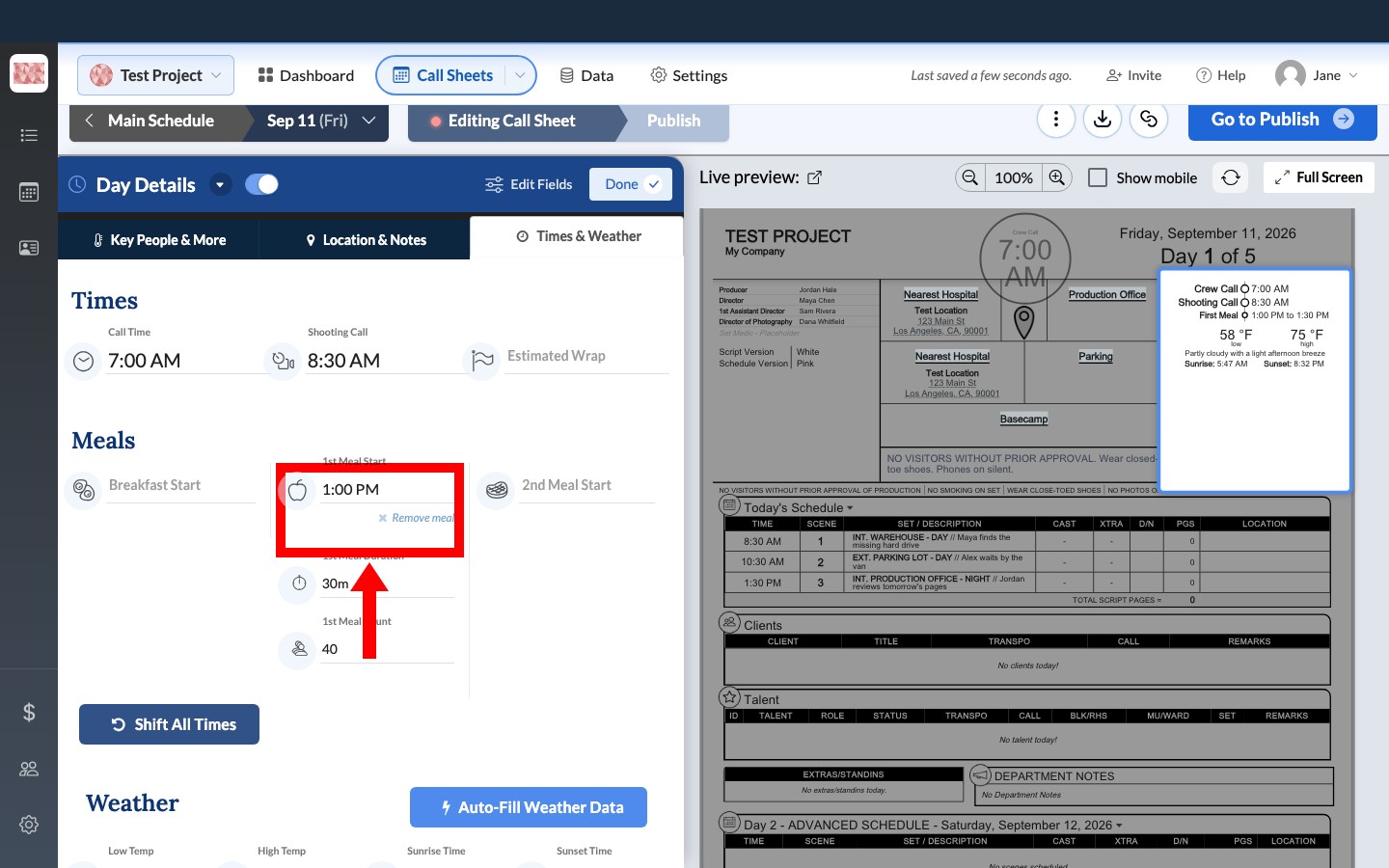
No meal break
Your crew can't see when they'll eat until you enter a time. Under Times & Weather, fill in 1st Meal Start. Most days only need this one, but Add and remove meal breaks covers the others.
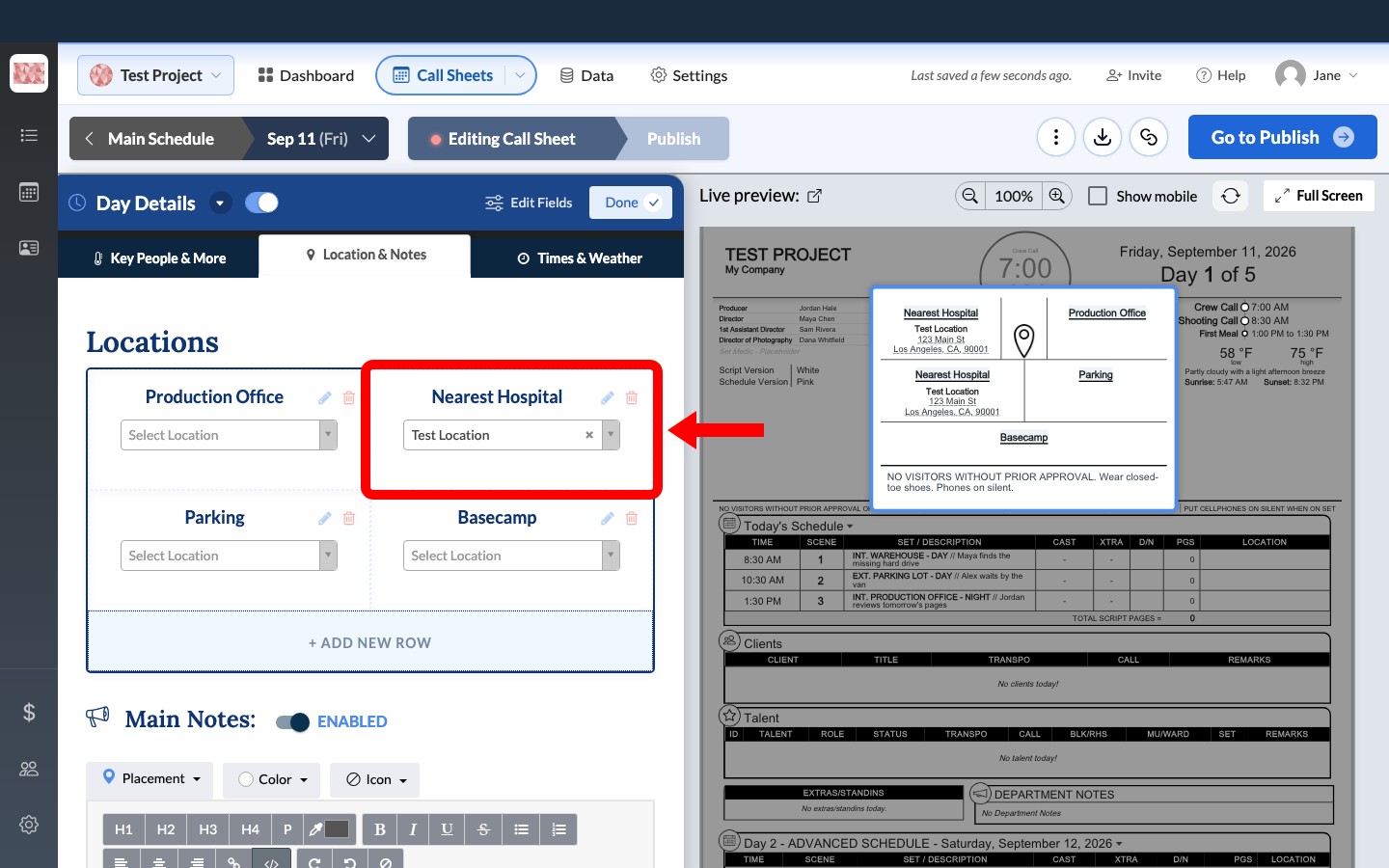
No nearest hospital
Your crew shouldn't have to search for this in an emergency. Under Location & Notes, use Select Location on the Nearest Hospital card. Your first call sheet in 15 minutes skips this step to keep things simple, so add it before you send a real call sheet.
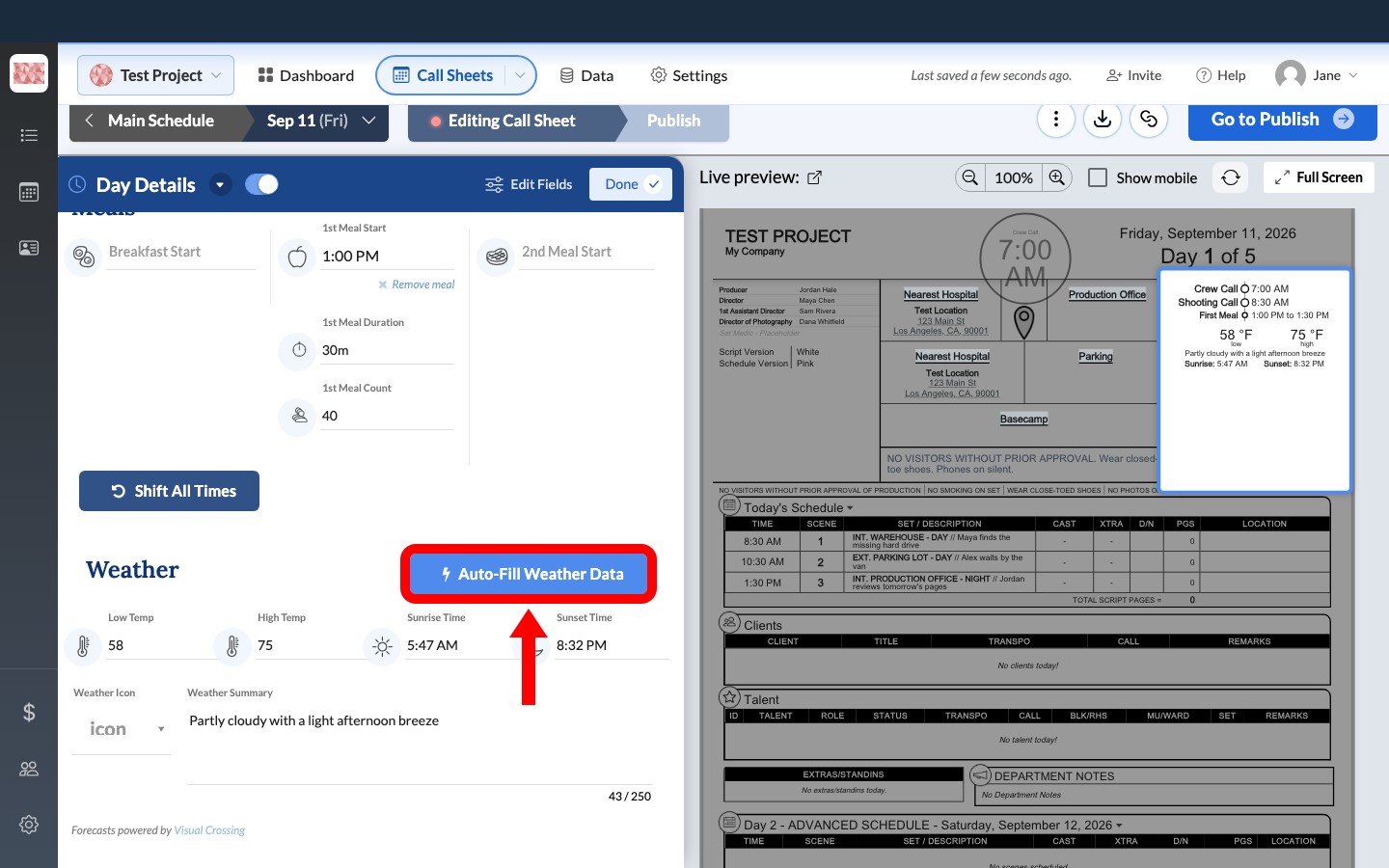
No weather
Under Times & Weather, click Auto-Fill Weather Data to add the forecast and sunrise and sunset times. The call sheet needs a location with a valid address first. If the shoot is more than 10 days away, the forecast isn't reliable yet, so run it again closer to the day. See Add weather and sunrise/sunset times.
Not publishing
SetHero saves your work as you go, but saving doesn't send anything. Click Go to Publish, choose your recipients, and confirm on Ready to send?. Publish and send a call sheet walks you through it.
To catch anything else before it goes out, see Preview and proof your call sheet before sending.