Can't log in or have two accounts
Why a code goes to the wrong inbox, what to do about two accounts, and how to fix loading errors
Sign-in trouble usually comes down to a few common issues: the code is going to an email you don't check, you're trying to log in to an account that doesn't have a password set, you have multiple accounts, or you've lost access to your two-factor authentication device. Below, you'll find fixes for each of these scenarios.
Important: If you have a shoot coming up and can't get in, email support@sethero.com and tell them which email address your projects are associated with. Once support has verified the account is yours, they can help change its email.
The verification code went to the wrong email
Verification codes are always sent to the account email—not the address you use for call sheets or enter during sign-in. On the "Verify it's you" screen, look for the masked email address next to the envelope icon to see exactly where the code was sent.
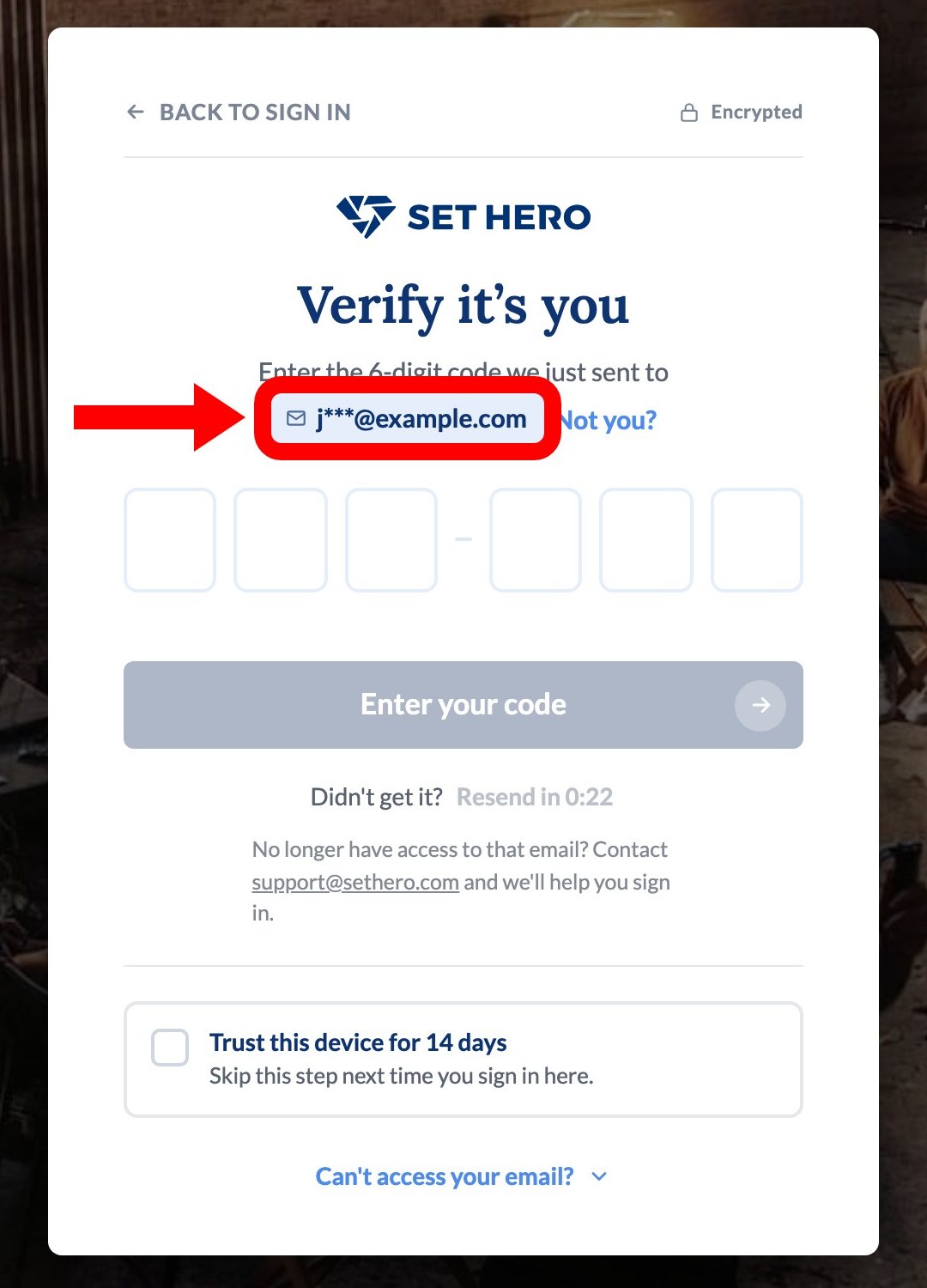
SetHero asks for a code when it doesn't recognize your device (like when using a new computer, browser, or after clearing your browser's cookies). You can select Trust this device for 14 days to skip verification on that device for the next two weeks.
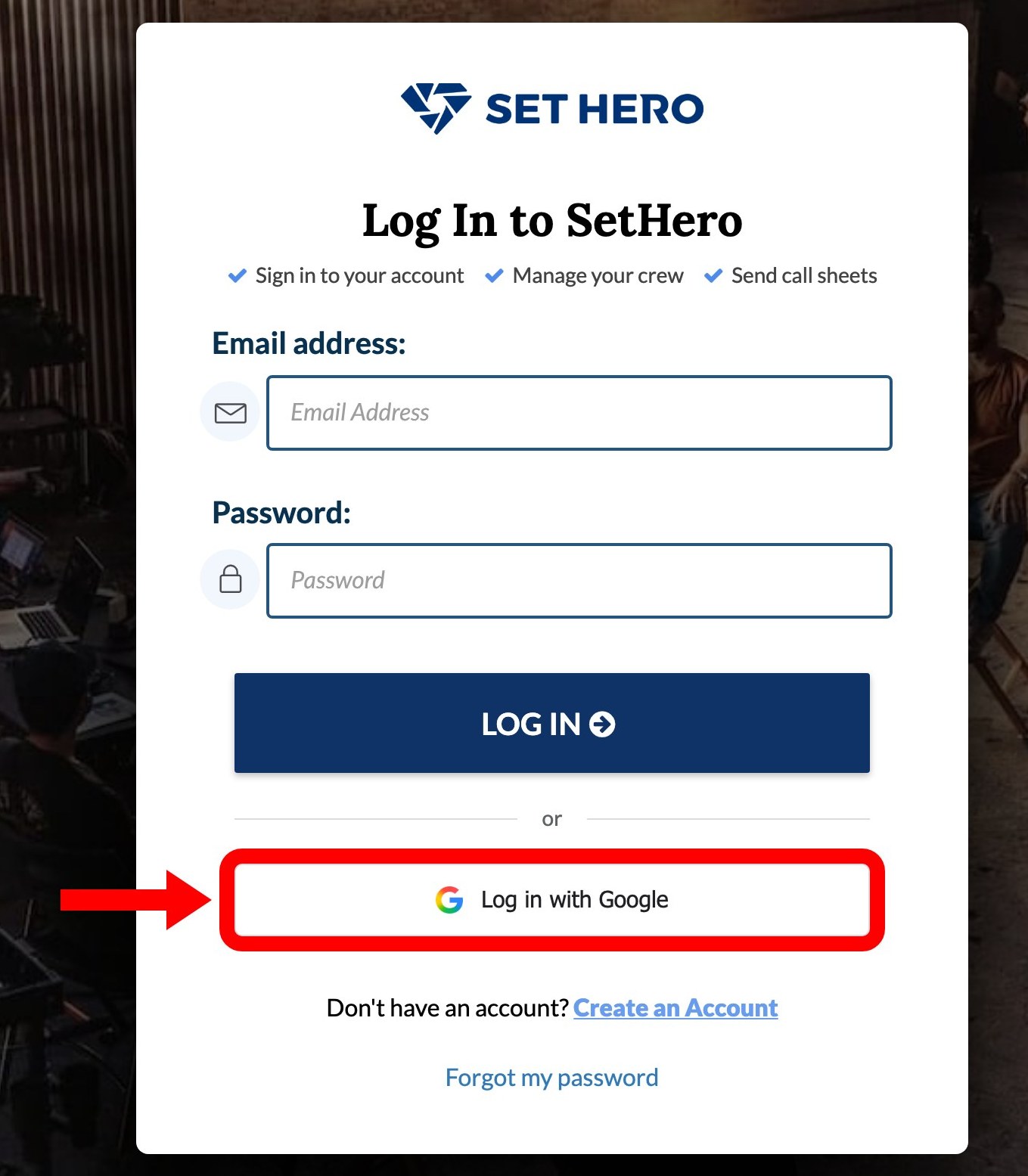
If the masked email address isn't what you expect, you might be trying to log in to a different account. Log in with Google will open the SetHero account linked to that Google account, which might be different from the one with your projects. Changing your SetHero account email later does not update that Google link.
Verification codes expire after 10 minutes, become invalid after five incorrect attempts, and can be resent every 30 seconds by clicking Resend code. If a code is expired, request a single new code and enter it carefully.
If you can't access the email inbox, stop requesting codes and email support@sethero.com. Once support has verified the account is yours, they can change the email on the account containing your projects.
If you're signing in with Google, you won't receive an email verification code because Google handles the login process directly. If you want to verify with email, try signing in using your SetHero password instead.
It says wrong email or password
The "Sorry! Wrong email or password" message is pretty generic. It can mean the email isn't linked to an account, the password you entered is incorrect, or too many failed attempts have temporarily blocked sign-ins.
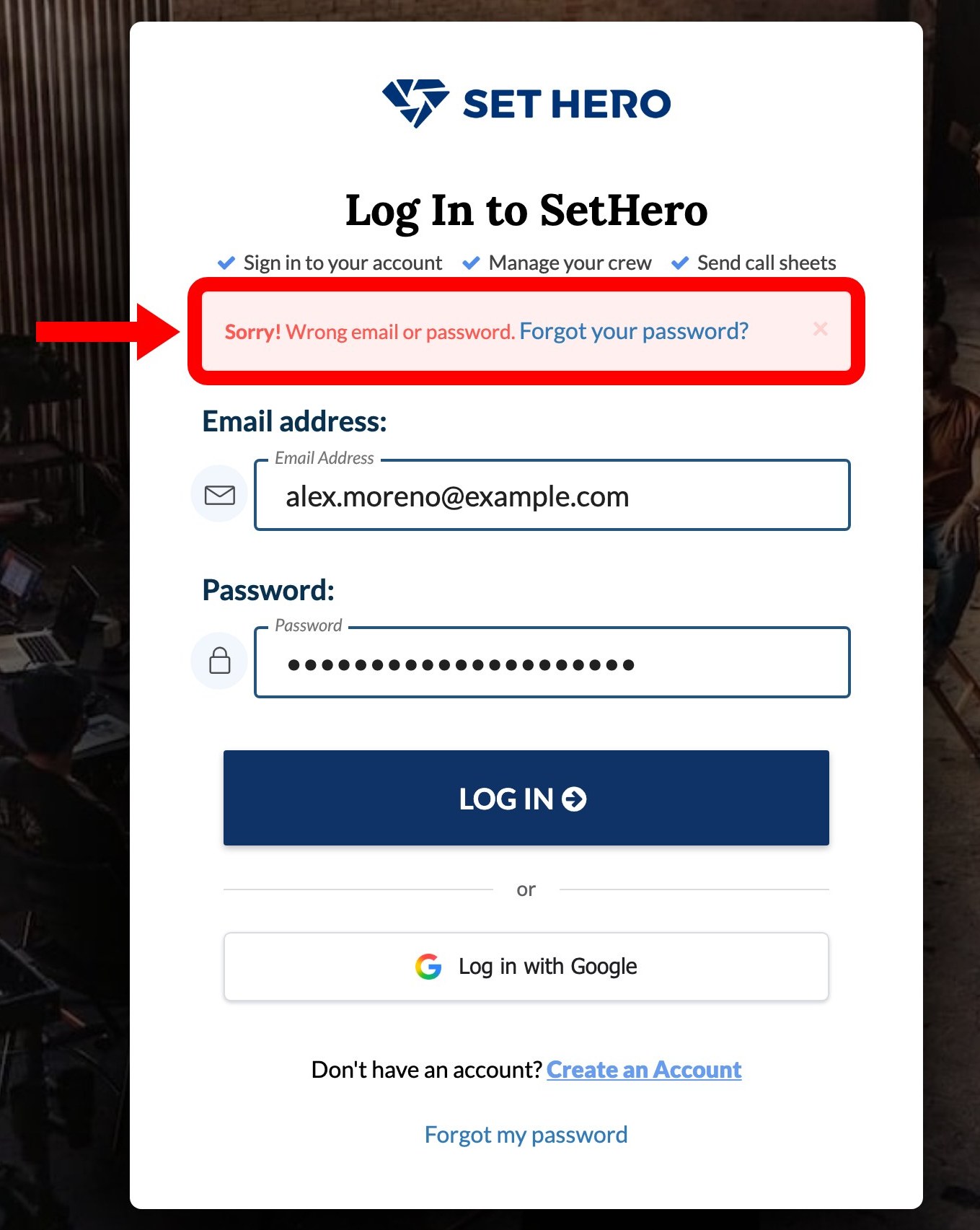
Check these solutions:
- Wait it out: If you've tried multiple times, SetHero may have temporarily blocked sign-ins for that email and will show this same banner. Wait about 30 minutes and try again.
- Use Google login: If you originally signed up using Google, select Log in with Google. Google-created accounts don't have a SetHero password unless one was added later, and typing one produces an Incorrect Login Attempt dialog explaining that the account was created using Google login.
- Reset your password: Select Forgot your password? to reset it, and follow Reset or change your password. Reset links expire after 48 hours. If the reset form can't find the email address, you might be trying to log in to an account that doesn't exist under that address—your projects may be under a different email.
I have two accounts
You might have two accounts if you:
- Signed in with Google using an email address that's slightly different from the one on your existing account.
- Accepted an invitation to join a set via a different email address.
Invitations are tied to the exact email they were sent to, so an invite to a second address can create a second account.
Since you can't merge accounts yourself, email support@sethero.com and include:
- The email address you want to use for your account
- The email address of the account that holds your projects
Support can often place your preferred email address on the account that already contains your work, so nothing needs to be moved or deleted. If your work is split between accounts, they can move your companies and projects into the account you want to keep and delete the other one.
If both accounts contain a company with the same name, support will ask if you want to keep them separate or combine them. Separate companies are distinguished by adding "(old)" to the transferred company's name. Combining companies can create duplicate contacts, which you can clean up with Merge Selected on the Contacts page; see Merge duplicate contacts.
Warning: Before asking support to delete an account, be sure to check what it owns! Deleting an account also deletes any companies associated with it, which is different from simply leaving a company.
I want to change the email on my account
You can update your email address in User Settings. Just find the Email row in the Profile card and select Edit.
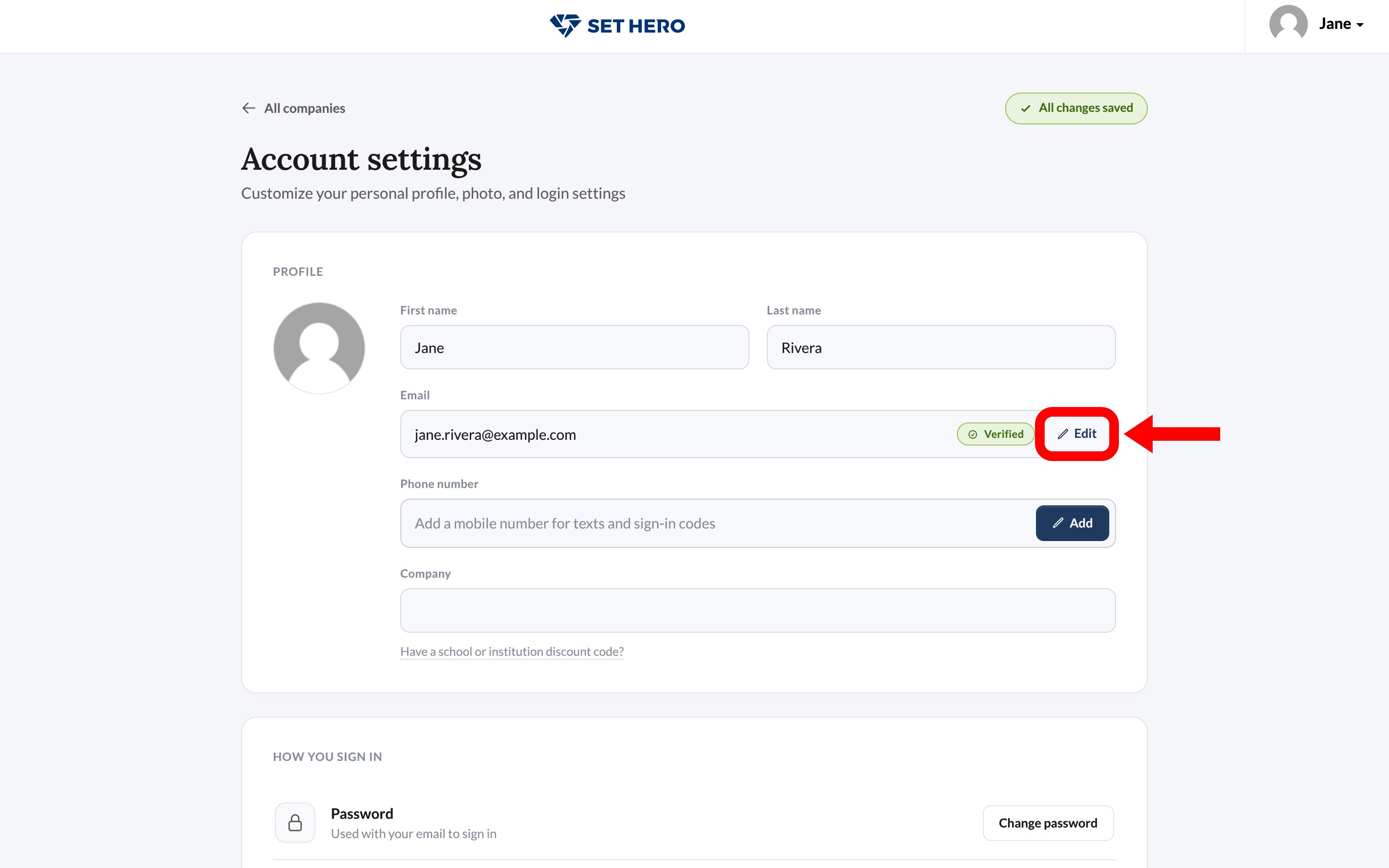
Enter the new address and select Send code. Then enter the six-digit code sent to the new address and select Confirm change. You may need to re-enter your SetHero password first. The full walkthrough is in Update your name, email, and account settings.
Changing your account email doesn't update existing invitations already sent to your old address—those still point to that address, so ask the sender to invite your new email instead. It also doesn't change your invoice email, which is managed separately under Company Billing and covered in Payment card, renewals, and invoices.
I lost my two-factor device
If you've lost access to your two-factor authentication device, try these recovery options in order:
- Select Try another way (labeled Can't access your email? or Can't access your phone? depending on the method being offered) and use another verification method already connected to your account.
- Choose to receive a verification code via email. This is available for password sign-ins unless your company requires a stronger method, and it isn't available for Google sign-ins.
- Enter one of the recovery codes you saved when setting up two-factor authentication. Each code can only be used once.
If none of these options work, email support@sethero.com and request a two-factor reset. Support will verify the account is yours first. A reset removes all enrolled methods, including your authenticator app, passkeys, SMS, recovery codes, and trusted devices. You'll receive an email when the reset is complete and will need to set up two-factor authentication again. Set up two-factor authentication walks through enrolling one and saving fresh recovery codes.
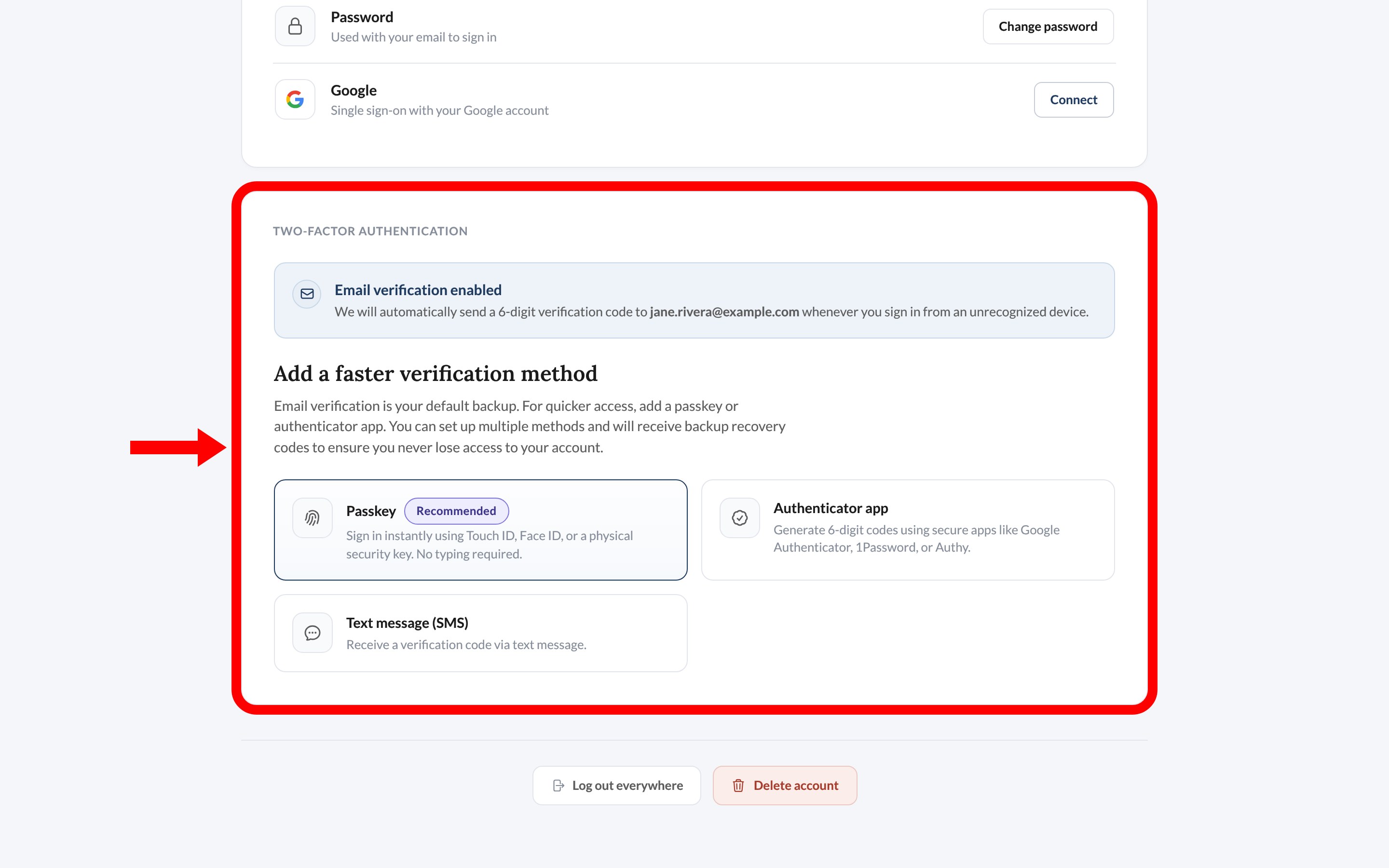
Tip: Add a second two-factor authentication method while you still have access to your first. Having both an authenticator app and a passkey means losing your phone won't be a crisis.
It says Error Loading Companies or keeps loading
If SetHero stays on the loading screen or shows Error Loading Companies after you sign in:
- Hard-refresh the page: press
Cmd+Shift+Ron a Mac orCtrl+Shift+Ron Windows. - Try signing in from an incognito or private window. If that works, a browser extension is likely the cause, so turn off your ad blocker or other extensions for SetHero.
If it still won't load, email support@sethero.com with your account email, your browser, and the message you see.
Is my account locked?
No, SetHero doesn't permanently lock accounts or show a separate "locked" message.
If you've entered your password incorrectly too many times, SetHero will temporarily block sign-ins. This block typically lasts about 30 minutes, but it might be longer if you've made repeated attempts throughout the day.
Wait for the block to clear before trying again. Attempts during a block won't extend the block, but they also won't succeed—only time clears the block. If you're still unable to sign in after waiting, review the other troubleshooting steps above or email support@sethero.com.