Build your crew list
How crew lists work, what details to add, and how to import contacts
Your project crew list feeds the Crew section of every call sheet. Add each person once, assign the position or positions they'll work, and SetHero groups them under the right departments whenever you build a sheet.
Plan ahead
Before you start entering people, gather for each crew member:
- Full name
- Crew position
- Email address (optional, but required for receiving call sheets by email)
- Phone number (optional, but required for receiving call sheets by text)
(Note: Email and phone are not required to save a contact, but they are necessary for delivery. See Required info for sending email and text for more details.)
SetHero starts every project with standard departments and positions. If you need custom positions or a different order, see Set up departments and positions. That order is how crew are grouped on your call sheets.
Add crew members
On the People page, select Crew under Groups, then click New Crew.
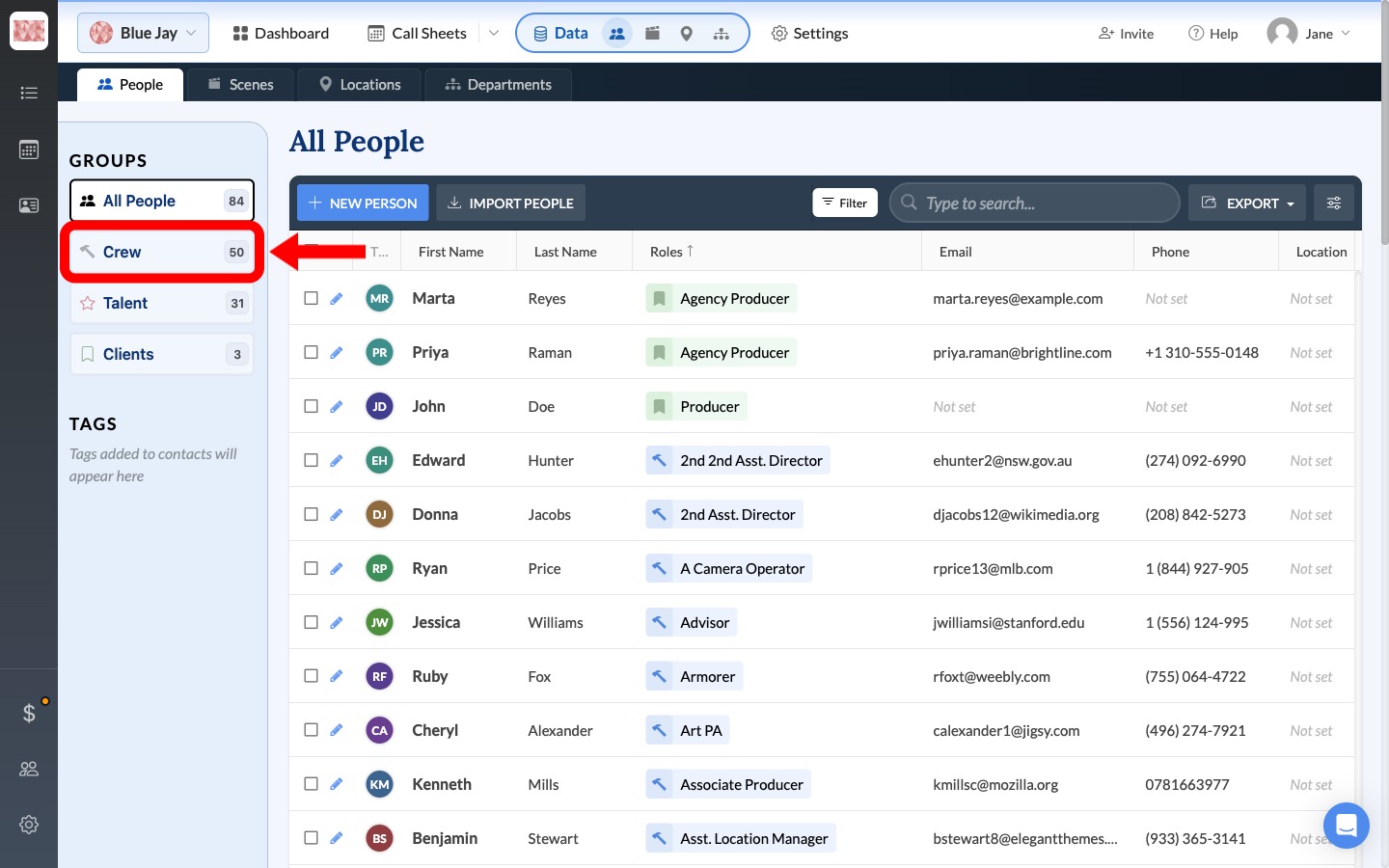
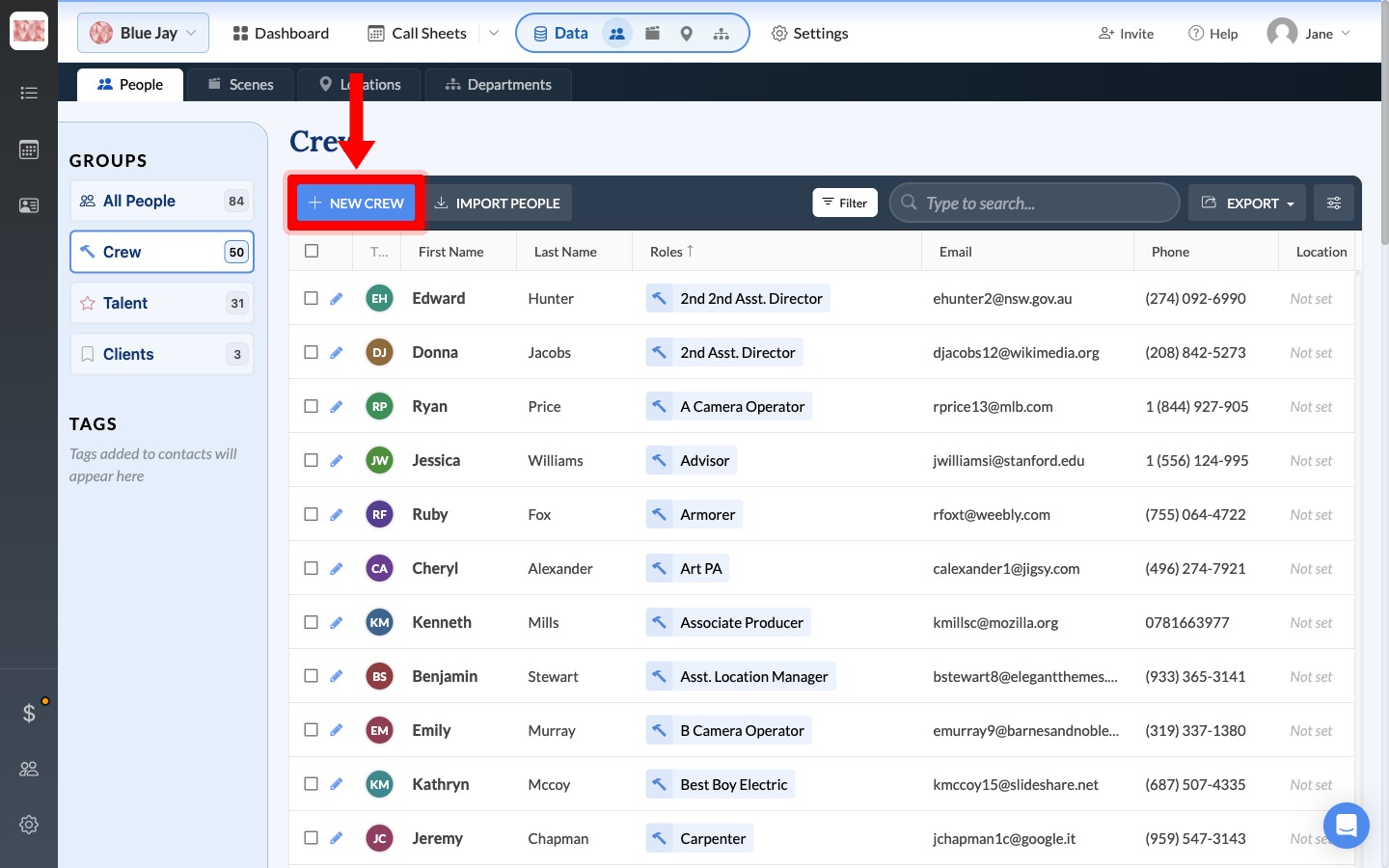
Enter the person's Full Name, Email Address, and Phone Number. If they're already in your contacts, pick the matching result instead of creating a duplicate. In Role(s), leave the first dropdown on Crew and select their position. If the position is missing, choose New position to create it inline, or set it up first via Set up departments and positions.
If someone works more than one position, click Add Another Role and pick the next one. Otherwise click Create, or Create & Add Another when you're entering several people in a row. Create stays blocked until at least one Crew position is chosen. Repeat until everyone working on the project is in the Crew list.
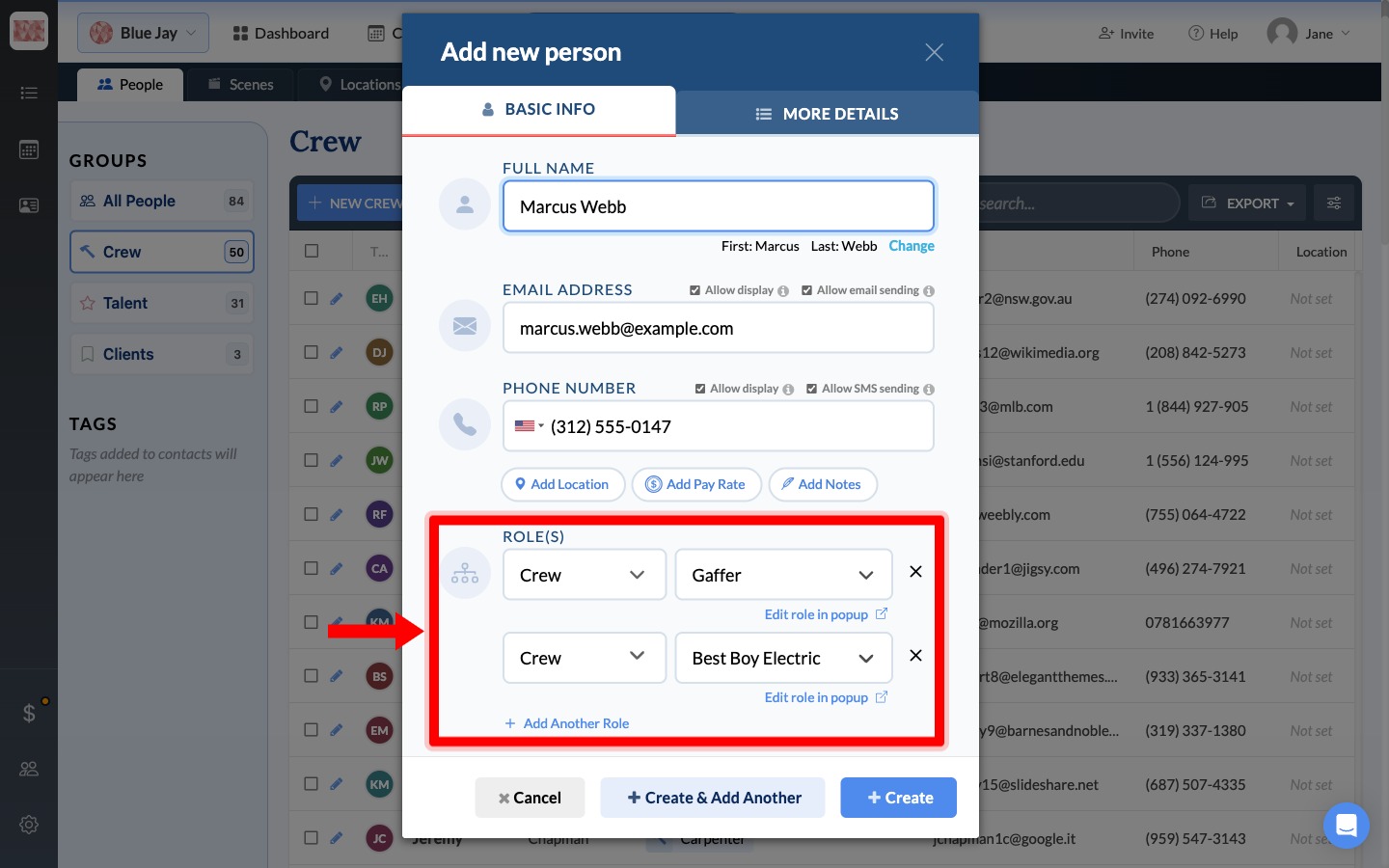
Tip: If someone works several Crew positions, keep one contact record and add each position as another role. See Assigning different crew positions on different days to choose which position shows on a given day.
Review the list before building
Check the Crew page before your first call sheet:
- Each person has the correct position.
- Email and phone are filled in for the delivery methods you plan to use.
- No one appears twice.
- Anyone with several jobs has all of them in the same row.
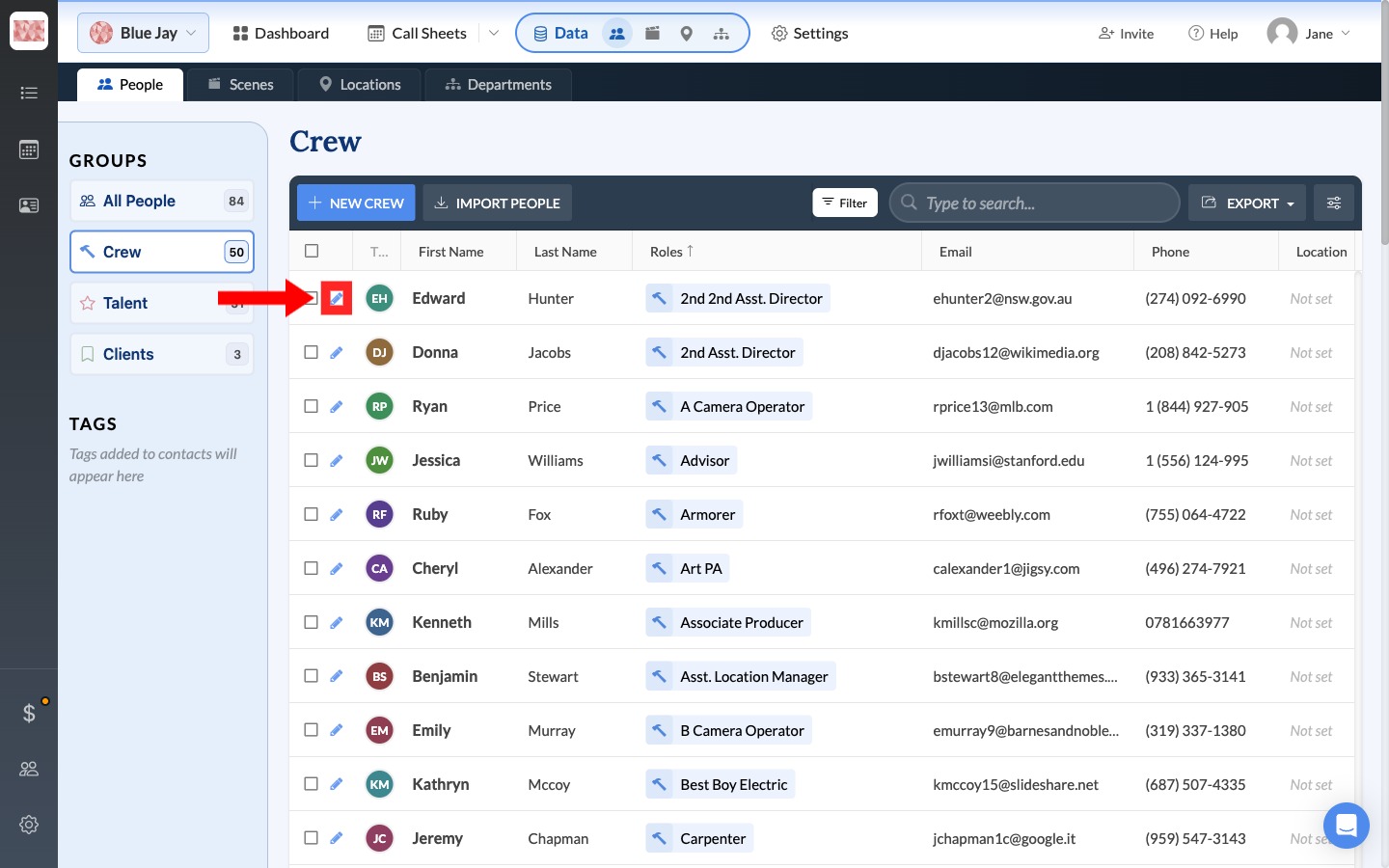
Click the pencil beside a person to fix details or roles.
Add a larger crew from a spreadsheet
If you already have a crew list, click Import People on the Crew page and follow Import contacts from a spreadsheet to upload and map it.
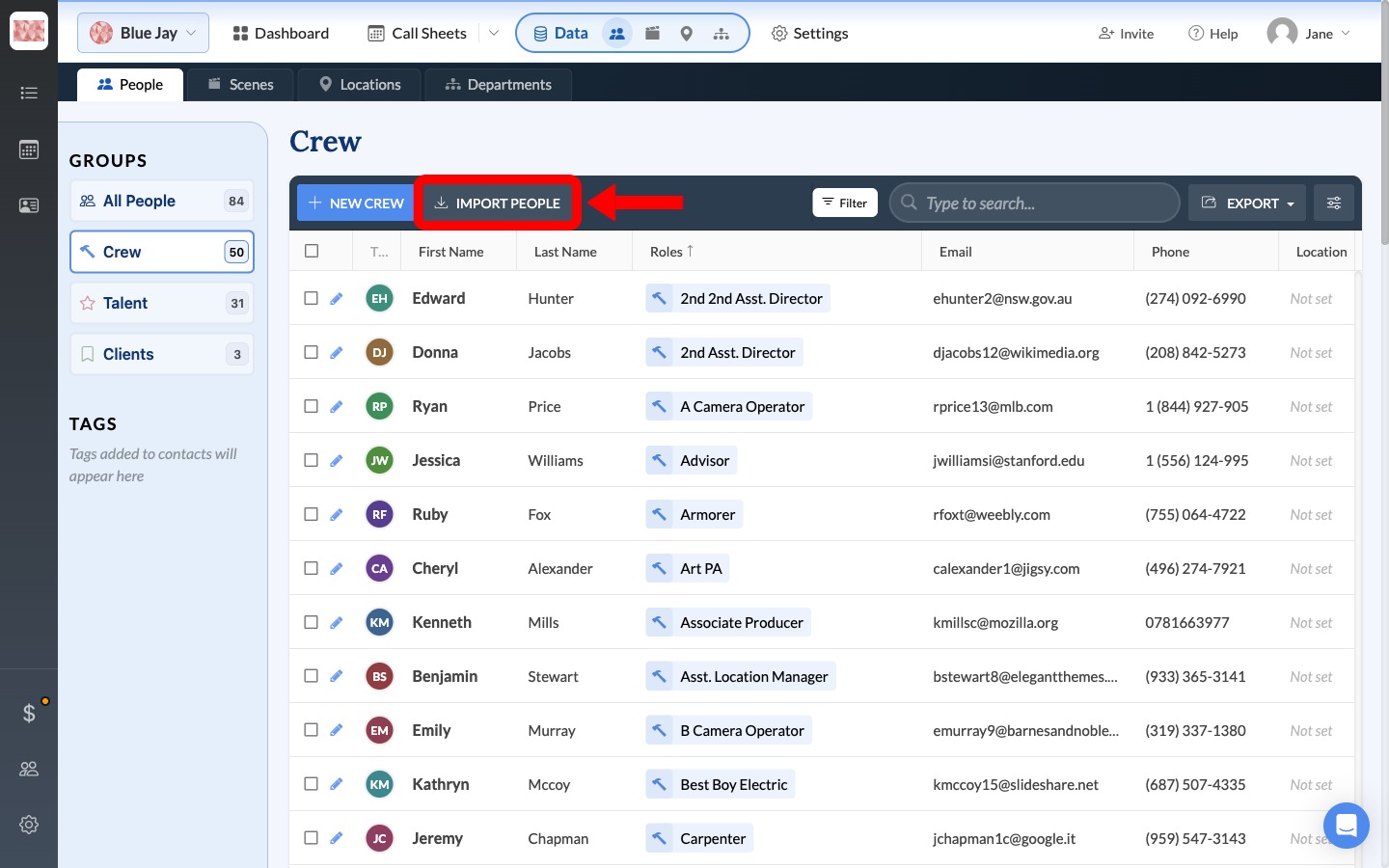
Use Position, First Name, Last Name, Email, and Phone as your column headings. If SetHero flags a position it doesn't recognize, match it to an existing project position or create the missing one before finishing the import.
Crew on your call sheets
Once the list is ready, open any call sheet and click Edit beside Crew in the outline. Everyone with a Crew role is already there, grouped by department and position. You don't add them again. Confirm the people are grouped under their departments.
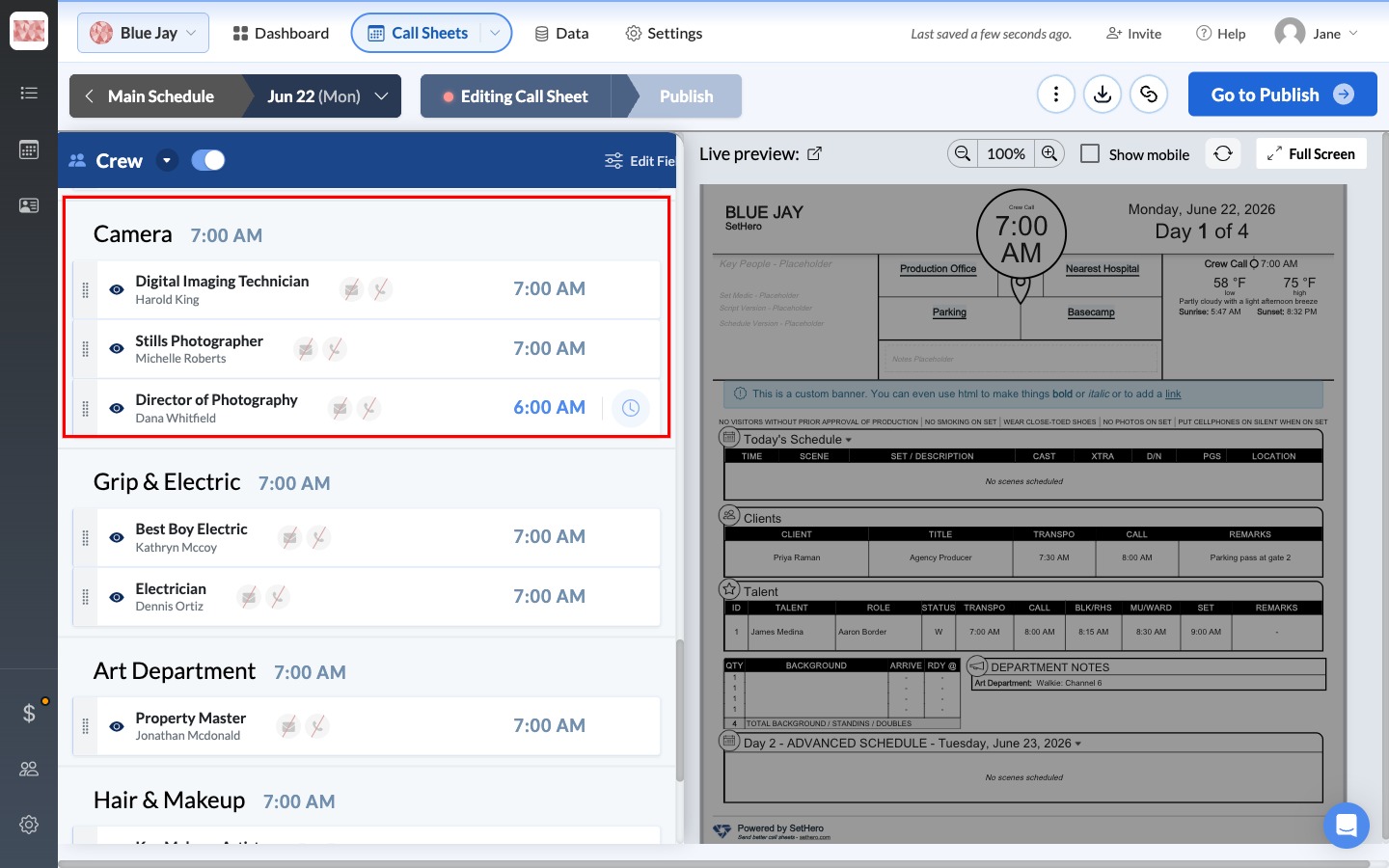
From the Crew editor you can add a department call time with + Add dept call, hide a person or department that isn't working with the eye icon, set an individual call time, or show a different position for someone that day. If someone is missing, Why a person isn't showing up on your sheet walks through the checks.