Call sheet won't send or crew didn't get it
Why call sheets show Pending or Failed, or never arrive
Your call sheet says it went out, but the crew says nothing arrived? Let's figure out what happened. We'll walk through checking for a widespread issue, a problem with a specific recipient, or a carrier blocking texts.
Start here: check the status page and delivery list
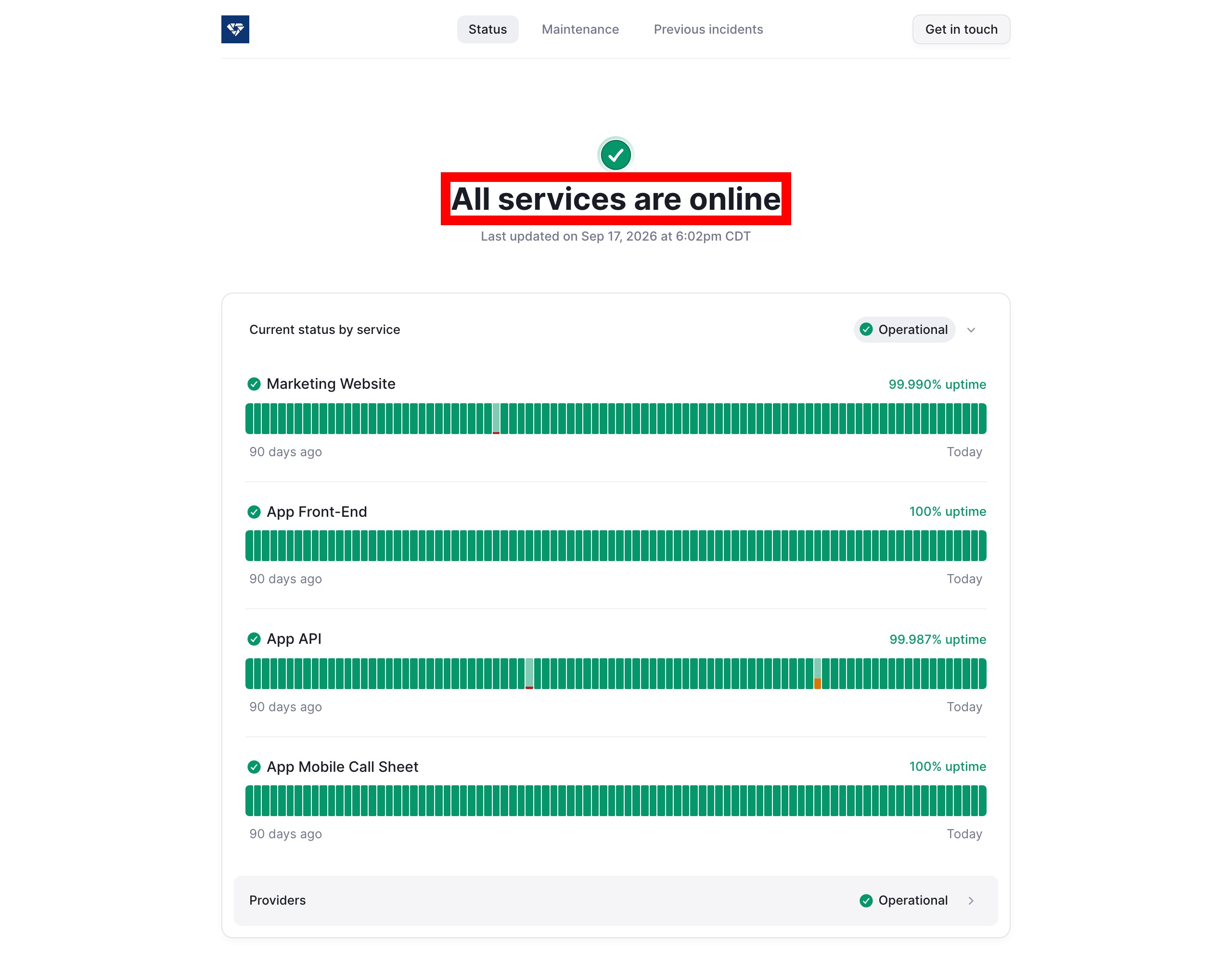
First, check status.sethero.com for any active delivery incidents. If there's an incident, messages may be delayed, and there's nothing you can do to speed things up.
Next, go to the Track Confirmations page for that call sheet. You can find it from the row of the call sheet on the Call Sheets page. This page gives you a record of what SetHero sent and what happened next; Track who has confirmed a call sheet covers the page in full.
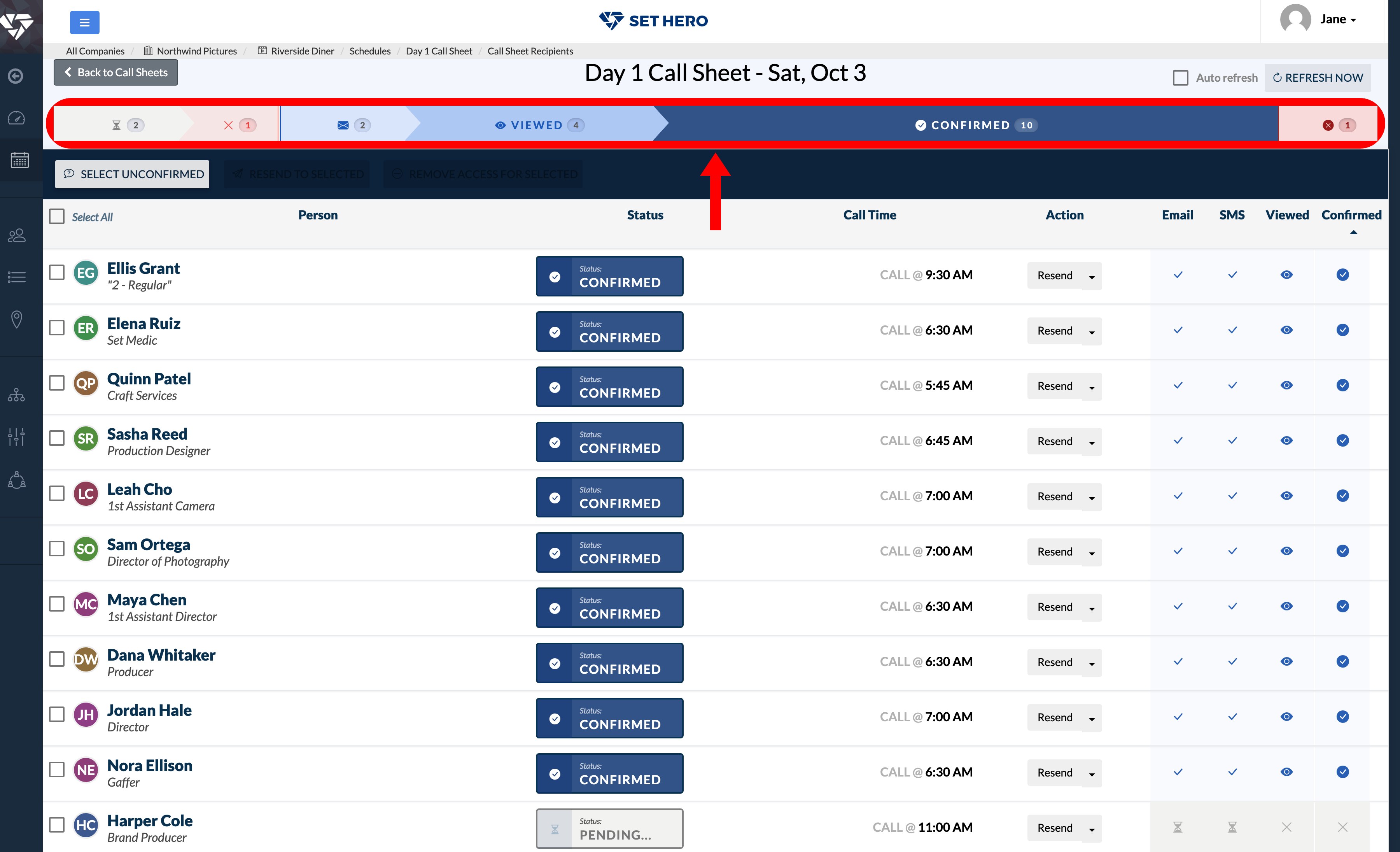
Here's what the different statuses mean:
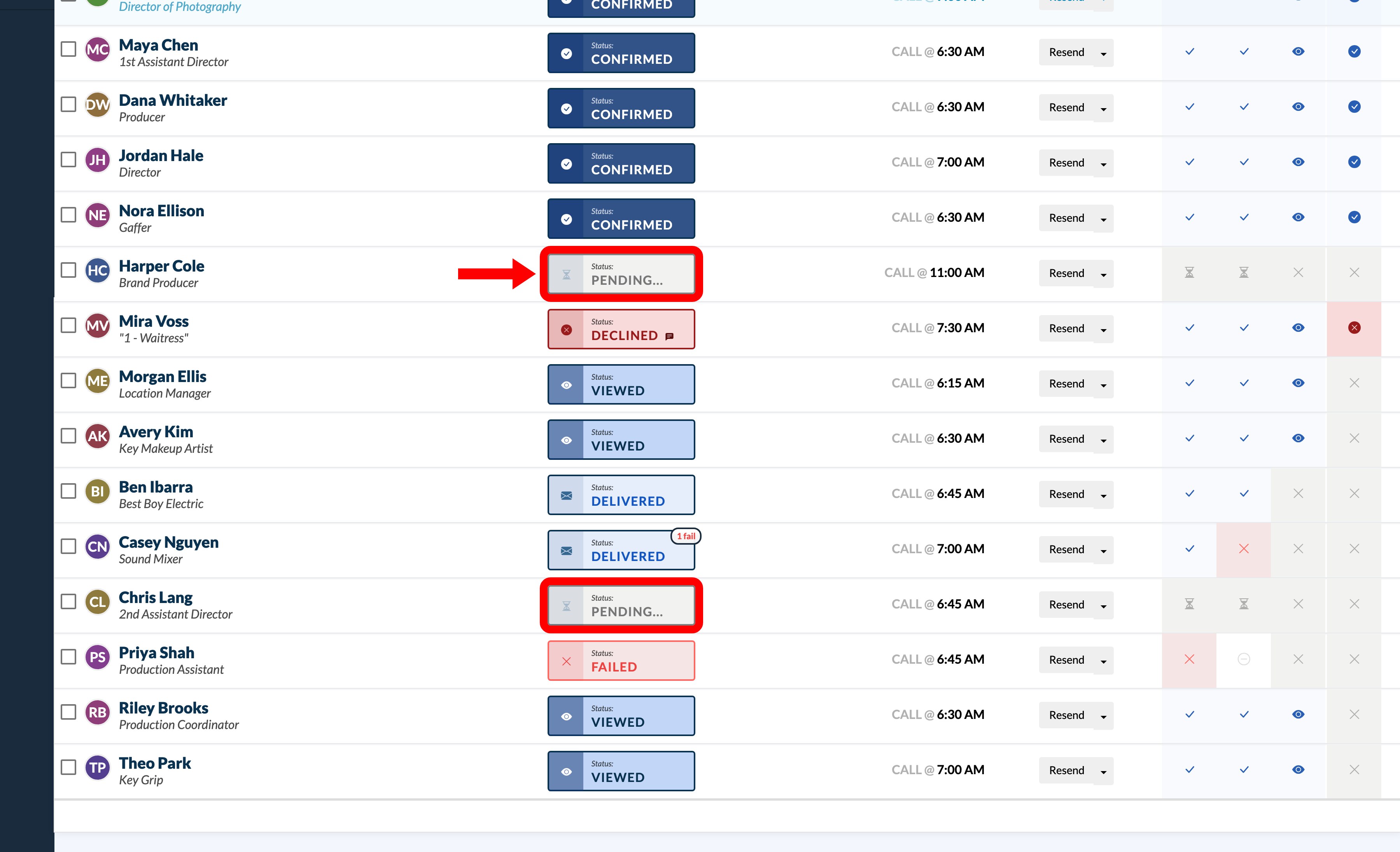
- Pending... — SetHero hasn't received a delivery report yet, or nothing was sent.
- Delivered — the email or text provider accepted the message.
- Viewed — the person opened their call sheet link.
- Confirmed — the person confirmed their call time.
- Declined — the person declined the call.
- Failed — delivery failed on every channel used.
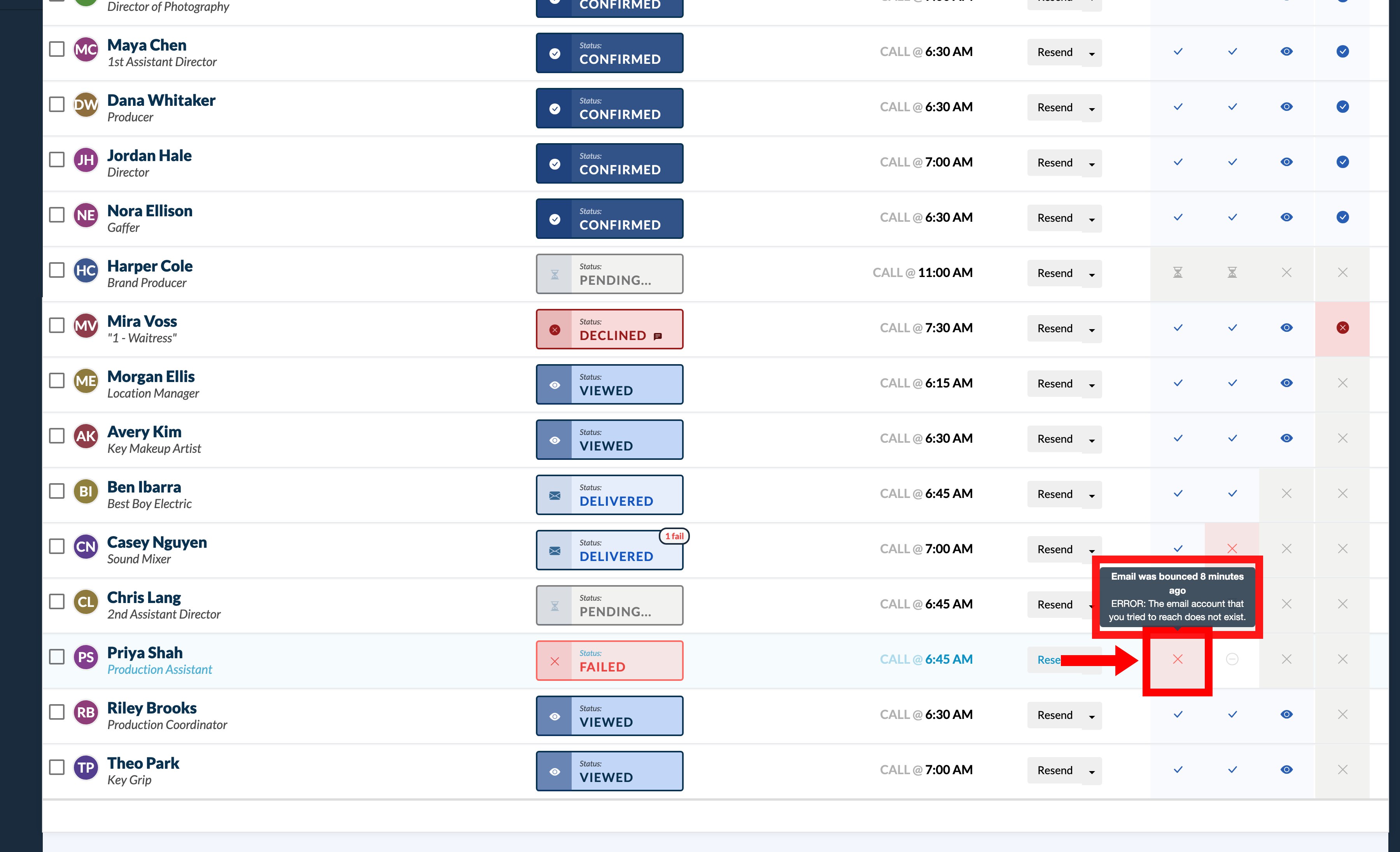
If you see a 1 fail badge, it means one channel (email or text) worked, but the other didn't. Hover over the red icon in the Email or SMS column to see the provider's error message, which will start with ERROR: and explain the issue. Use Refresh Now to reload the results, or leave Auto refresh on to keep the information up to date.
Note: Pending... is not automatically a failure. It usually means SetHero is still waiting for a delivery report, so wait and refresh instead of publishing again.
However, if a Pending... row shows a grey dash in the Email or SMS column instead of an hourglass, it means nothing was sent on that channel at all, and the status will not change on its own. Open the person's contact, double-check their email address and phone number, make sure they've allowed messages, and then resend to them.
Everyone is stuck on "Pending"
If all recipients are showing Pending..., double-check the status page. During a delivery incident, messages will queue up. Once the issue is resolved, the queue will clear and the messages will go out.
Don't repeatedly republish the call sheet. This won't move things faster and could result in duplicate messages. Just publish once and monitor Track Confirmations.
The call sheet says "Published," but nobody got it
Just because a call sheet is marked Published doesn't mean everyone received it. A call sheet is marked Published before its individual emails and texts go out, so that status simply means the document exists.
Use Track Confirmations to see the actual delivery status.
You'll also receive an email with the subject Call Sheet Sent - {date} - {project}, which shows what was queued for delivery, not what reached each person. Use it to identify any files that failed to attach.
Before publishing, always make sure the recipient count in the publishing summary matches your expected list. If it doesn't, reload the page before sending to ensure SetHero has saved everyone correctly. A test sent only to you is the safest way to see exactly what your crew will get, and Publish and send a call sheet walks through the send itself.
It says "Delivered," but they say nothing arrived
Delivered means the email or text provider accepted the message. It doesn't guarantee the recipient saw it.
If a recipient shows Delivered or Viewed but can't find the call sheet:
- Ask them to check their spam, junk, and promotions folders.
- Have them search for the production's sender name, not "SetHero" — call sheets arrive under the project's sender name.
- Confirm their full email address and phone number. A small typo can send the message to the wrong place.
- Open the caret menu on their row and choose Preview Call Sheet to open a link to the sheet they were sent. You can share it another way or read them their call time immediately.
- Confirm their contact details, then use Resend.
One person shows "Failed"
A single Failed recipient usually indicates a problem with their contact details, not a system-wide issue. Hover over their Email or SMS icon to read the ERROR: text.
Common causes include:
- A bounced or invalid email address
- A phone number rejected by the carrier
- An earlier call sheet marked as spam
- An email address that has unsubscribed
Correct the email address or phone number, then use Resend from Track Confirmations. The Resend Call Sheet dialog lets you turn Resend Email and Resend SMS on or off, so you can resend only the channel that failed, and a greyed-out toggle means that channel is disabled for that contact.
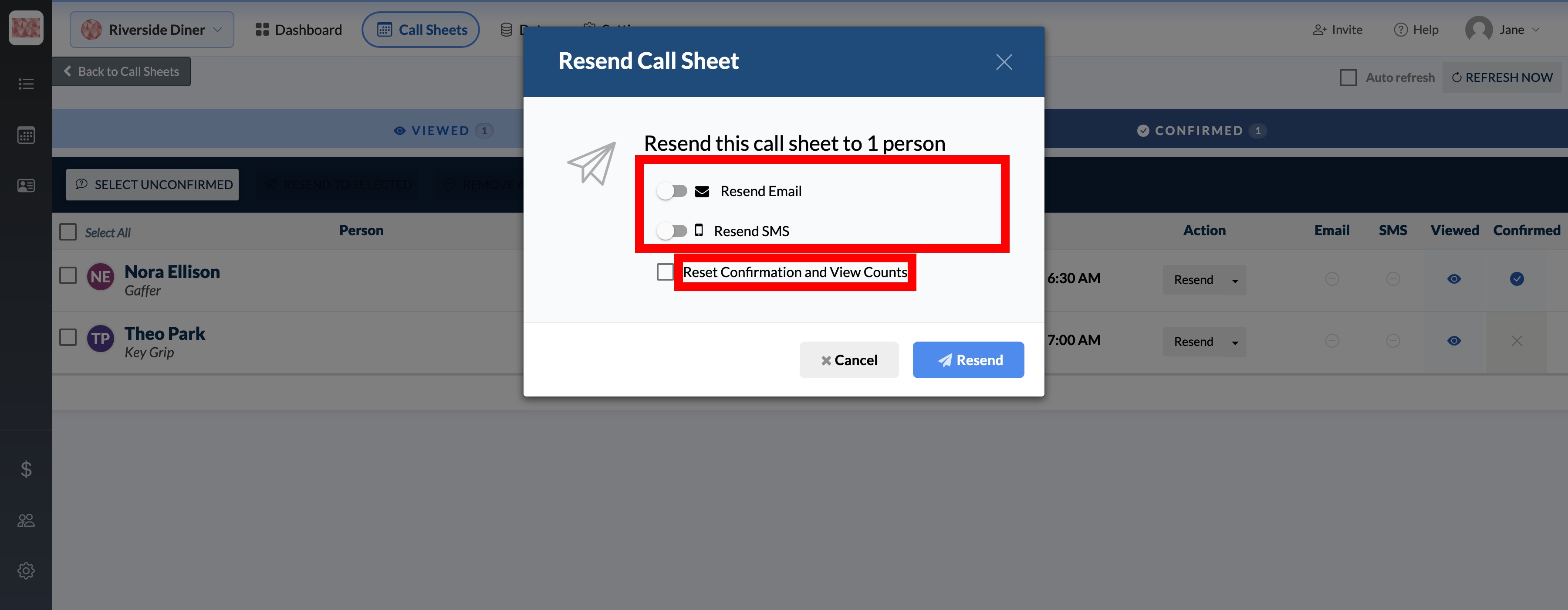
Spam reports and unsubscribes need to be handled directly by the recipient, because the address itself may be correct — they'll need to allow messages from the production again, such as by moving an earlier email out of spam or asking to be added back to the mailing list. Resending before that won't fix the problem. Contact support if the issue continues after they've allowed messages.
The resend dialog also lets you Reset Confirmation and View Counts. Leave this off for a normal resend, and only use it if you want the recipient to view and confirm the call sheet again from scratch.
Texts aren't arriving, but emails are
Here's what to check if texts aren't going through, but emails are:
- Texting wasn't enabled. Make sure SMS was turned on when you published — or that your plan includes texting. If not, no texts were queued for anyone, and every SMS column shows a dash rather than an error. The switch is in the publishing workspace; if it is locked, the plan needs the texting add-on.
- The recipient can't receive texts. Their contact information may be missing a phone number, or Allow messages via SMS text? may be off. Send call sheets by text message covers the requirements.
- The recipient replied STOP. Their carrier will block texts until they opt back in.
- The number can't receive SMS. It might be invalid, a landline, or an unsupported VoIP number.
- The carrier filtered the message. Mobile carriers can filter texts based on their wording.
Important: SetHero can't override a carrier's filter. If texts keep failing, use email or contact support.
I got a "Send Failed" email
The Call Sheet Send Failed email applies only to scheduled sends set to go out at a future time. It goes to the person who scheduled the send and means the scheduled attempt didn't complete.
The failed attempt also clears the schedule, so it will not run again automatically. Open the call sheet, publish it manually, and choose Send now instead of scheduling it again. Schedule a call sheet to send later explains how to set up and check a schedule.
How to resend
Here's how to resend, depending on the situation:
- One person: Use Resend on their row in Track Confirmations and select the channels you want to resend.
- Several people: Click Select Unconfirmed (or select the rows yourself) and then Resend to Selected.
- Everyone: Reopen the published call sheet with Revise, then Re-Publish. Choose Update Silently to refresh the document without notifying anyone, or Review & Publish and Send now to notify the recipients you have selected, where the Not yet sent filter narrows that list to people who never received this sheet.
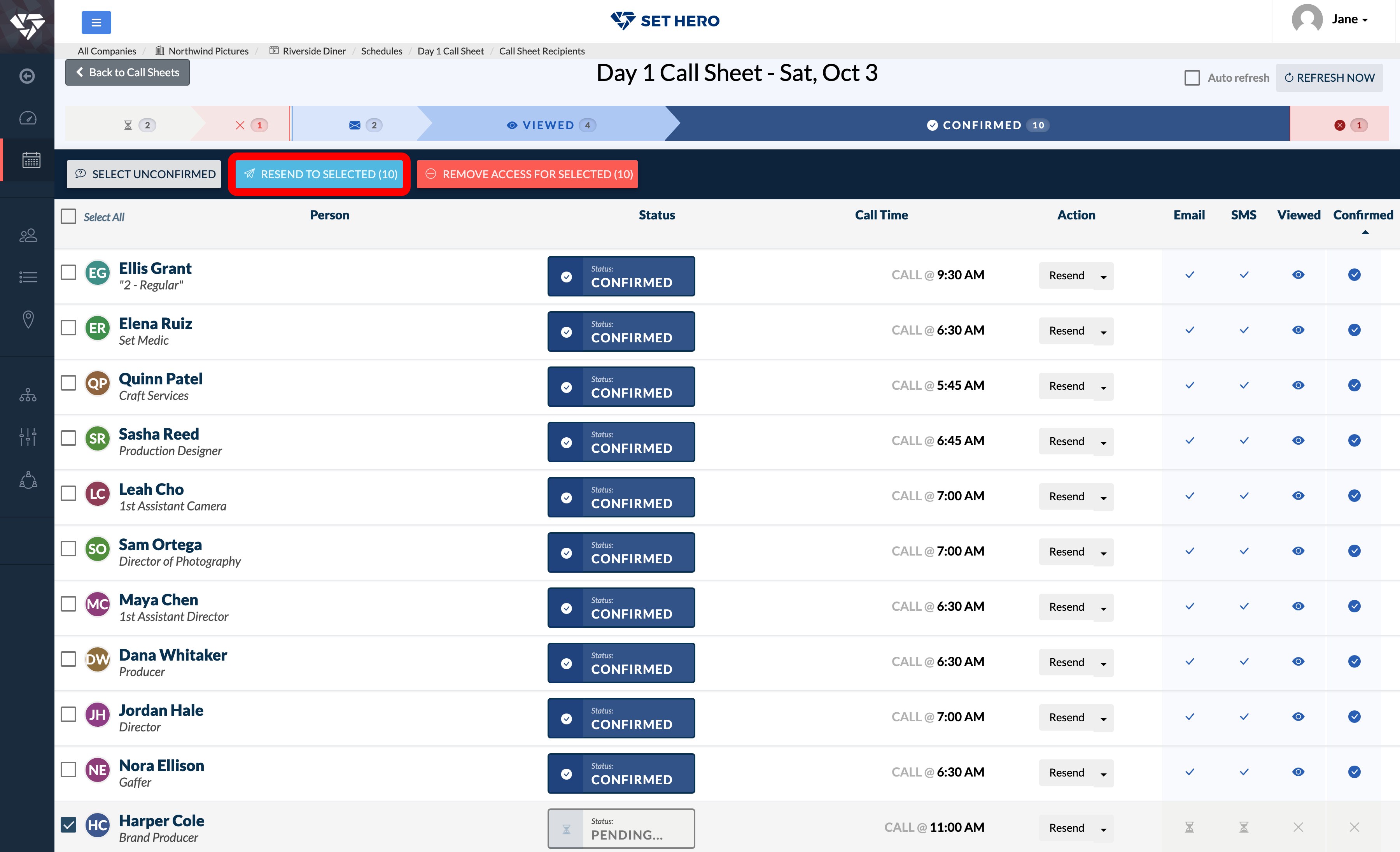
Resending sends another notification. Be sure to remove anyone who shouldn't receive a duplicate email or text. Update or resend a published call sheet walks through the republish options and what each one notifies.
Still stuck?
If the status page is clear, the contact details are correct, and recipients are still showing Pending... or Failed, please contact support in the app or email support@sethero.com.
Please include the project name, call sheet date, and the names of the affected recipients. Support can investigate further and check the detailed provider responses, including carrier rejections that may appear as a shorter error on Track Confirmations.
If you're being contacted by a crew member rather than a coordinator, I got a call sheet: now what? is the page to send them.