Find your project data
Where project data lives and how it updates call sheets
Data holds this project's lists: people, scenes, locations, and departments. The call sheet editor picks from them, so fixing a location address or a scene's page count here updates every sheet that uses that record.
Day-specific details stay on the day. Call times, who's hidden or not called, and which scenes are on today's schedule are set on the sheet itself. How SetHero is organized is the broader map.
Start from the header
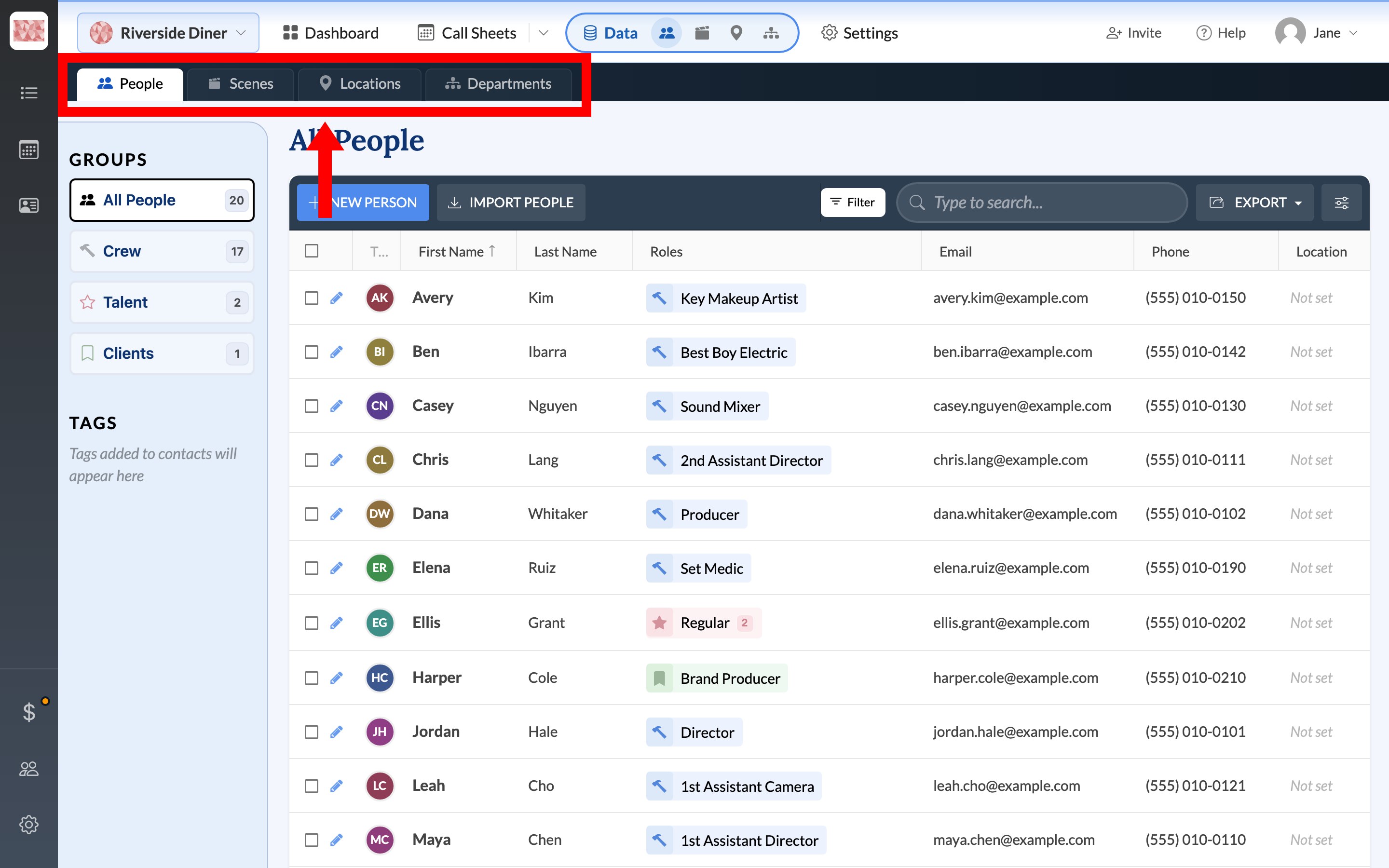
Click Data in the top header. It opens straight to People. Hover Data instead and four shortcuts appear for People, Scenes, Locations, and Departments. Once you're on any of those pages, a row of tabs at the top lets you switch between them.
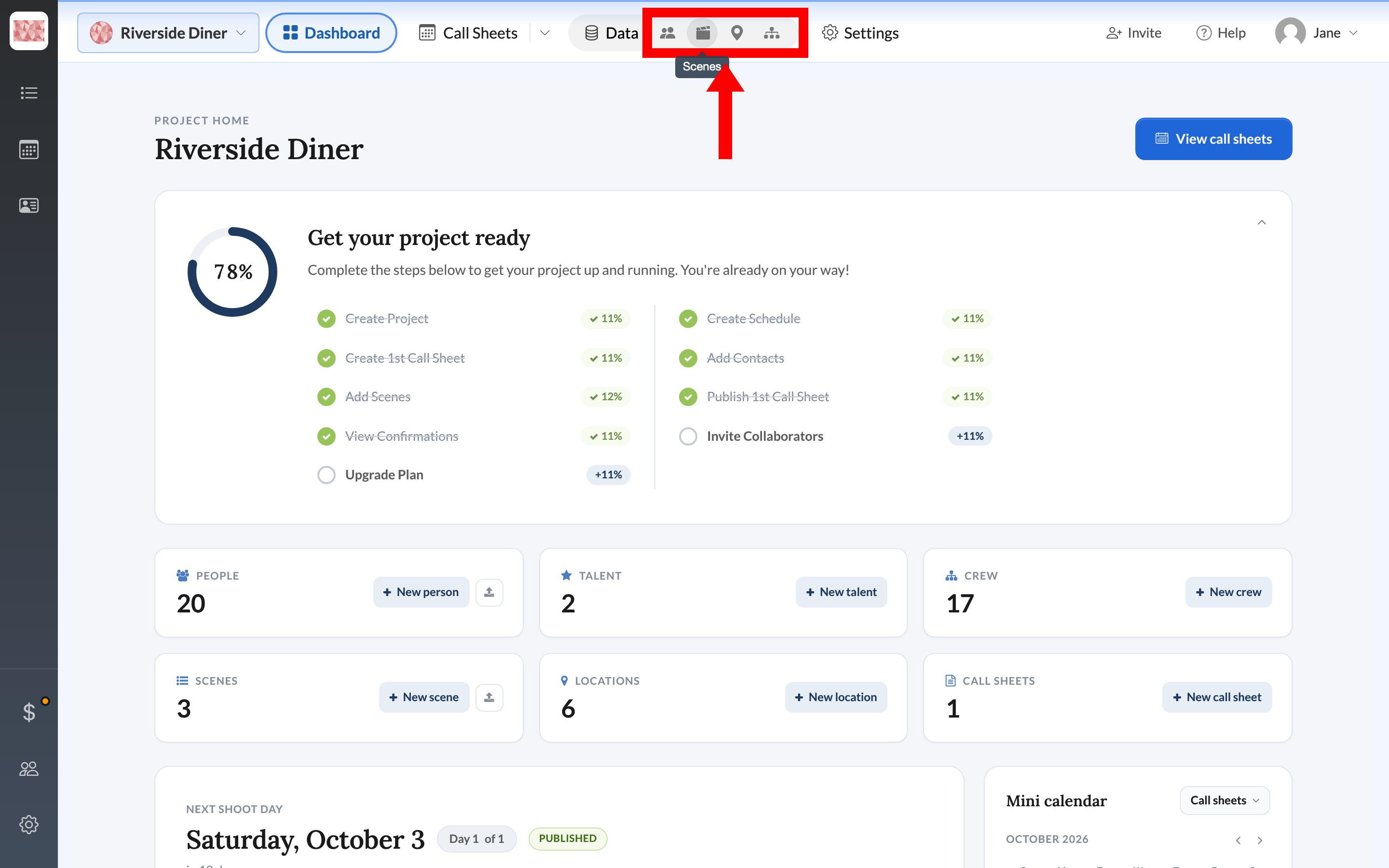
Data is project-only. Company Contacts and See call sheets on the company calendar live on the left rail.
People
You land on All People. GROUPS on the left narrows the grid to Crew, Talent, or Clients. The toolbar has New Person and Import people.
These are company contacts assigned to this project. A person doesn't print on a call sheet until they have a Crew, Talent, or Client role, or you pick them as a key person or set medic in Day Details. Add crew, cast, and other contacts is the full add path.
Name, email, phone, notes, tags, and pay write back to the company contact, so they update on every project that person is on. The Location column here is their home address, not a row on the Locations page.
Scenes
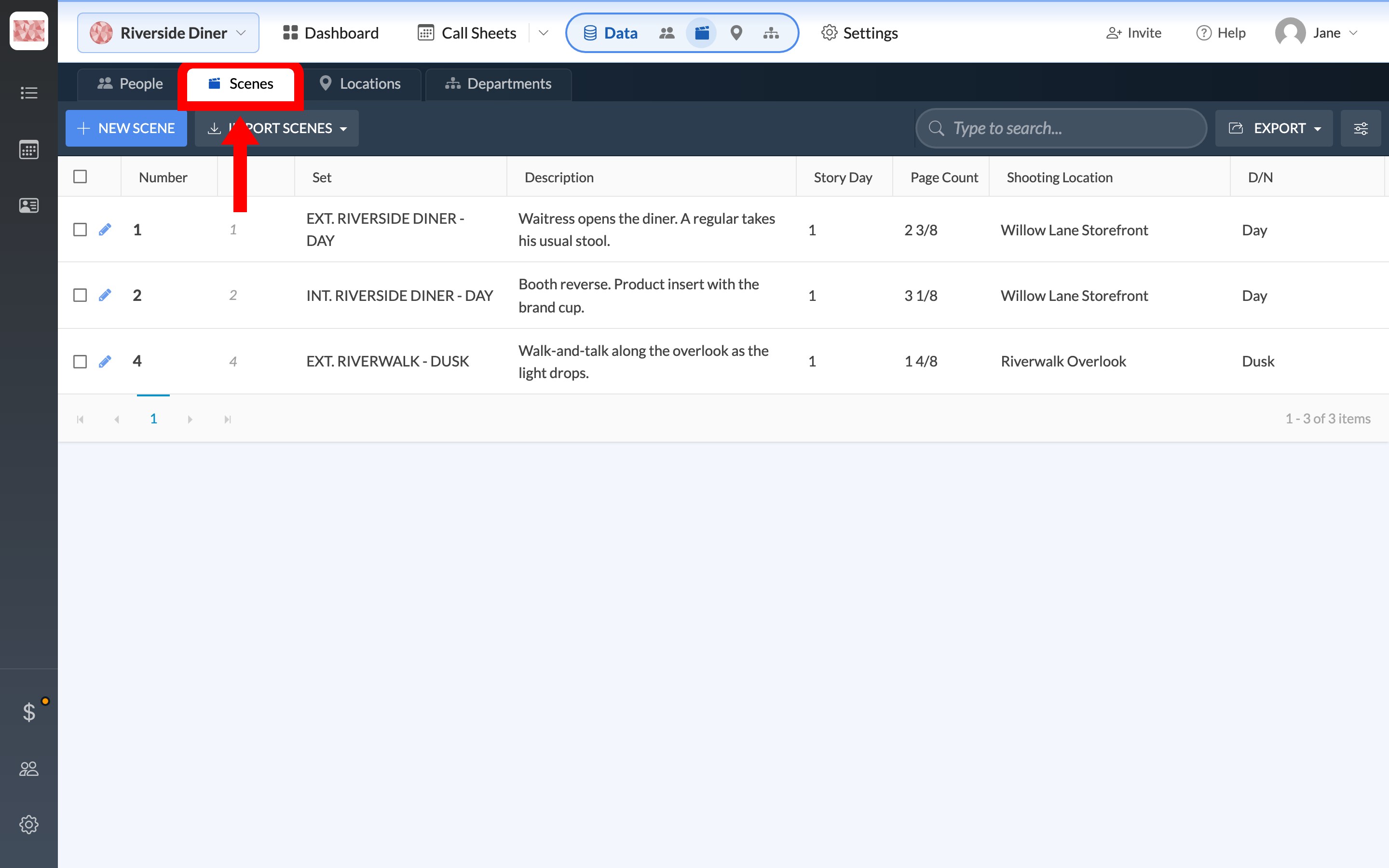
This is the project's scene library: number, set, description, story day, page count, shooting location, D/N, I/E, extras count, and cast. new scene adds to the library but doesn't put the scene on any day.
To get a scene onto a call sheet, use Lookup Scenes or Add Scene in the editor, or select rows here and click Add to Callsheet. Reusing scenes and locations across days is that path, and Scene details (INT/EXT, day/night, page count) covers INT/EXT, day/night, and page count.
Scenes belong to this project only. There's no company scene book.
Locations
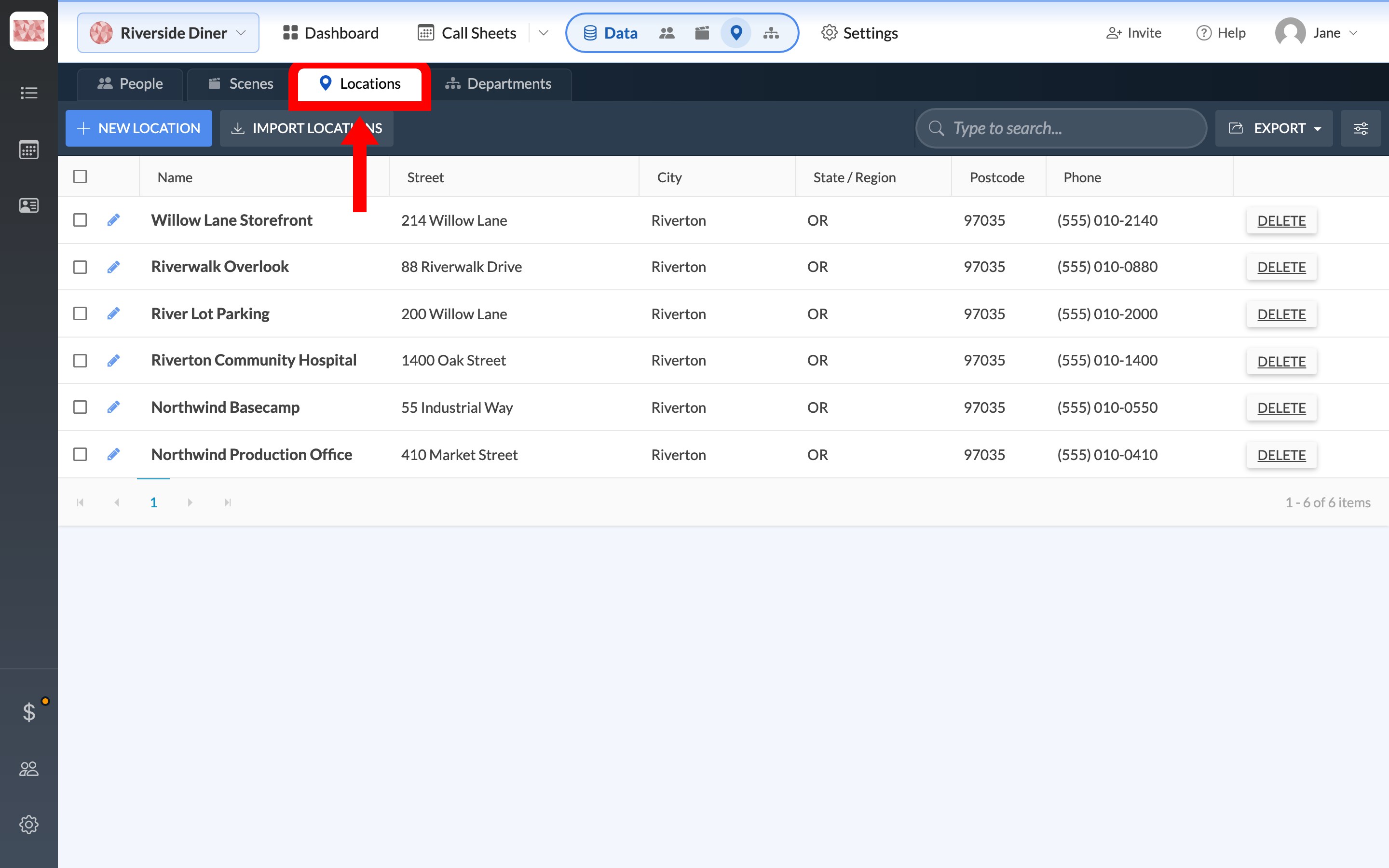
This is the project address book: name, street, city, state or region, postcode, and phone. new location opens the add modal, where you can type an address or use Auto Fill (Google Places). An address isn't required to save.
Hospital, parking, production office, and basecamp are slot names on the call sheet, not location types. This page stores the addresses. Which one sits in the Hospital slot is chosen per day. Locations, parking, and the nearest hospital shows how to choose it in Day Details.
Change a location's street or map link here and every slot and scene pointing at it updates. Locations belong to this project only.
Departments
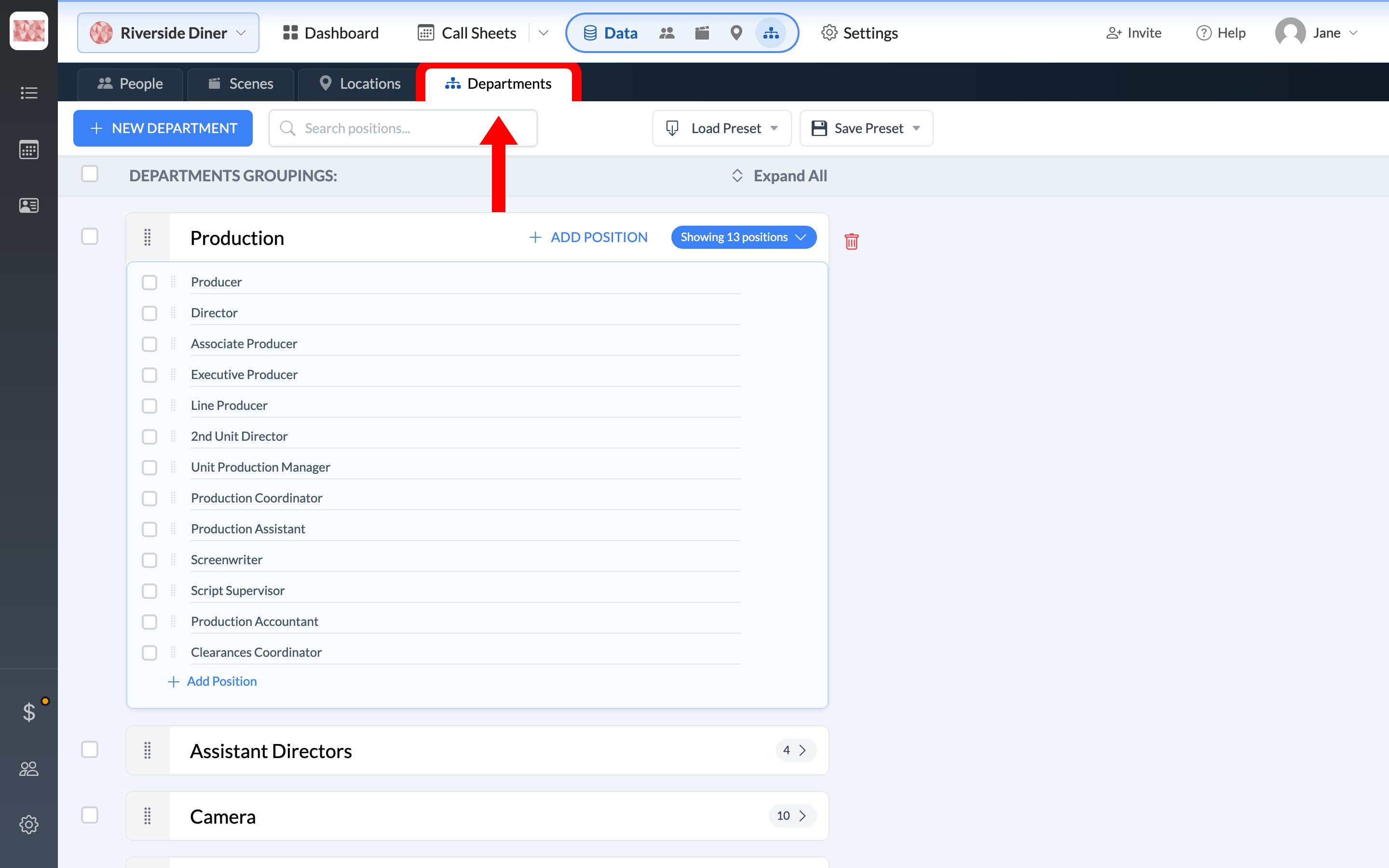
This is the structure of your crew list: departments, then positions. New Department and Add Position edit the list. Drag to reorder. That order is the crew-list order on call sheets.
Important: Load Preset replaces this project's departments and positions with the company preset and can clear existing crew-role assignments. Use Save Preset first to keep the current setup.
Settings → Departments is this same page. Set up departments and positions is the full setup. Departments belong to the project. Presets belong to the company.